What's new in 8x8 Work for Mobile 12.13 release?
In this release of 8x8 Work for Mobile, we have introduced the following enhancement.
Fax sending from mobile app
You can now send faxes to 8x8 users, contacts, and external numbers directly from 8x8 Work for Mobile, without switching over to your desktop.
Benefits
Fax on the go: Send faxes from your mobile device without switching to your desktop.
Stay informed: Enable email notifications to see whether your fax succeeded or failed.
Custom cover pages: Personalize your cover page, or attach a fully custom one you created elsewhere.
To send a fax:
Go to Calls > Faxes to open your list of faxes.
Tap Send a fax to start a new fax.
On the New fax screen, enter the fax recipients.
Optional: Tap the Cover field to add a cover page. To learn more, see Customizse the fax cover page.
Enter a subject for the fax.
Attach the files you want to send (PDF, DOC, PNG or JPG, up to 19 MB per file).
Tap Send.
If you enabled email notifications for fax, you will also receive an email telling you whether your fax was sent successfully or failed.
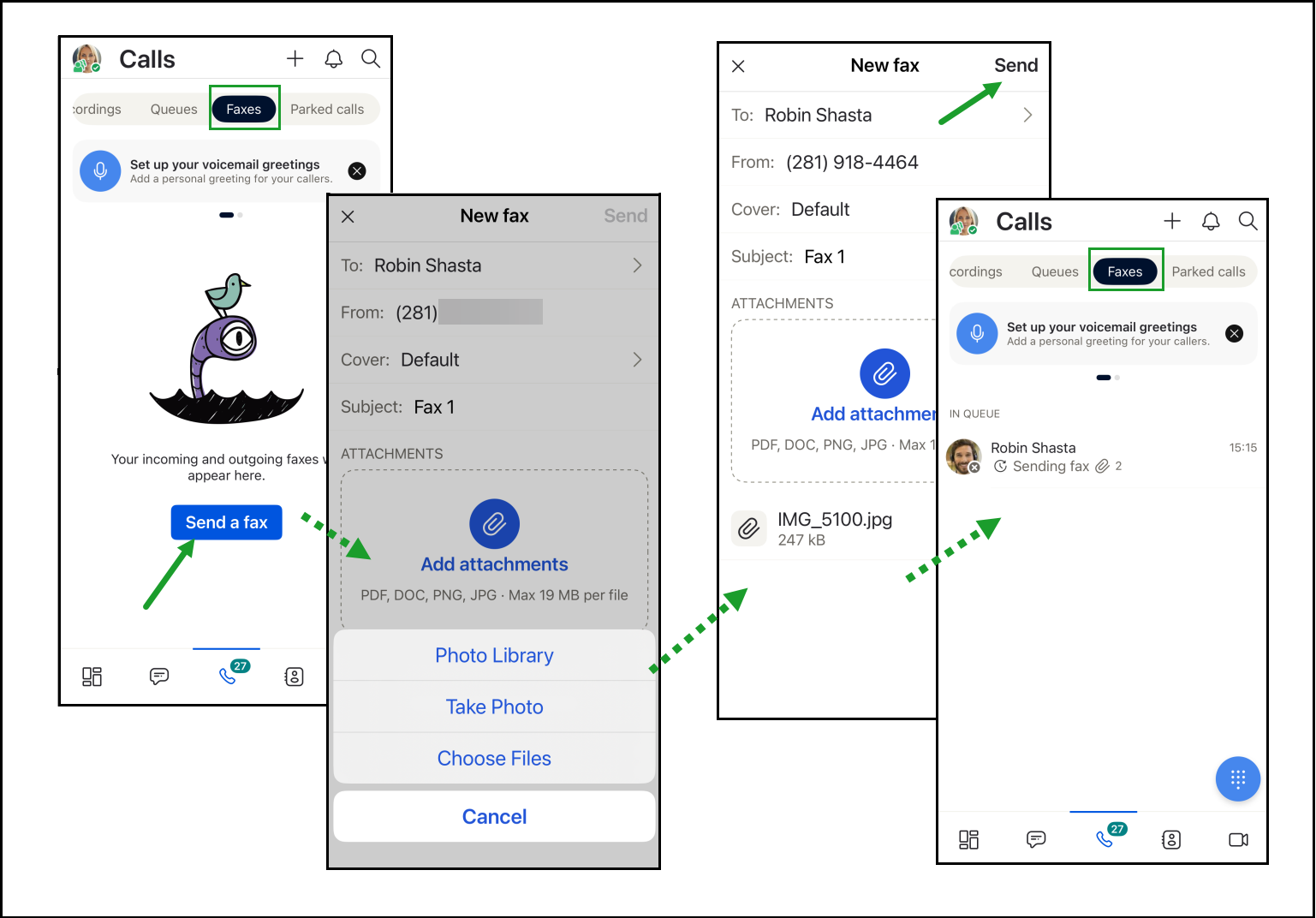
Walks through sending a fax on iOS: open the Faxes tab, start a new fax, attach a file, and tap Send to queue it for delivery
Customize the fax cover page
While creating a new fax, tap the Cover field to open the cover page details.
In the cover page details, enter the recipient name and write a note to preface the fax.
Tap Save when finished.
Note:
For a more heavily customized cover page, detach the default cover sheet before sending your fax. Create your own cover sheet in your preferred word processing application, save it, and attach it as the first file in your fax so it serves as the cover page.
To learn more, see About faxes.

Choose a cover page layout, enter the recipient's name, and write a fax note, then tap Save to apply it
What's new in 8x8 Work for Mobile 12.12 release?
In this release of 8x8 Work for Mobile, we have introduced the following enhancements:
Voicemail greetings
You can now manage separate voicemail greetings for external and internal callers directly from Settings > Voicemail on 8x8 Work for Mobile.
External voicemail greeting: Played for people outside the company. If no custom greeting is set, the default audio greeting is played.
Internal voicemail greeting: Played for people inside the company. If no custom greeting is set, the default audio greeting is played.
Note:
The default greeting (for example, "You have reached the voicemail of...") is also used to identify targets in the Auto Attendant's dial-by-company-directory feature.Your content goes here.
Benefits
Personalized caller experience: Customize greetings for different situations, such as separate messages for external callers, internal colleagues, or specific greetings like "busy," "in meeting," or "out of office."
You can create new voicemail greetings or delete unnecessary ones, and select which custom greeting to play.
To learn more, see About voicemail greetings.
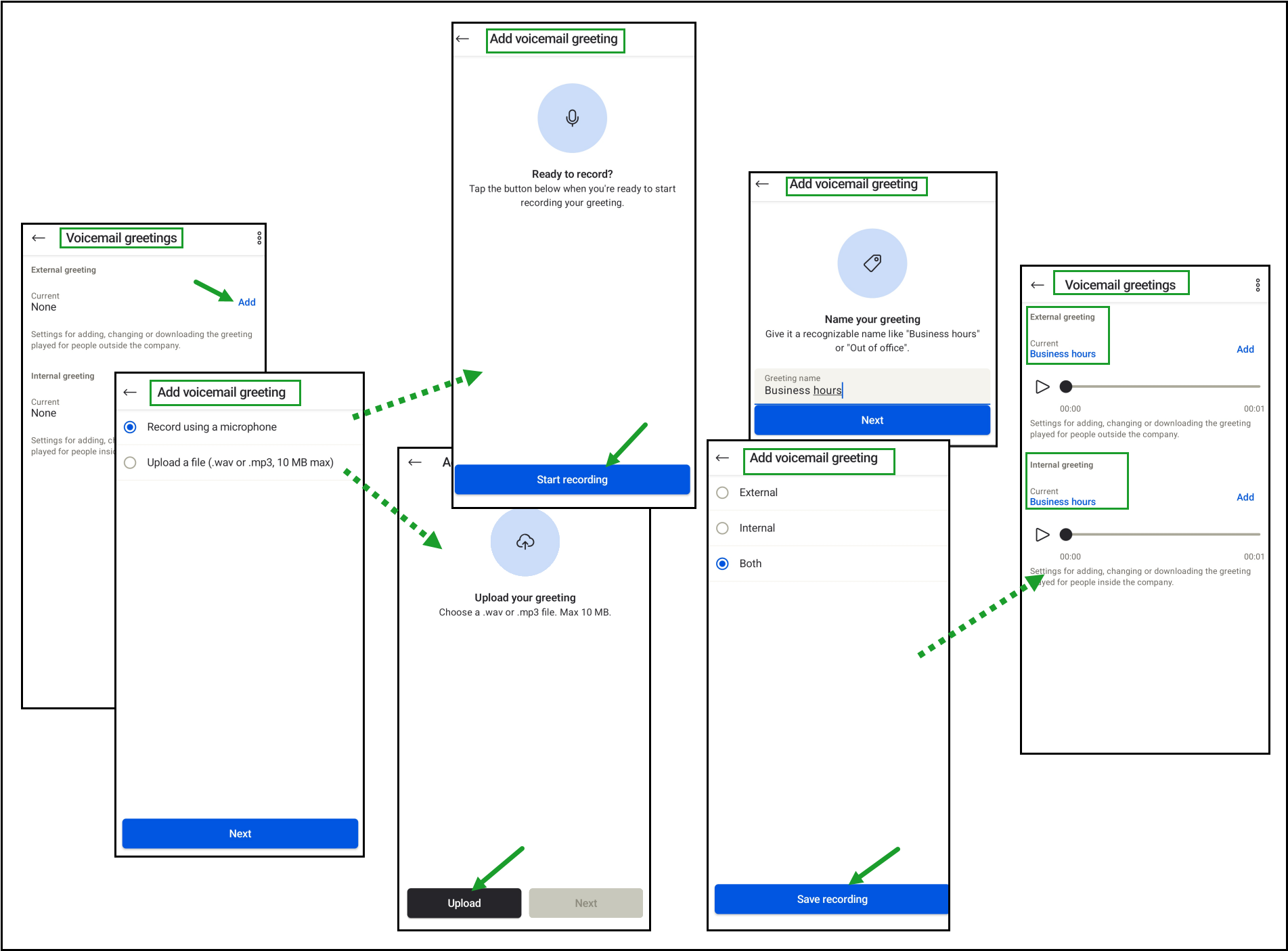
Record or upload a voicemail greeting, name it, and choose whether it plays for external calls, internal calls, or both
Fax sending from mobile app
You can now send faxes to 8x8 users, contacts, and external numbers directly from 8x8 Work for Mobile, without switching over to your desktop.
Benefits
Fax on the go: Send faxes from your mobile device without switching to your desktop.
Stay informed: Enable email notifications to see whether your fax succeeded or failed.
Custom cover pages: Personalize your cover page, or attach a fully custom one you created elsewhere.
To send a fax:
Go to Calls > Faxes to open your list of faxes.
Tap Send a fax to start a new fax.
On the New fax screen, enter the fax recipients.
Optional: Tap the Cover field to add a cover page. To learn more, see Customizse the fax cover page.
Enter a subject for the fax.
Attach the files you want to send (PDF, DOC, PNG or JPG, up to 19 MB per file).
Tap Send.
If you enabled email notifications for fax, you will also receive an email telling you whether your fax was sent successfully or failed.
Walks through sending a fax on iOS: open the Faxes tab, start a new fax, attach a file, and tap Send to queue it for delivery
Customize the fax cover page
While creating a new fax, tap the Cover field to open the cover page details.
In the cover page details, enter the recipient name and write a note to preface the fax.
Tap Save when finished.
Note:
For a more heavily customized cover page, detach the default cover sheet before sending your fax. Create your own cover sheet in your preferred word processing application, save it, and attach it as the first file in your fax so it serves as the cover page.
To learn more, see About faxes.
Choose a cover page layout, enter the recipient's name, and write a fax note, then tap Save to apply it
8x8 Engage company caller ID
As an 8x8 user, you can now present a Contact Center channel as a company caller ID when making outbound calls, rather than your personal work number.
Before you place a call, choose from your assigned Contact Center outbound queues. When you select a company call line ID, dialing out is a two-step process:
Enter the number and start the call.
Answer the incoming call you receive.
After you answer, the system dials the number you entered and the other person's phone rings. The called party sees the company number configured by your administrator for your profile in Configuration Manager.
The selected queue is used for reporting in 8x8 Analytics for Contact Center and the Contact Center channel admin-controlled User profile as the outbound caller ID.
Note:
Your administrator cannot enforce which queue you use for outbound calls. You must select your own queue in the app.
The Select Caller ID list updates in real time. If your administrator assigns or removes a queue, the change appears immediately. If your selected queue is removed, your caller ID falls back to your default identity.
Note:
Even with an outbound queue selected, calls to corporate contacts (extension, DID, or other) go out as standard calls from your personal work number.
To change your caller ID on mobile:
Before you place a call, click your profile avatar.
Choose a Contact Center outbound queue from either:
The Select Caller ID drop-down list in your profile, or
The dialpad, if Display Caller ID is toggled on in the Call Settings section of your profile.
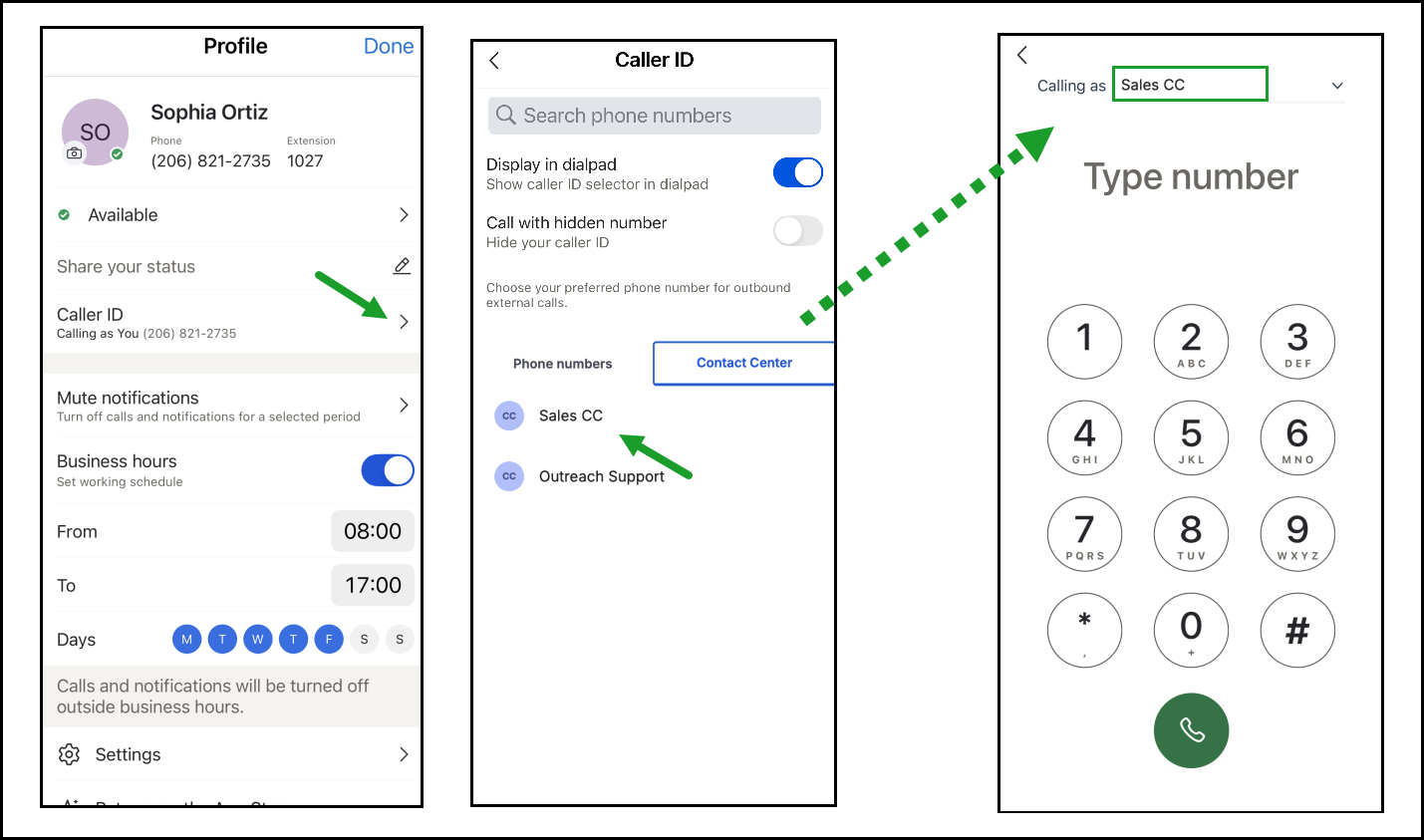
Select a Contact Center queue as your outbound Caller ID in 8x8 Engage. Use this to call customers as a queue identity rather than your personal number
Make the call.
Answer the incoming call in 8x8 Engage.
The system dials out to the destination number. After the callee accepts the call, you can use the options available on the dial pad.
To learn more about managing queues on mobile, see 8×8 Engage: Manage queues on mobile.
Calling Line ID for outbound calls
The Calling Line ID is set per user in Configuration Manager > Users. As an admin, select the user, assign the caller ID, and the assigned caller ID shows up when the agent places an outbound call using the company identity.
The selected caller ID applies to all queues assigned to that user. Selecting a queue does not change which number is presented; queue selection only adds granularity to reporting in Analytics for Contact Center.
Administrators cannot enforce which queue you use for outbound calls. Users must select the queue in the app.
While you are on an active queue call, you can’t place a second call using your company identity. You can still call using your personal work number.
Auto-answer for outbound calls is currently not supported. When placing a call using the company caller ID, you must answer the incoming call from the system immediately to connect to the caller.
To learn more about configuring users in 8x8 Configuration Manager, see 8x8 Configuration Manager - Add Users: Configure Phone Settings and 8x8 Configuration Manager Add Users: Assign agents to queues.
Channel plan switching in 8x8 Mobile Admin
As an administrator, you can now switch to an alternate routing plan for your Contact Center directly from 8x8 Mobile Admin. This capability ensures operational continuity during emergencies or outages, functioning independently of 8x8 Admin Console, the Cloud8 gateway (8x8's cloud routing infrastructure), and Single Sign-On. Your call routing follows the channel plan rules defined in 8x8 Admin Console
Routing plans are initially configured in 8x8 Admin Console, allowing you to switch seamlessly between primary and alternate configurations directly from your mobile device. In 8x8 Mobile Admin, you can switch between the primary and alternate plans, but you cannot create or edit them.
Benefits
Mobile-resilient emergency rerouting: Activate an alternate channel plan from your mobile device even when 8x8 Admin Console, the Cloud8 gateway, or Single Sign-On is unavailable, so you can respond to an incident on the go.
Targeted plan switching with full control: Scope each switch to the tenant or region you want, confirm before it takes effect, and reset the Contact Center to its initial state at any time.
Emergency shutdown of queues: Use an alternate plan to shut down all queues in a single, confirmed action and route incoming interactions to an external contact center for scenarios such as a fire alarm or a building evacuation.
Channel-level visibility: Review each voice channel for a plan, including its routing destination, and retry any channels that fail to switch.
Admin-only access: The feature is available only to users configured as administrators in 8x8 Admin Console.
Each channel plan activation uses the Slide to activate plan control, followed by an explicit confirmation step that prevents accidental changes. You can revert to the primary plan at any time.
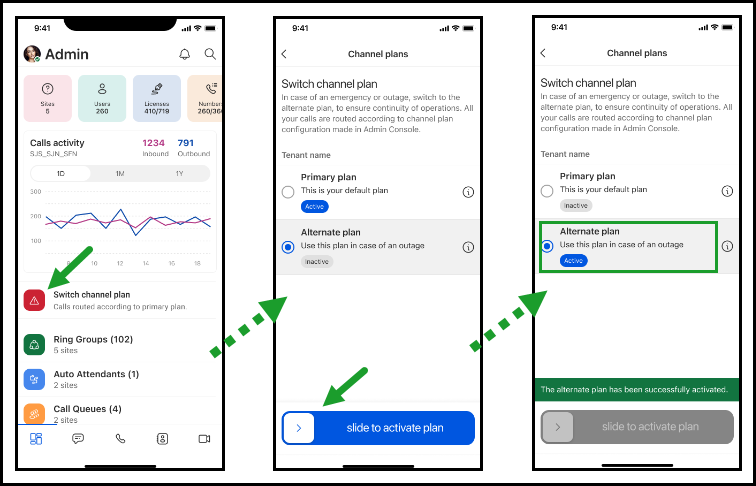
Activate an alternate channel plan in the 8x8 Mobile Admin app to reroute calls during an outage or emergency. Sliding to activate switches routing from the primary plan to the alternate plan immediately
In multi-tenant setups, select the target tenant or region in 8x8 Mobile Admin before you activate a plan.

Select a tenant and activate an alternate channel plan in the 8x8 Mobile Admin app to reroute calls during an outage or emergency. Use this when managing multiple tenants that require independent channel plan switching
Review each voice channel for a plan, including its routing destination, and retry any channels that fail to switch.
To learn more, see Switch a channel plan in 8x8 Mobile Admin.
Previous releases
The following features and enhancements were introduced in previous versions of 8x8 Work for Mobile (formerly known as the Virtual Office mobile app).
Release 12.11
This release includes minor user experience enhancements alongside various small bug fixes.
Release 12.10
This release includes minor user experience enhancements and various small bug fixes.
Release 12.9
Pin messages for easy reference
Pin important messages in a conversation so everyone can find them again quickly. Pinned messages are shared across all participants and remain visible until unpinned in a dedicated side panel. To open the panel, tap Pinned messages at the top of the conversation.
You can pin messages containing text, links, or files. Anyone in the conversation can pin and unpin messages at any time.
To learn more, see How do I pin messages in a conversation.
Pin conversations for quick access
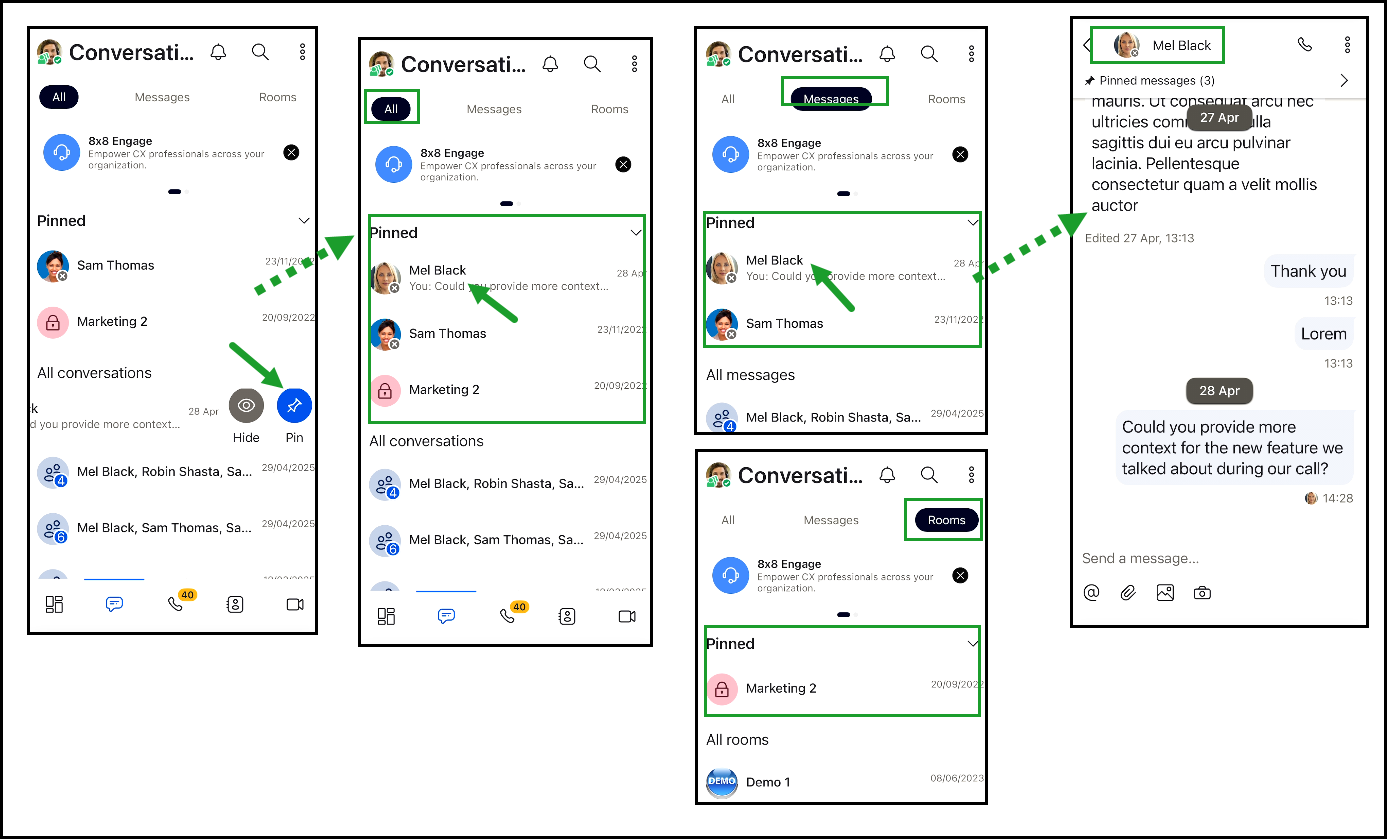
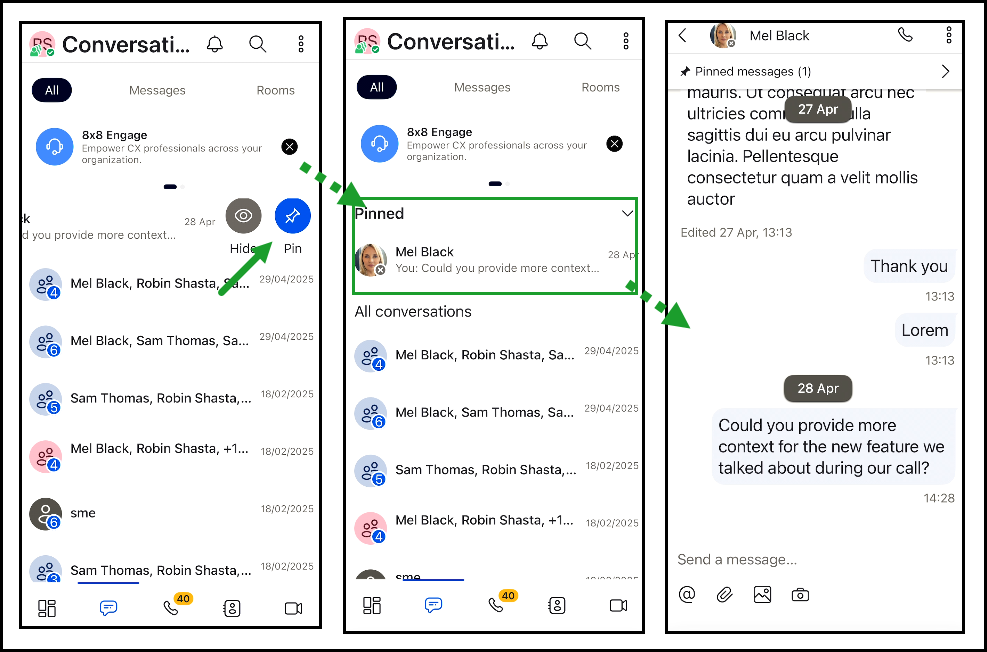
You can now pin your most important chats and rooms to the top of your Conversations list in a new Pinned section. This works across the All, Messages and Rooms tabs. Unread pinned conversations show up first, and your pins are kept in sync across all your devices.
To learn more, see How do I pin conversations for quick access.
Save private messages for later
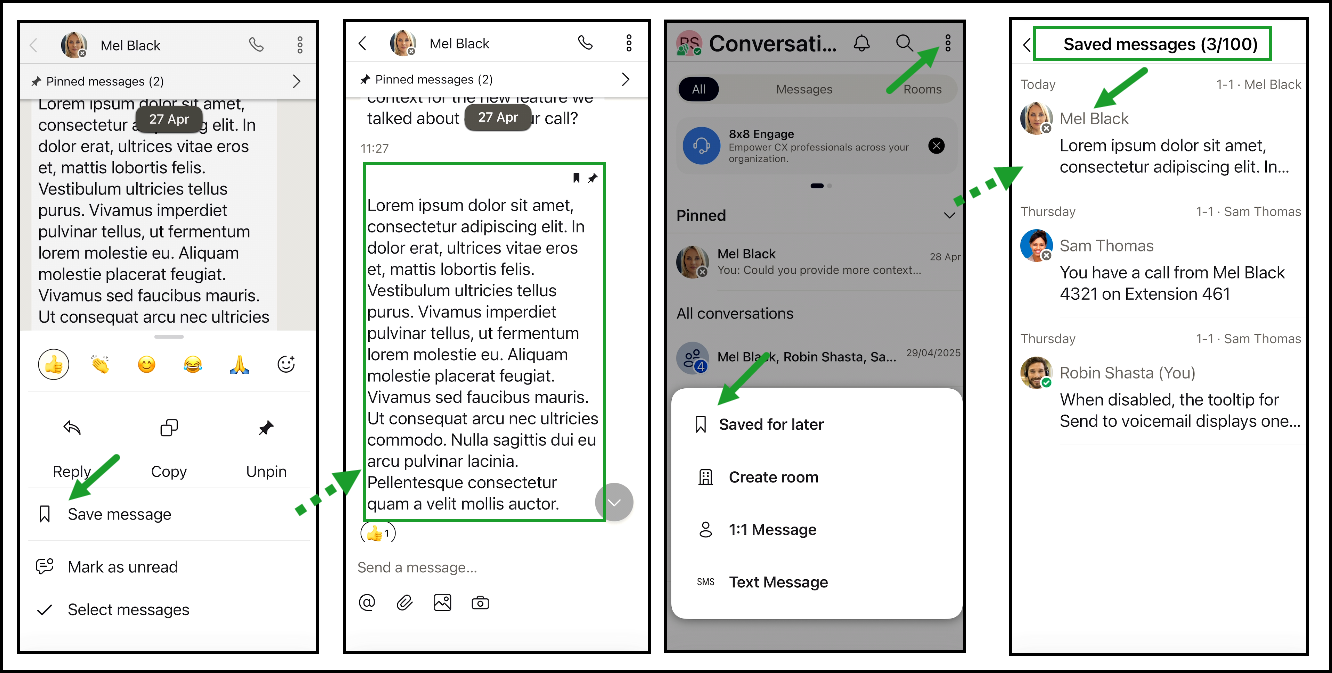
Bookmark any message privately to revisit it when you are ready. Saved messages are visible only to you and stay in sync across all your devices in real time.
Find them by tapping Saved messages  in the right corner of the Conversations panel. Saved messages are highlighted in the conversation for easy reference.
You can save up to 100 messages across all conversation types. Your saved messages sync across all your devices in real time.
To learn more, see How do I save private messages for later.
Express yourself with message reactions
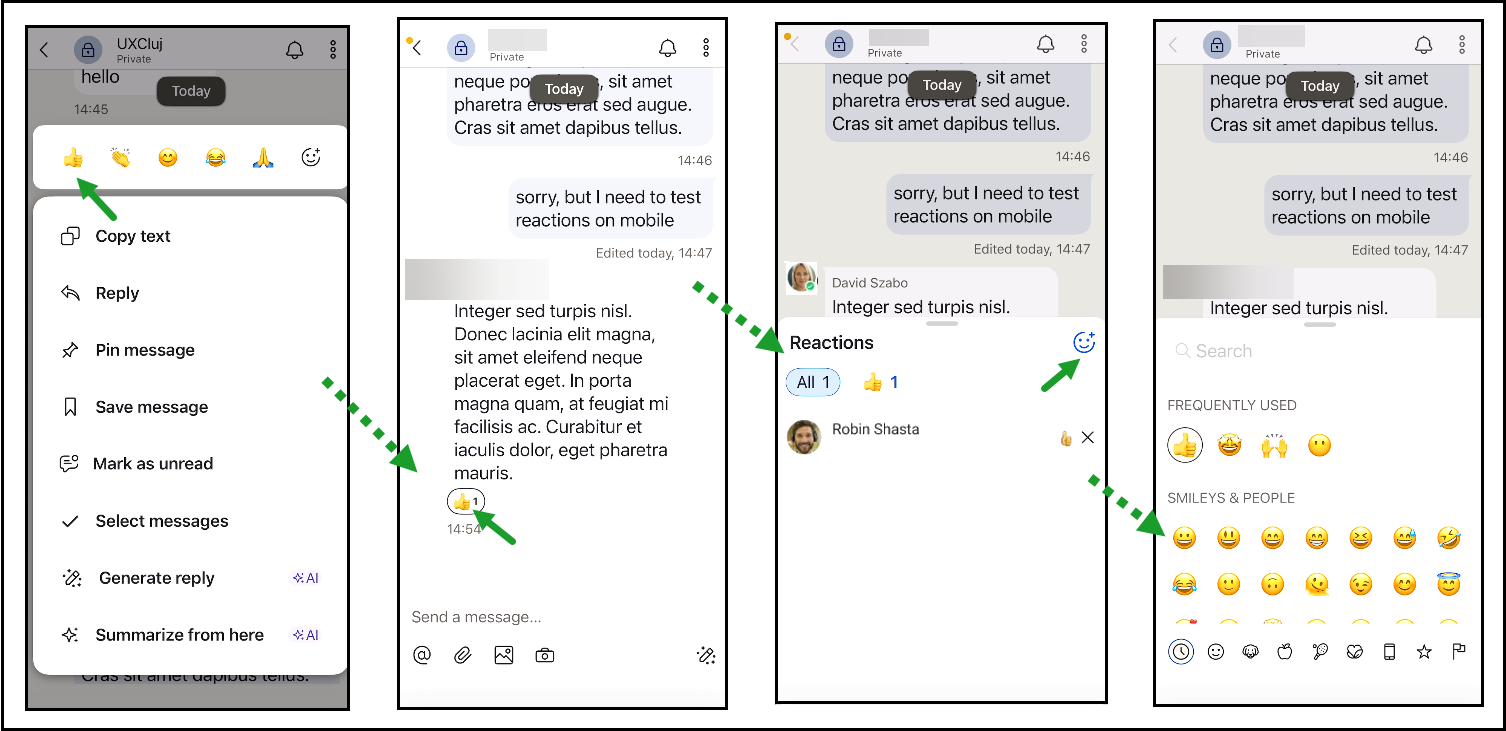
Quickly react to any message with an emoji using a single tap. Choose from your most-used emojis or open the full emoji picker. You can add one active reaction per message and modify or remove it at any time. Reactions are visible to everyone in the conversation.
To learn more, see How do I react to messages with emojis.
Release 12.8
Liquid Glass interface update
The new Liquid Glass interface is now available on iOS, delivering a refreshed and modern mobile experience.
Bug fixes
General stability improvements and issue resolutions.
Release 12.7
We’ve added a powerful new call transcription feature and made further accessibility enhancements.
Easily read your call recordings with transcriptions
You can now view and download transcriptions of recorded calls directly in the mobile app. This feature improves accessibility and enables faster, quieter review of call content—no need to play the recording.
Highlights
Provides users with searchable, shareable transcripts of recorded calls.
Improves conversation review and compliance workflows.
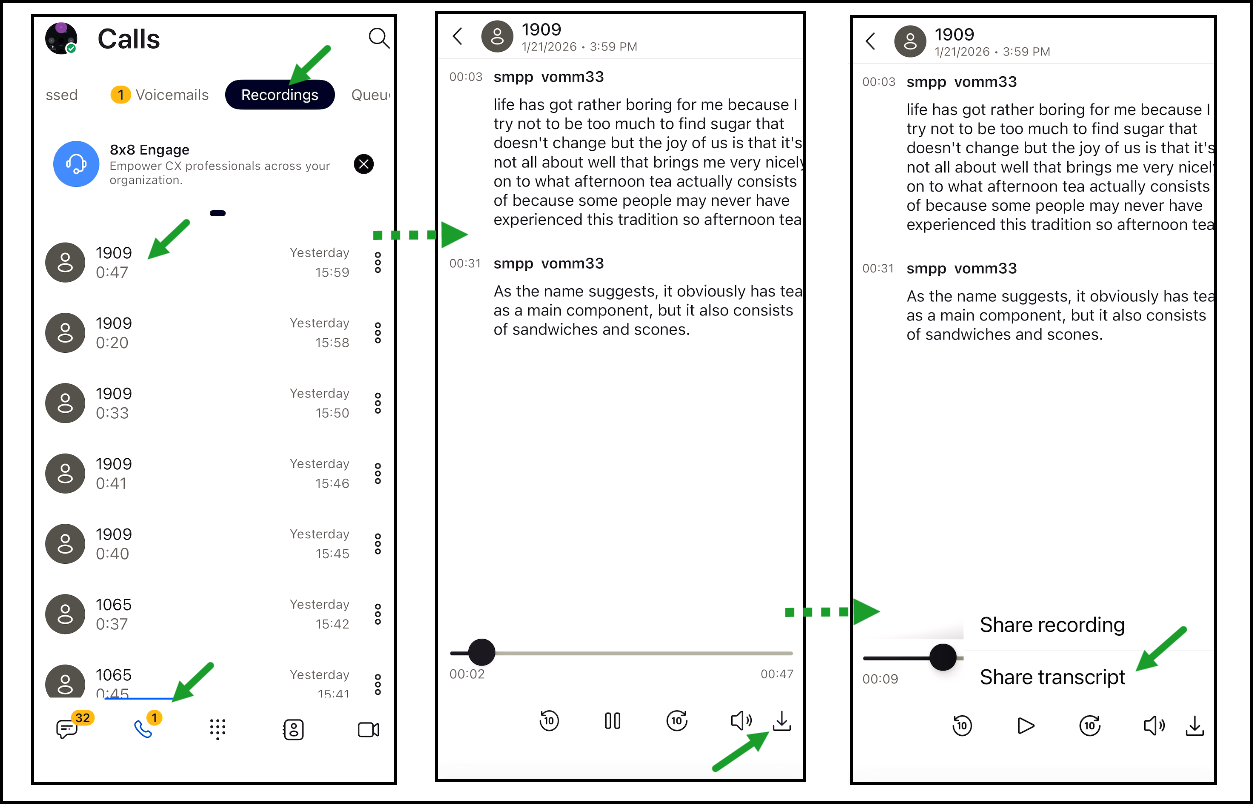
How to access call transcriptions
Log in to 8x8 Work for Mobile.
Tap Calls
 .
.In your Calls
list , go to Recordings.Tap the desired call recording from the list.
The transcript displays with playback controls.
At the bottom of the screen, tap Download
 , then choose:
Share Transcript to save the text locally.
(Optional) Share Recording-to download the audio file.
For more details on call recording transcripts, see How can I read and save transcripts of recorded calls?
Accessibility Improvements
This release includes enhancements for a more inclusive experience:
Improved screen reader support
Higher visual contrast
Clearer navigation structure
Bug fixes
General stability, reliability and performance updates
Applies to both Android and iOS
Release 12.5
The 12.5 release introduces new enhancements across AI, search, accessibility, user experience, and meetings—designed to deliver a smoother, smarter, and more accessible mobile experience.
New digital and voice blended experience for 8x8 Engage (iOS - Limited Availability)
Important!
The digital channels feature is currently in a Limited Availability (LA) basis, restricted to approved customers only. To request activation or for further details, contact workapps-team@8x8.com..
The new Digital Blended interface brings voice and digital channels together in one unified workspace in the 8x8 Work for Mobile app for iOS.
Users with 8x8 Engage Voice and Digital entitlements can now manage all interactions (voice, WhatsApp, Facebook Messenger, WebChat, and ChatAPI) directly from a single screen.
Highlights
Unified Interactions view (My Inbox and History) with all digital and voice conversations in one place.
Modernized UI with quick navigation to queues, interactions, calls, contacts, and settings
Support for WhatsApp, Facebook Messenger, WebChat, ChatAPI
Digital interactions fully supported for customers with an 8x8 Engage Digital license
Enhancements
Push Notifications: Alerts for new interactions, transfers, and state changes.
Interaction Management: Improved reassignment and filtering for digital interactions.
Digital Share Target: Share Target now shows digital interactions.
Directory Improvements: Contact Center channels are now visible.
Attachment Support: Send/receive attachments across supported digital channels (WhatsApp, Facebook, and WebChat).
Post-Processing Visibility: Shows resolved/reassigned states with inline progress in Interactions
 > My Inbox tab.
Real-time queue updates: Status updates and assignments through Chalet subscriptions.
Enhanced Call Experience: Displays digital channel information during 8x8 Engage voice calls
Additional Updates:
8x8 Engage Digital feature-flag controls
Updated Transfer to Agent icon
Auto-accept logic migrated to CCEB for stability
For detailed information about digital and voice blended, contact workapps-team@8x8.com.
AI enhancements
Localized AI Writing Tools: AI-powered writing suggestions now appear in the device’s local language, enabling clearer and more natural message drafting.
Localized Chat Summaries: AI-generated chat summaries are now provided in the device’s local language, improving readability and comprehension for global users.
Bots in Search
Bots are now included in the mobile search results, providing faster access to AI assistants directly from the search bar.
User interface and experience updates
Updated Avatar component: Visual refinements provide a modernized and more consistent avatar layout across the app.
Liquid Glass app icon: A refreshed, modern variant of the 8x8 Work app icon is now available for iOS devices.
Improved guest join flow: Joining a meeting is now faster and easier for guest participants.
SMS support for Puerto Rico: SMS support for Puerto Rico numbers is now available.
Accessibility improvements
We’ve continued to improve accessibility across the app with enhancements that support:
Better screen reader compatibility.
Higher visual contrast.
Clearer navigation and element hierarchy.
These updates ensure a more inclusive experience for all users.
Bug fixes
This release includes several stability, reliability, and performance enhancements to ensure a smoother daily experience on both iOS and Android.
Release 12.4
This release includes minor user experience enhancements and several bug fixes to improve overall performance and stability,.
Release 12.3
In this release, we have introduced various performance and stability improvements to enhance the overall app experience.
Release 12.2
Detailed views for Supervisor Widgets
Note:
This feature is available exclusively on iOS mobile devices.
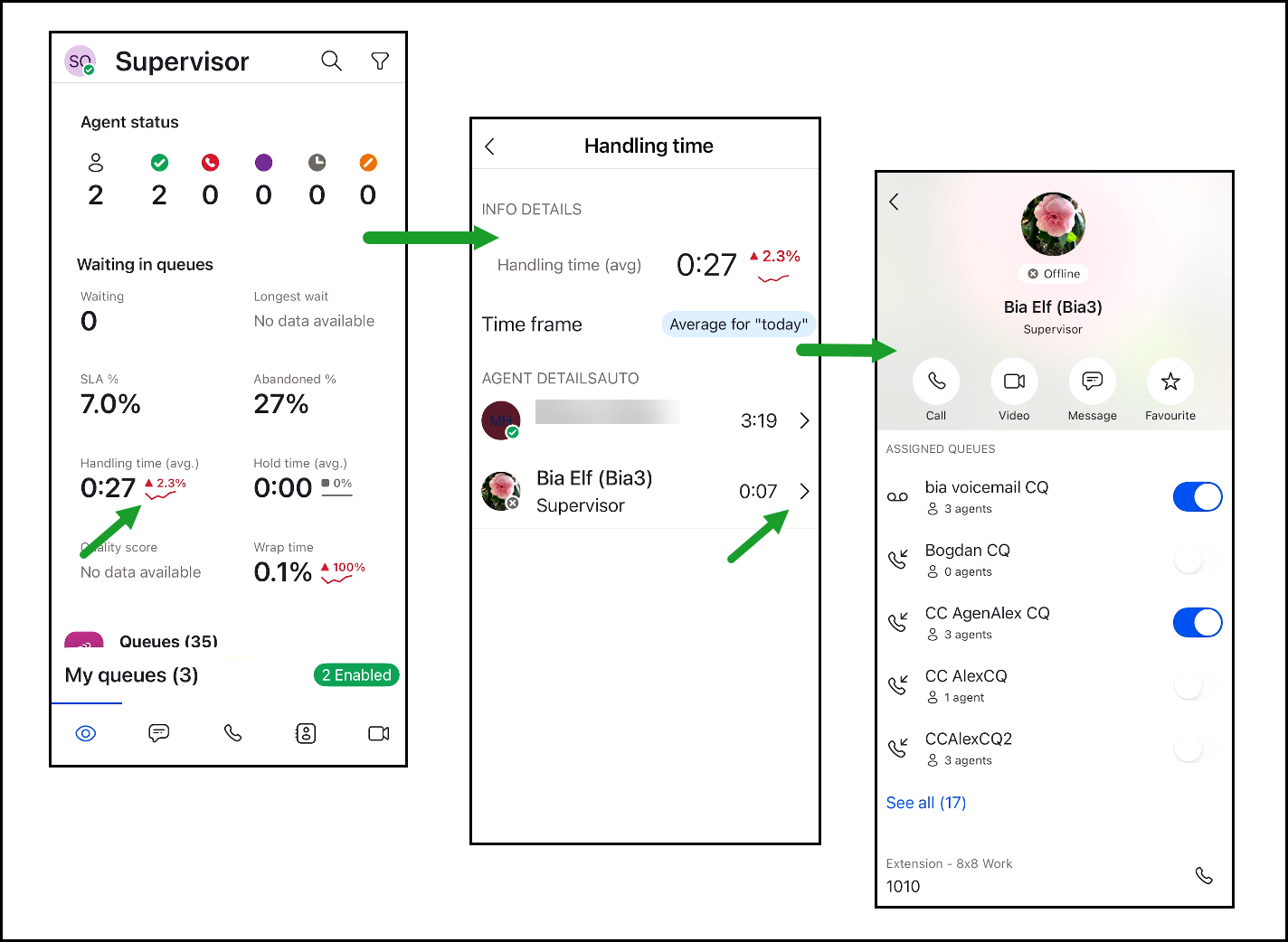
Supervisors using iOS devices can now access detailed information about key performance widgets by tapping them directly in the Supervisor  screen. This enhancement provides actionable insights across agents and queues.
How to view detailed metrics:
Navigate to the Supervisor
screen.Tap a relevant KPI widget.
A dedicated view will open, showing metrics for the current date:
The average metric value at the queue level.
The average metric value at the agent level.
A list of related agents.
Optionally, tap an agent to:
View their details (email address, extension number, site).
Start communication via call, video, or message.
View a list of assigned queues, and enable or disable any queues directly.
These detailed views help supervisors track agent activity and evaluate queue performance more effectively.
To learn more, see 8x8 Supervisor Workspace: About Mobile Supervisors - View widget details on iOS mobile devices.
Accessibility improvements
We have enhanced accessibility in key areas of the app to better support screen readers, improve visual contrast, and streamline navigation.
Updated areas:
Settings
Profile Avatars
Contact Details
Carrier Minutes
Room Creation
User Interface and User Experience improvements
Unified Design: Call queues UI is now aligned with ring groups for a more consistent look and feel.
Improved Interactions : Better handling of warm transfers, blocked numbers, and room views.
Bug fixes
Various performance and stability improvements have been made to enhance the overall app experience.
Release 12.1
Ability to set pause reasons in 8x8 Engage Contact Center queues (Limited Availability)
Important!
The pause reasons in 8x8 Engage Contact Center (CC) queues is currently on a limited availability. Contact the 8x8 Support for further assistance.
Customer engagement specialists can now choose a reason when pausing their Contact Center (CC) queues in 8x8 Engage.
This enhances clarity and workflow visibility for agents employing 8x8 Engage, especially in the areas of analytics or user activity tracking by supervisors.
The following pause reasons are now available:
Work offline
Break
While paused, agents won’t receive queue calls and can’t interact with the queue.
Note:
These options are available in My Queues only when enabled by administrators in the 8x8 Configuration Manager.
How to pause a queue:
Navigate to the My Queues screen.
Tap Pause.
Select a reason: Work offline or Break.
You can switch the reason for the pause whenever necessary.
Tap Resume
 to rejoin queues and start receiving calls again.
To learn more about pausing the Contact Center call queue, see 8x8 Engage - Manage queues on mobile and 8x8 XF Workspace - Manage queues on mobile.

Enhanced profile view behavior
8x8 Work administrators now have more control over user profile customization:
The profile camera
 icon is hidden from users if disabled in Work Apps Settings via the 8x8 Admin Console.
This ensures users cannot change their profile picture unless explicitly allowed.
Note
By default, this setting is enabled. To restrict changes, admins must toggle off Allow users to change their profile picture in the 8x8 Admin Console. For more information, see 8x8 Admin Console - Configure Work Apps Settings.

To learn more about customizing your profile image, see 8x8 Work for Mobile: Get started - How do I upload my profile image?
Other updates and enhancements in version 12.1
Dialpad: Enhanced contrast for better accessibility.
Meeting features: Dynamically enabled or disabled based on license capabilities
Accessibility enhancements:
iOS: In-call options, message list, global search, new room creation, and widget details.
Android: Toolbar navigation, colour contrast, and message selection behaviour.
Includes various bug fixes for better accessibility, stability, and UI consistency across platforms.
Release 12.0
In this release, we introduced the following features:
Rebranding 8x8 Work for Mobile
The new brand identity refreshes the 8x8 Work for Mobile apps, bringing a modern and vibrant experience that reflects the company's commitment to innovation and a customer-centric approach.
Updated colours: A vibrant, diverse palette enhances visual appeal and freshness.

New illustrations: Provide 8x8 Work for Mobile users with a vibrant visual language that enhances their experience, making navigating and understanding features easier.
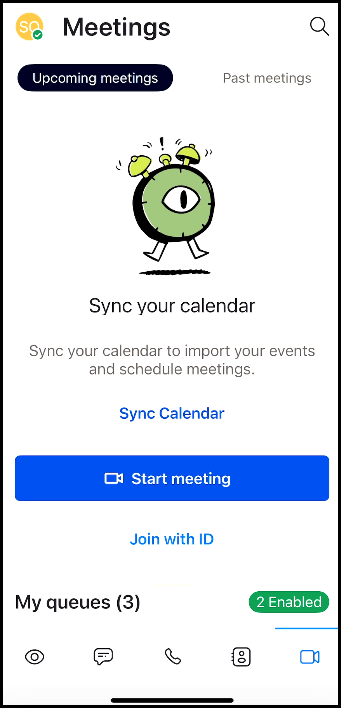
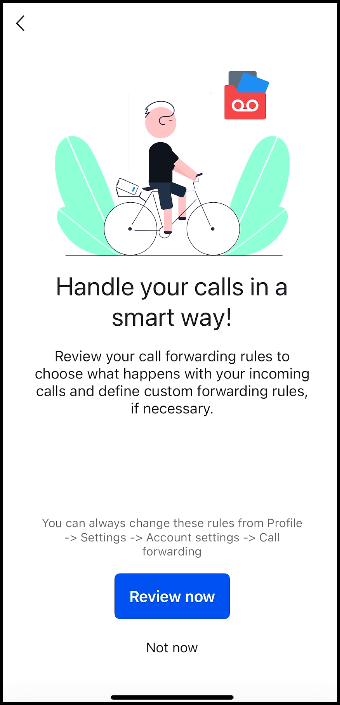
New logo and app icon: These have been redesigned to reflect the evolution of the 8x8 brand.

The same great features now accompany a brand-new aesthetic, including a completely redesigned and modernized user interface that offers a fresh and enhanced user experience.
Ability to engage customers with Video Elevation in 8x8 Engage call queues (Limited Availability)
Note:
The video elevation feature is currently on a limited availability. Contact the 8x8 Support for further assistance.
Video Elevation, now also available in 8x8 Work for Mobile apps, is an integrated solution for 8x8 Engage users. It enables agents to establish a one-way video connection with customers who require assistance during a call.
Note:
You do not need an SMS configured on your account to use the Video Elevation service on 8x8 Engage or 8x8 XF Workspace.
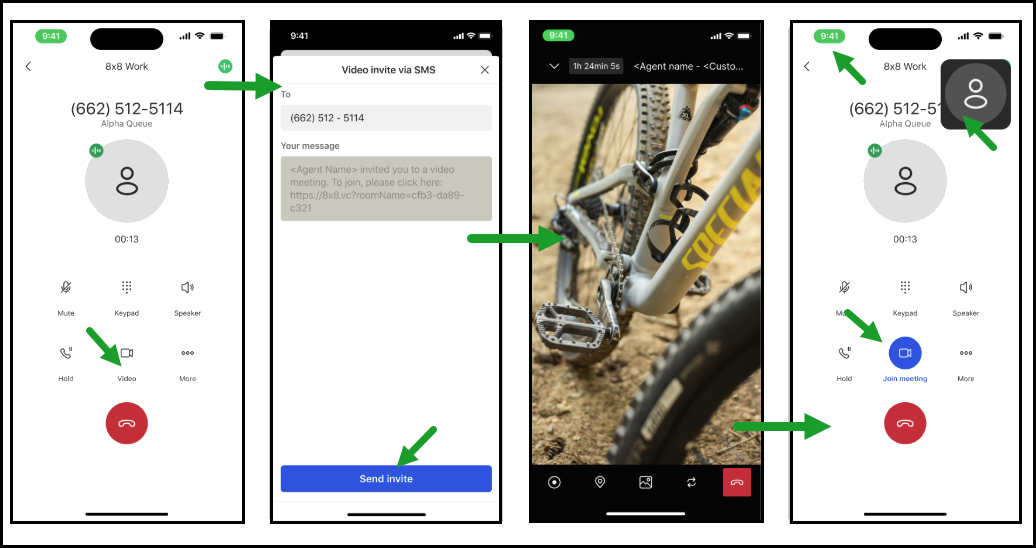
Pat, a support specialist at AcmeJets, receives a call from customer Blake regarding his bicycle's stuck gears. To clarify, Pat initiates a video call and sends Blake a link. Upon acceptance, Blake shows the stuck gear, and Pat identifies a safety pin blocking them. After guiding Blake to remove the pin, the bicycle functions correctly, resolving the issue without the need for expert escalation or dispatching a mechanic.
Features
Video Elevation enables a seamless transition from a phone call to a one-way video interaction with just a few clicks during a call with an external number.
Availability: This feature is exclusive to 8x8 Engage call queues. The Video invite
 button will not appear in regular calls.
Initiating a Video Call: During a queued call with a customer, agents can tap Video invite
to send the customer an SMS with a link to join a video call. This button is only available in 8x8 Engage call queues. In regular calls, the button is not available.Customer Experience: Customers can join the video call by simply accessing the link in the SMS, without needing to install any software.
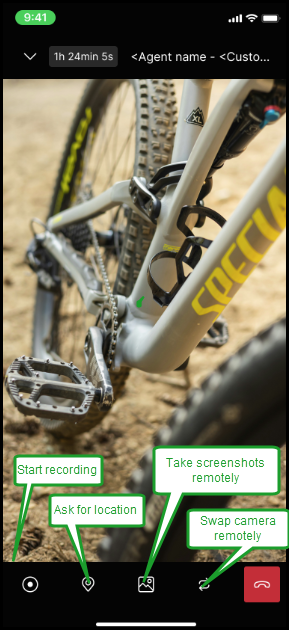
Agent Capabilities: Once the video connection is established, agents can:
Gain visual clarity of the customer's issue.
Gain visual clarity of the customer's issue.
Take screenshots.
Record the video.
Receive the customer's location.
Remotely swap the camera.
Returning to Video: If the video interaction is exited, agents can resume it by tapping the call indicator
 , the video picture-in-picture display
  , or the Join meeting .
 .
.
Limitations
Video Elevation is available only for external inbound and outbound Engage calls.
The customer can view the live video feed that has been shared with them. However, the customer does not see the 8x8 Engage user during the video interaction.
Engage an external contact with Video Elevation during a queued call
During a queued call with a customer, tap Video
to switch your call to a video meeting.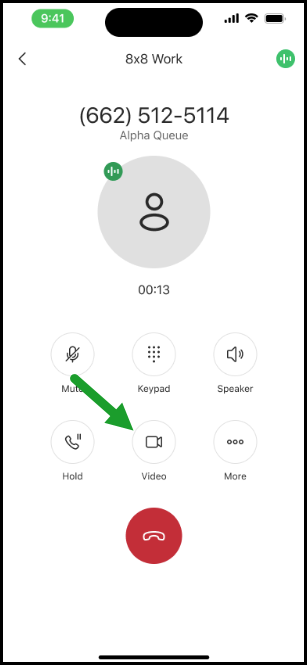
In the Video invite via SMS window, enter the contact number for the video invitation and tap Send invite. Inform the contact that they will receive a link via SMS, which they should click to join the event. Once the customer accesses the link, the call upgrades to a one-way video meeting.
Important!
When you enter the customer’s number, the country code is mandatory.
After establishing the video connection, you have the following options:
Tap Take screenshot remotely
 to capture the customer’s issue. The customer can authorize the user to take screenshots during the call but will not be notified when they are taken.
Tap Swap camera remotely
 to change the camera view and recognize the customer's face. However, this requires the customer's approval before it can be enacted.
Tap Ask for location
 to request the customer’s location details. In response, the customer is prompted to give consent for their information.
Tap Start recording
 to record the video call.
Optional, if you exit the video interaction, you can resume it by tapping the call indicator
, the video picture-in-picture display , or the Join meeting ..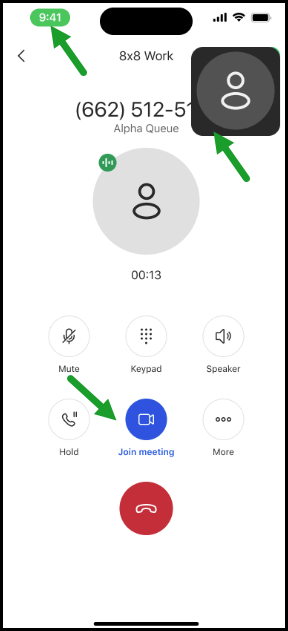
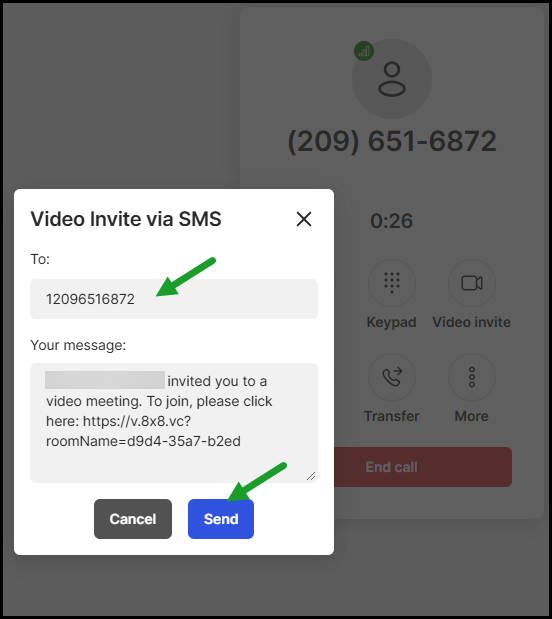
Customer experience while using Video Elevation with an 8x8 Engage/XF Workspace user
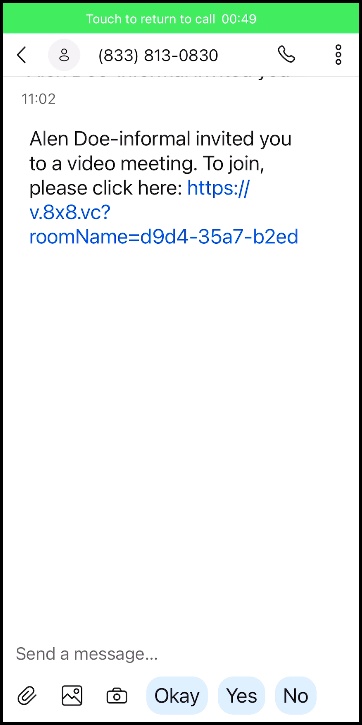
After the agent sends the video invitation, the customer will receive an SMS on their phone that contains the video invitation as a link.
Customers can easily establish a video connection by accessing the link in the SMS without needing to install any software.
Note:
When a video invite is sent from the in-call view of an 8x8 Work for Mobile app, the customer will receive a text message originating from a number with the same country code as their own. However, in the UK and Ireland, the sender identification will appear as Video.
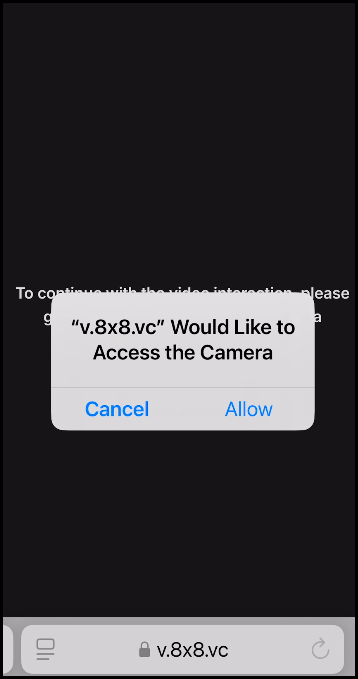
The Video Elevation Meeting window opens in the customer’s browser. Once customers click Allow, they can share the video with the Engage/XF Workspace agent.
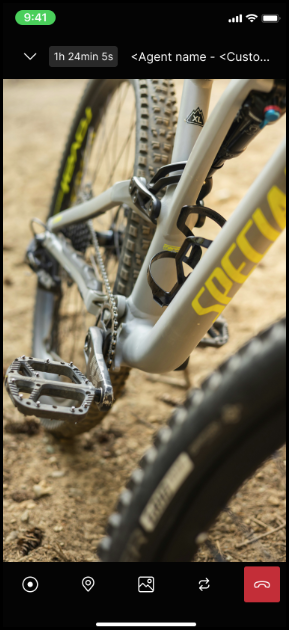
Throughout the call, the customer can allow the XF Workspace users to:
Capture screenshots remotely to identify the customer’s problem. However, the customer will not receive alerts when these screenshots are take.
Change the camera view and identify the customer's face. However, this requires the customer's approval before it can be implemented.
Request the customer’s location details.
Access the video interactions history
Customers can find past video interactions in the Meetings > Past Meetings tab. Video interactions will now appear within the regular meeting list. These video meetings can be easily identified by their unique icon  and title, which sets them apart from other scheduled meetings.
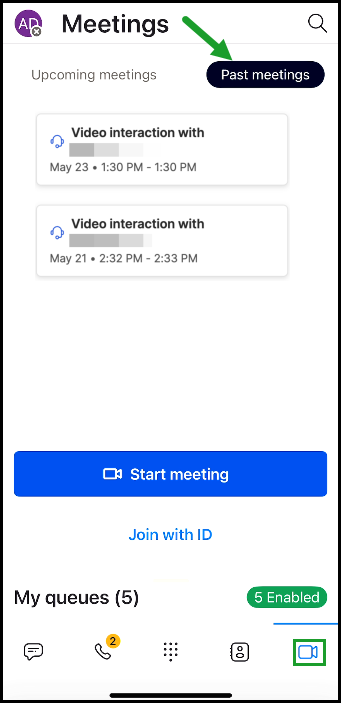
To find more information about initiating and receiving phone calls, refer to About phone calls. You can find the same content under About phone calls > How do I engage customers with Video Elevation in 8x8 Engage call queues?
Ability to create expressive messages using AI-assisted writing tools
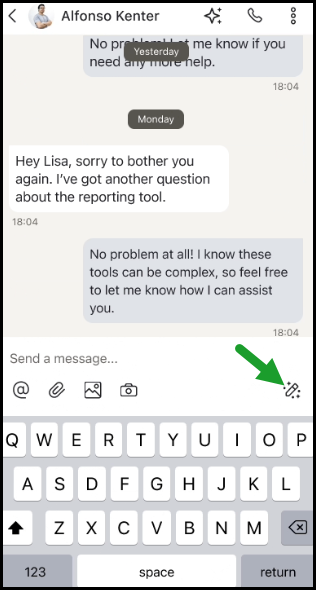
The new AI Writing Tools feature is now integrated throughout the entire chat area, including SMS, IM, and group SMS, allowing users to craft clear and impactful messages.
Note:
All AI-assisted writing tools are disabled by default. Administrators must explicitly enable it in the Work Apps Settings section of the 8x8 Admin Consoleby toggling on the Allow AI in Chat option. For more details, refer to Admin Console - Configure Work Apps Settings.
Benefits
The AI Writing Tools feature enables you to:
Draft context-aware responses: Leverage the last 24 hours of message history to generate relevant, informed replies.
Adjust tone and length: Easily modify the style, tone, and length of suggested text to suit your audience and purpose.
Accelerate writing and editing: Produce drafts faster and streamline revisions to reduce manual effort.
Automate Routine writing tasks: Offload repetitive text creation, such as greetings, sign-offs, or standard replies, to AI.
Ensure grammar and style consistency: Apply automated grammar corrections and enforce style guidelines for polished, professional copy.
Adapt context dynamically: Refine suggestions based on evolving conversation context to maintain relevance and clarity.
Eligibility criteria
To use the AI Writing Tools and Chat summaries features, the following conditions must be met:
Users must have the newest version (12.0) of the 8x8 Work for Mobile app installed, along with the latest versions of all X Series licenses.
These AI features are optional. Administrators must grant access by enabling AI features within the Work Apps Settings section of the 8x8 Admin Console.
An 8x8-hosted Llama model powers the AI Writing Tools and Chat summaries. Customer data is solely used for contextual purposes and does not interact with public AI models or contribute to their training.
Access the AI Writing Tools for crafting replies
In the Messages
 area, while in a conversation, tap the AI Writing Tools
  button.
Choose your preferred option from the list of tools to craft your replies:
Generate Reply: Instantly creates a response.
Professional: Maintains a formal and polished tone.
Casual: Maintains a relaxed and conversational tone.
Sympathetic: Adds warmth and empathy.
Expand: Adds more detail and depth.
Shorten: Makes the message concise and straight to the point.
Rephrase: Improves the submitted response.
Original: Restores the original response.

To find more information about sending and receiving messages, refer to About messages. You can find the same content under About messages > How do I create expressive messages using AI-assisted writing tools?
Other enhancements
Enhanced accessibility for screen readers in areas such as Settings, Conversation list, and Chat views.
Minor improvements to the user experience and some minor bug fixes.
Release 11.11
Ability to create group MMS messaging
Note:
This feature is only available for usage-based billing customers.
8x8 Work now enables you to communicate simultaneously via mobile with your colleagues or external contacts, either with one or a group of people. This includes 1:1 SMS messages, as well as MMS group messages with up to 10 internal and external numbers.
Note:
MMS group can only include domestic external numbers from the US or Canada.
To create a MMS group:
On the navigation menu, tap Messages
 .
.Tap
 on the upper-right corner of the screen.
In the menu that displays, tap Text Messages
 .
.Note:
Using the Text Messages option, you can start a 1:1 SMS conversation or add more members to create an MMS group conversation.
In the Text Messages window, add the internal and external numbers with whom you wish to chat. To add new numbers, tap Add phone number
 and enter the desired numbers. Select the members from the your contacts list and tap Select to include each of them in your group.
Note:
To create an MMS group, you must enter at least one external number.
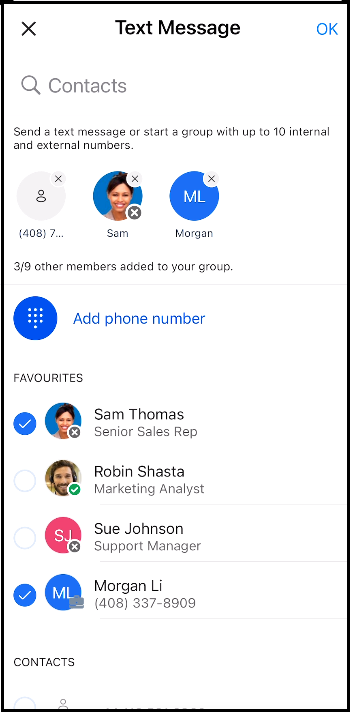
Click Ok to create a group MMS room containing all the specified numbers.
Note:
An MMS group room can only include domestic external numbers from the US or Canada.
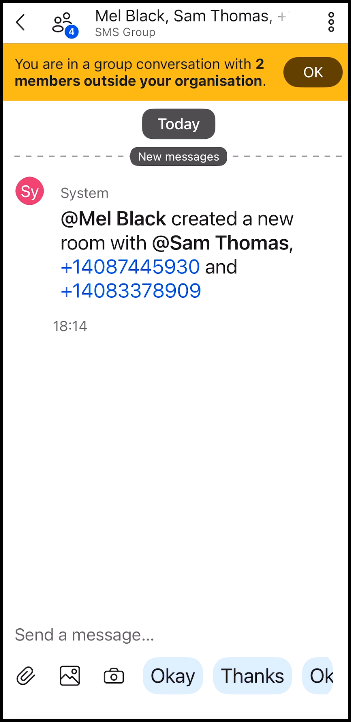
Whenever you want to add or remove members from the group, a new Group MMS room will be automatically created with the updated participants.
Note:
This feature is enabled by default for all customers on usage-based billing. Admins can disable it via the 8x8 Admin Console app by toggling the Disable Group MMS option in the Profile Policies section. For details about enabling the Group MMS messaging in 8x8 Admin Console, tap her
e.
To find detailed information about group messaging on mobile, tap here.
Note:
To access Group MMS messaging:
- Users must have the latest versions of the 8x8 Work apps installed (version 11.11 on mobile and 8.20 on desktop) and must have enabled the SMS feature through their licences.
- This feature is enabled by default for all customers on usage-based billing. Admins can disable it via the 8x8 Admin Console app by toggling the Disable Group MMS option in the Profile Policies section.
Limitations
Users without usage-based billing can now only communicate via 1:1 SMS messages with domestic numbers in the US and Canada.
Ability to summarize chat messages
We are introducing conversation summaries for the last 24 hours, the past 3 days, unread messages, or messages starting from any specific message. If you have participated in extensive discussions with colleagues or teams and wish to obtain a summary, you can easily generate one.
Note:
Currently, the summary will be translated into English if the discussion occurs in a supported language: English, German, French, Italian, Portuguese, Hindi, Spanish, and Thai.
To summarize conversations:
On the navigation menu, tap Messages
.Depending on your needs, you can:
Summarize the conversation from the past 24 hours, the last 3 days, or any unread messages:
Select the chat you wish to view from the Conversations list.
In the upper-right corner, tap More
 > Summarize
  to generate a summary of the selected conversation.
Select the desired time frame: the Last 24 hours, the Last 3 days, or the Unread messages.
You can view the generated summary in the Chat summarization panel.
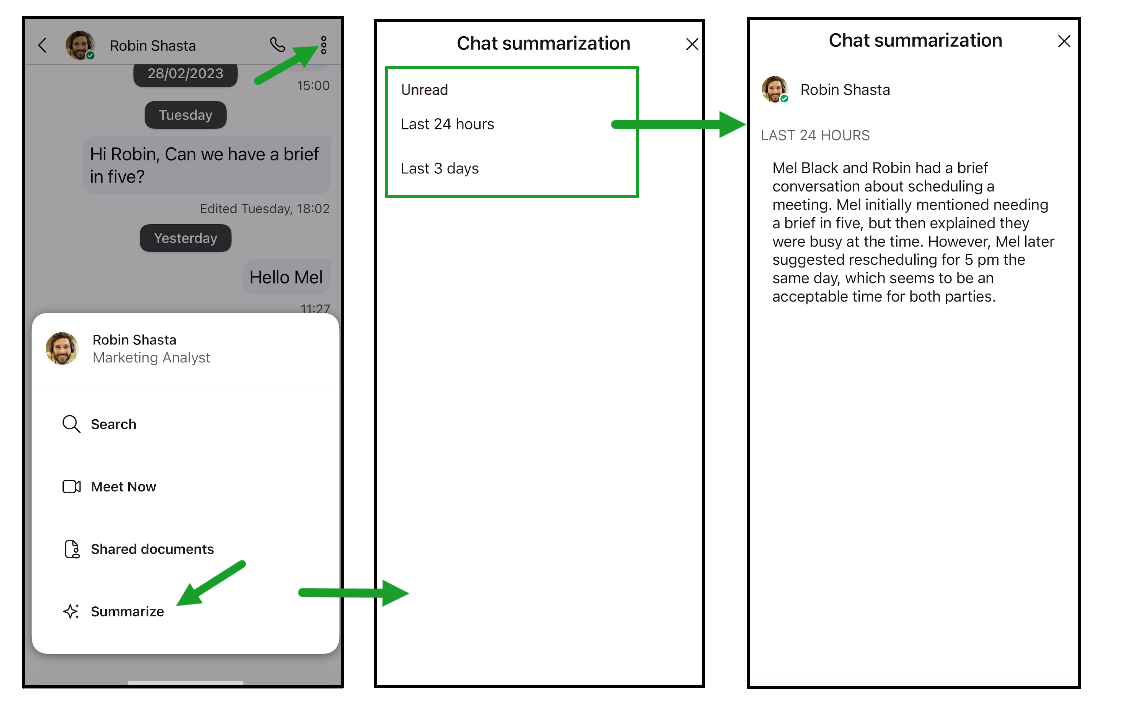
Summarize the conversation starting with a specific message:
Go to the desired message and long press or swap
In the More options panel that appears, tap Summarize from here
to generate to choose the starting point for the summarization.You can view the generated summary in the Chat summarization panel.
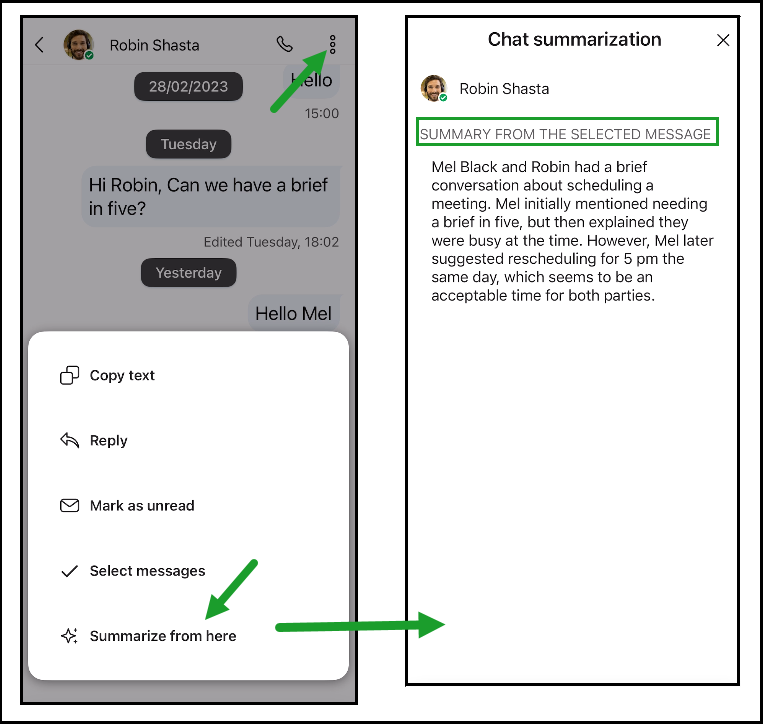
To learn more about chat messaging, tap here.
Enhanced experience for retail users
Retail administrators can now disable certain features that prevent retail users from changing their profile picture, setting a Do Not Disturb (DND) status, managing their business hour schedules, managing their presence, or logging out of the 8x8 Work for Mobile app, if necessary. Administrators can manage these options through the 8x8 Admin Console under the General, Mobile-only settings, Notifications, and Status, sections on the Work Apps Settings page.
Moreover, retail administrators can now enable users to log in automatically (using certificates), following the auto-login flow.
To find more about configuring 8x8 Work apps settings on 8x8 Admin Console, tap here.
Other enhancements
Improved accessibility for screen readers in landing page and login areas.
New rules to comply with Role-Based Access Control (RBAC) for Admin Mobile users are now active (through the 8x8 Admin Console). For example, administrators can view users in the call queues, ring groups, and auto-attendant lists and assign users to these, even if they cannot access user details.
Text message updates: When an admin blocks a specific number, users can no longer see the option to block that number in the UI.
New restrictions for 1:1 SMS messages - Users in the US and Canada can no longer send international 1:1 SMS messages. They may communicate only through 1:1 SMS messages with domestic numbers within the US and Canada.
UI Updates - When the class of service (COS) is configured to prevent users from changing the caller ID, the Caller ID field is disabled on the UI.
Release 11.10
In this release, we introduced minor improvements about the user experience and some minor bug fixes.
Release 11.9
In this release of 8x8 Work for Mobile, we are introducing the following enhancements:
Ability to pause and resume Contact Center queues for 8x8 XF Workspace and 8x8 Engage customers
Customer engagement specialists can pause or resume their Contact Center (CC) queues in 8x8 XF Workspace and 8x8 Engage whenever necessary. When your queues are paused, customers will not receive any queue calls and cannot take any action on the queues.
To pause/resume CC queues for engagement specialists - XF Worspace and Engage:
Log in to 8x8 Work for Mobile.
Swipe up or tap My Queues at the bottom of the main screen.
On the My Queues screen, click Pause queues
 , and select a reason: Work offline or Break.
Optional: Click
 near the selected reason for pause and choose another one if necessary.
Your queues are currently disabled, and you cannot act on them. You will only receive calls once you resume them. A timer in the screen's upper-right corner shows the paused time until the queues are resumed.
Note:
When the My Queues section is collapsed, the counter still displays on the right side of the My Queues section.
Click Resume queues to enable your queues and start receiving calls again.
When you resume the queues, the counter will no longer be displayed. Your queues are enabled, and you can receive calls again or search for, enable, or disable queues.
To learn about managing phone calls in 8x8 Work for Mobile, see 8x8 Work for Mobile - About phone calls.
To learn more about 8x8 XF Workspace and 8x8 Engage , see 8x8 XF Workspace - Manage queues on mobile and 8x8 Engage - Manage queues on mobile.
Ability to transfer calls to other Contact Center queues for 8x8 XF Workspace and 8x8 Engage customers
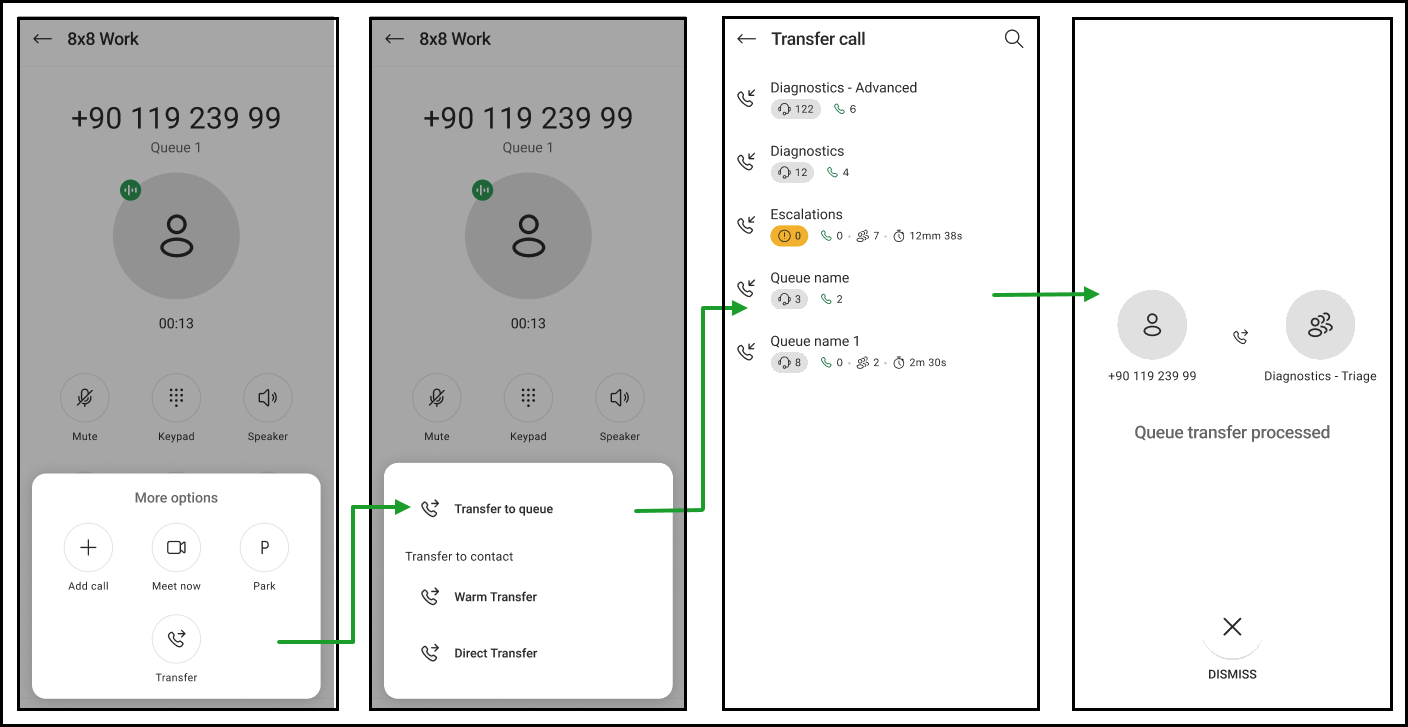
As an engagement specialist (8x8 XF Workspace or 8x8 engage user), you can now transfer a call to the CC queues, both informal and formal, in 8x8 XF Workspace and 8x8 Engage.
The Contact Center transfer process is only activated for engagement specialists and is triggered when the call originates from a specific CC queue (identified by its queue name). During the transfer process, the user has various options, including transferring the call directly, initiating a warm transfer, or choosing from a list of other available queues to transfer the call to.
To transfer an Informal Contact Center call to a queue for XF Workspace and Engage customers:
While on a call, notify the other party that you will transfer them to a colleague.
Tap Transfer
 and select Transfer to queue to bring up a list of queues without placing the other party on hold.
Select a favorite or suggested queue from the list, or enter the queue name you want to transfer to and confirm.
The queue transfer has been processed, and you have been disconnected from the call. The contact you selected receives a call from the other party.
To learn about managing phone calls in 8x8 Work for Mobile, see 8x8 Work for Mobile - About phone calls.
To learn more about 8x8 XF Workspace and 8x8 Engage , see 8x8 XF Workspace - Manage queues on mobile and 8x8 Engage - Manage queues on mobile.
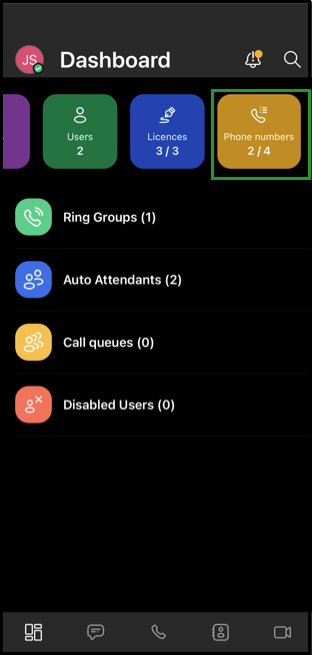
Enhanced 8x8 Mobile Admin Dashboard tile: Phone Numbers
The 8x8 Mobile Admin Dashboard displays the Phone numbers tile, which shows now the usable phone numbers out of the total.
To learn more about Mobile Admin Dashboard, see Mobile Admin Dashboard.
Release 11.8
In this release of 8x8 Work for Mobile, we are introducing minor improvements to the user experience and some minor bug fixes. We also introduced the following enhancement:
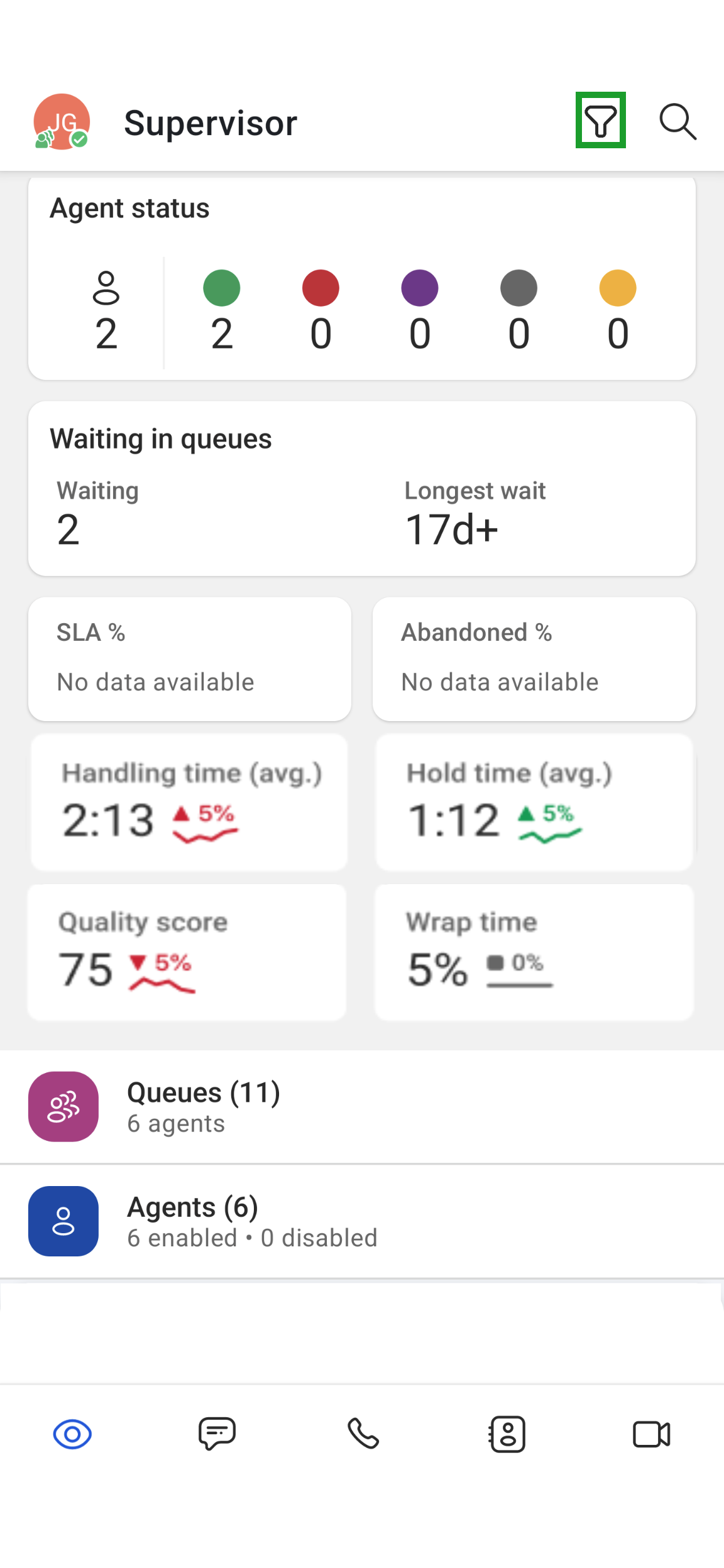
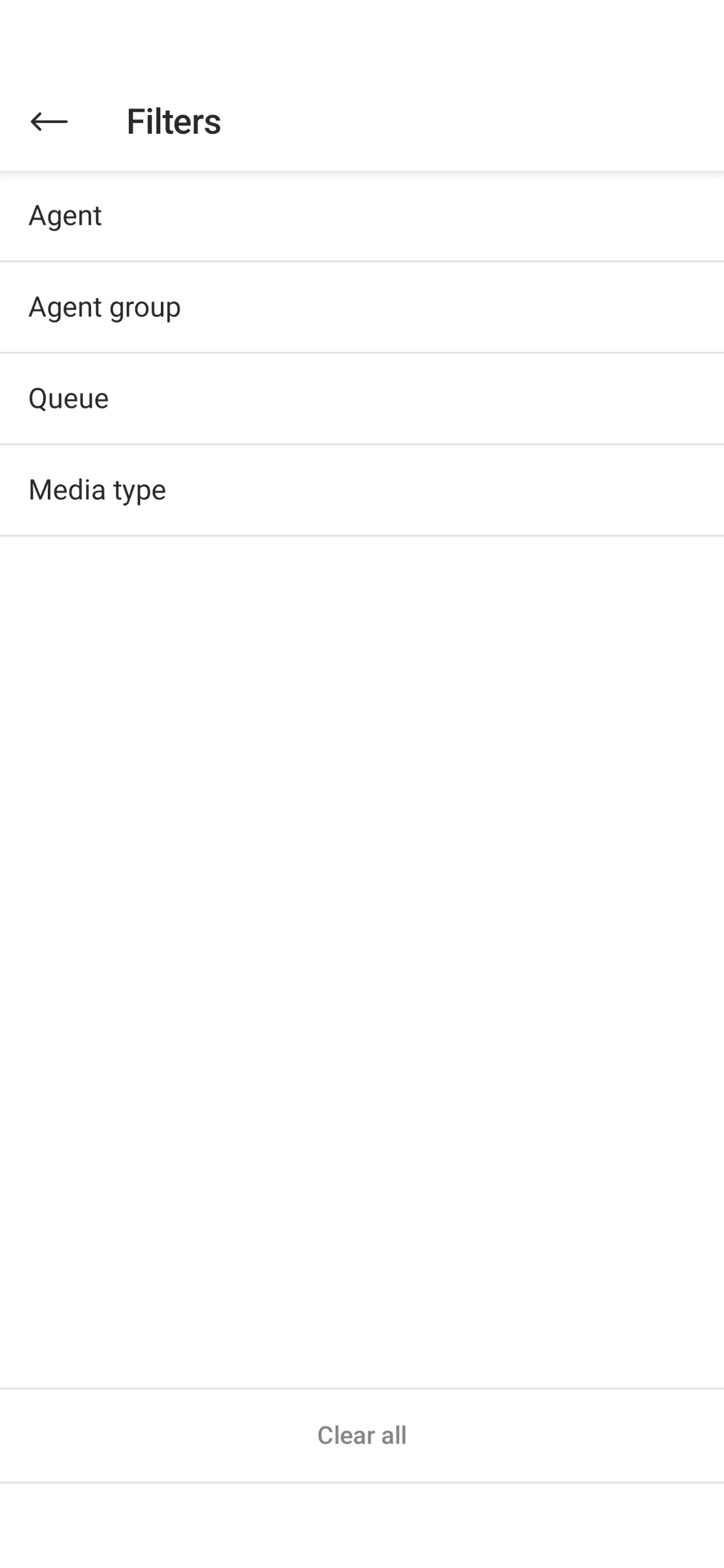
Ability for supervisors to filter in the Mobile Supervisor app
Supervisors with access to 8x8 Supervisor Workspace and the Mobile Supervisor app will now have the ability to filter by agents, agent groups, queues and media type. This new functionality will allow supervisors to view and display relevant metrics on their mobile device. Supervisors will also be able to manage their agents and queues more efficiently, while ensuring adequate coverage for their 8x8 Contact Center. To learn more, see mobile supervisor filter option and about supervisor workspace.
Note:
The filtering functionality in the Mobile Supervisor app is currently in Beta and only available to supervisors.
Release 11.7
In this release of 8x8 Work for Mobile, we are introducing the following enhancement:
Disable resolution of contacts on ring group calls
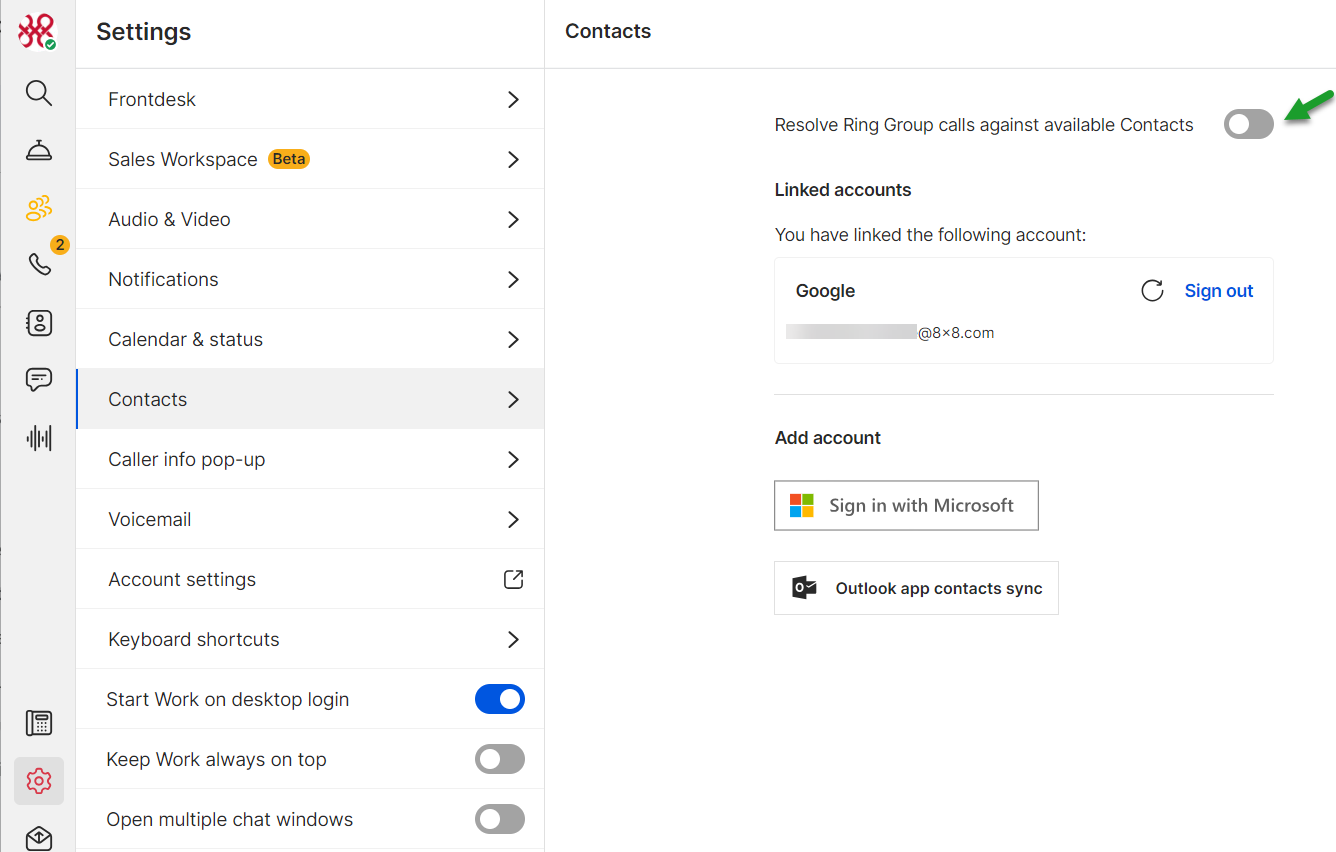
When you import your contacts from 3rd parties such as Google, Microsoft, or Outlook in your 8x8 Work for Desktop/Web app and you receive a call in the desktop/web/mobile app, the Caller ID is recognized. By default, Ring Groups displays information according to the settings made by the admin in the Ring Group Caller ID section in 8x8 Admin Console. If you do not want to see your personal or company contacts resolved when you receive a call on 8x8 Work for Mobile you must toggle off the Resolve Ring Group calls against available Contacts on your account in the desktop/web app.
To check the settings, or to enable/disable the toggle to synchronize Ring Group calls with your available Contacts:
Note:
Before enabling the toggle you must have imported contacts from 3rd parties such as Google, Microsoft, or Outlook.
Log in to 8x8 Work for Desktop/Web using your credentials.
On the navigation menu, click Settings
 > Contacts.
Toggle on/off Resolve Ring Group calls against available Contacts.
Restart 8x8 Work for Mobile to update the settings.
Release 11.6
In this release, we introduced minor improvements about the user experience and some minor bug fixes.
Release 11.5
In this release, we introduced minor improvements about the user experience and some minor bug fixes.
Release 11.4
In this release, we introduced minor improvements about the user experience and some minor bug fixes.
Release 11.3
In this release, we introduced minor improvements about the user experience and some minor bug fixes.
Release 11.2
In this release, we introduced minor improvements about the user experience and some minor bug fixes.
Release 11.1
In this release, we introduced minor improvements about the user experience and some minor bug fixes.
Release 11.0
In this release, we introduced the following we are introducing the following features and improvements:
Introducing 8x8 Mobile Admin app
8x8 Mobile Admin is a new solution designed for 8x8 Work admins to manage basic admin activities using the 8x8 Work for Mobile app. This new capability offers quick resolutions via the mobile app as well as easy access to a restricted set of top level daily admin tasks (quick updates or changes on demand) especially when considering a remote environment.
Often admins need to check on system status or quickly change user/device level settings or operate minor configuration changes on auto attendants, call queues or ring groups. Through the 8x8 Mobile Admin app, admins can act on these actions easily and quickly, without having to log in to the web app.
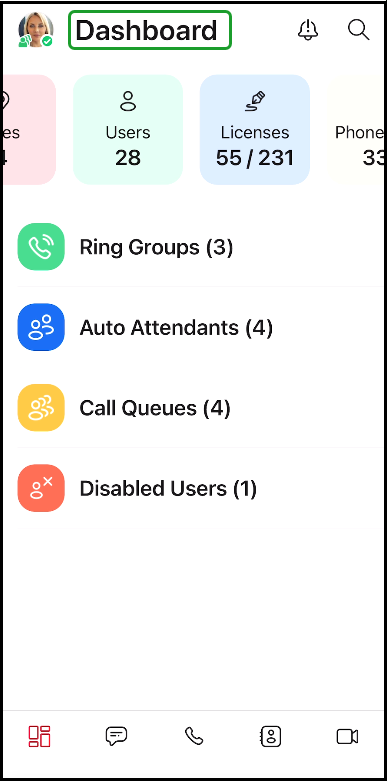
As an 8x8 Work app admin, perform the following basic admin functions using a new admin dashboard in 8x8 Work for Mobile:
Access Admin Dashboard - a new admin dashboard shows when users log into 8x8 Work for Mobile as an admin.
Perform basic actions for usage and quality monitoring:
Track number of sites, users, licenses, and phone numbers in a snapshot.
Manage basic configuration options - for managing configuration on existing Auto Attendant, Call Queues, and Ring Groups.
Manage user accounts - for deactivating, reactivating and deleting user accounts.
Manage status notifications - for sending and receiving push notifications about platform services status updates (outages announcements or incidents), directly via the mobile app.
Search for users - If you are logged into 8x8 Work for Mobile as an admin, you have the ability to search for a user directly from the Mobile Admin Dashboard.
Enhanced new sounds
In this release, we are introducing a new set of ringtone and notification sounds to make your experience more pleasant.
You now can adjust your sound preferences, by selecting one of the newest available varied and colorful modern sounds - Peaceful, Playful, and Plucky - or you can keep a sound from the previous versions, as you prefer.
For a smoother transition:
If existing users upgrade the app version without reinstalling the app - a new What's new call to action entry redirects them to the Ringtone Incoming Calls settings section. They can choose to keep the sound selection or to change them according to their preferences.
If existing users reinstall the app - the new set of modern sounds displays in the Ringtone Incoming Calls settings section.
If new users install the app - the new set of modern sounds displays in the Ringtone Incoming Calls settings section.
Note:
You now can control the audio preferences only from the settings section.
Let’s say you make the upgrade to the new 11.0 app version and you want to try one of the modern sounds:
To make any changes about notification:
Go to Profile > Settings
 screen.
Tap Ringtone and in the new screen that displays, select one of the available sounds as you prefer.
Note:
To choose the sound best suits you, you can listen sounds first by tapping
in the respective sound row.
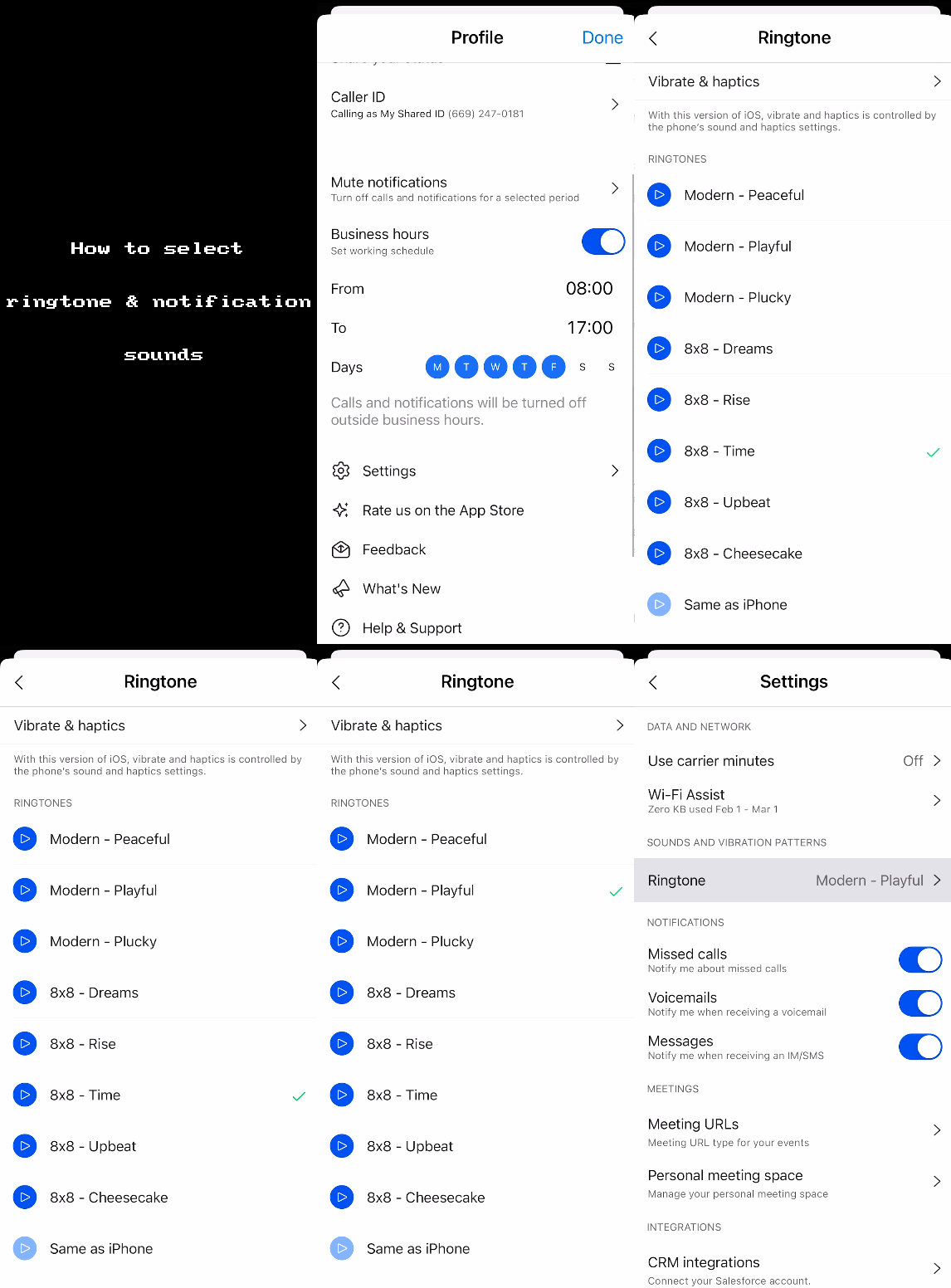
To learn more about making changes about the app sounds, tap here.
Enhanced new look and feel
Starting with this release, a new modern feel and look theme is now available, including new colors, icons, badges.
Enhanced Messages look and feel
The enhanced look and feel of the Messages  menu offers the following flexibilities:flexibility to initiate a call
  , send a message
  or send an email
  to that contact by tapping the contact avatar/picture.
With a quick right-swipe gesture you now have the ability to make a multiple contact selection and delete them with one tap.
With a left-swipe gesture you can choose to hide the selected conversation
 .
.
Enhanced Phone look and feel
The enhanced look and feel of the Phone  menu offers the following flexibility:
Tap the contact picture/avatar to initiate a call
, send a message or send an email to that contact.With a quick right-swipe gesture you now have the ability to make a multiple contact selection and delete them with one tap.
With a left-swipe gesture you can choose to see the contact card
 , access the contact conversation
  , delete record
  or block a contact number
  .
.In the Queues directory, with a left-swipe gesture you can logged in
 to an available queues, or to logged out
  .
.

Ability to customize a chat room avatar
You now have the ability to set a chat room avatar from the available colored icons or you can attach a custom picture. You can customize an avatar room either while creating a new chat room or while updating an existing room.
To learn more about creating and customizing chat rooms, tap here.
Enhanced group messaging capabilities
8x8 Work enables you to send and receive messages via mobile or desktop app with your colleagues or with external contacts, either with one or a group of people.
Beginning with this release, you have the ability to create group messaging with coworkers (internal 8x8 users) and clients (external participants) as well. You can create group messaging with up to 10 members, internal and external numbers/contacts, including the group creator.
When you want to send or receive messages, you now can choose one of the following options:
Create Room - public and private rooms.
1:1 Message - only for one internal messaging at a time, without SMS.
Text Message - 1:1 SMS and MMS group messaging.
To communicate with several people, both colleagues and clients, having internal and external numbers as well, at the same time, now you can use the Text Message  messaging option in the Messages tab. You can send an 1:1 SMS or start a MMS group messaging with up to 10 members, including internal and external numbers, to communicate with them and to keep confidential information secure within a small group.
To find detailed information about group messaging, tap here.
Release 10.24
In this release, we introduced minor improvements about the user experience and some minor bug fixes.
Release 10.23
In this release, we introduced minor improvements about the user experience and some minor bug fixes.
Release 10.22
In this release, we have introduced in 8x8 Work for Mobile a new Sales Workspace customer experience:
Introducing 8x8 Sales Workspace
We are introducing 8x8 Sales Workspace, a solution within 8x8 Work designed for sales professionals working with prospects and opportunities. It offers an optimized sales workflow focusing on high-value long-term deals. It integrates with Salesforce® and multiple calendars (Office 365, Google, iCloud, etc.), and optimizes external and internal communication around sales opportunities by offering the capabilities of calling, messaging, meeting, and tracking interaction history, all in one place. It allows quick access to a roster of 100 most recently updated opportunities. It allows adding private notes to contacts and syncing next steps and interactions data back to the Salesforce. It also aims to be complementary in the Microsoft Teams ecosystem.
For details about Sales Workspace, please refer to Sales Workspace Quick User Guide.
How to activate Sales Workspace in 8x8 Work for Mobile
In 8x8 Work for Mobile, tap the profile image icon in the header to open your Profile screen.
In your profile, tap Settings
 > Sales Workspace.
Enable Sales Workspace toggle on to activate the Sales Workspace functionality in the 8x8 Work for Mobile app.
Important!
You have to activate Sales Workspace manually in each app of the 8x8 Work (mobile, desktop or web). For example, if you have activated the Sales Workspace functionality in the 8x8 Work for Desktop app, Sales Workspace is not automatically activated in 8x8 Work for Mobile
Tap Sign in to log into Salesforce to activate the integration.
By default, the Auto-sync interactions to CRM is enabled and automatically syncs any new interactions (calls, voicemails, meetings) with the opportunity contacts. You can turn off/on the process of pushing interaction in the Opportunity Activity stream inside Salesforce, anytime.
The navigation menu now shows the Sales Workspace
 icon. Tap it to access the opportunities roster imported from Salesforce.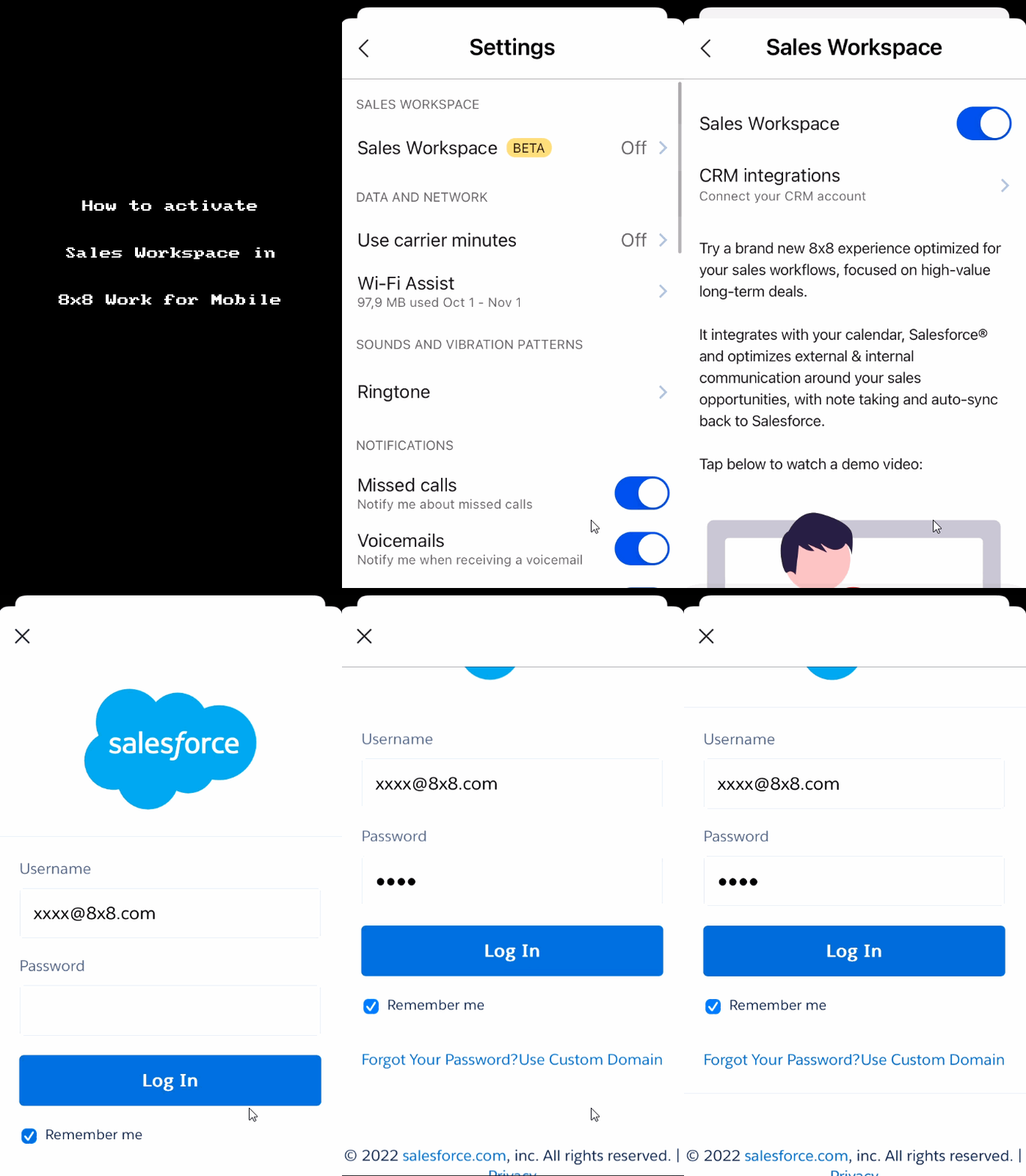
For details about Sales Workspace, please refer to Sales Workspace Quick User Guide.
How to access Sales Workspace from 8x8 Work for Mobile
After the Sales Workspace was activated, the navigation menu shows the Sales Workspace
icon. Tap it to access the opportunities roster imported from Salesforce. 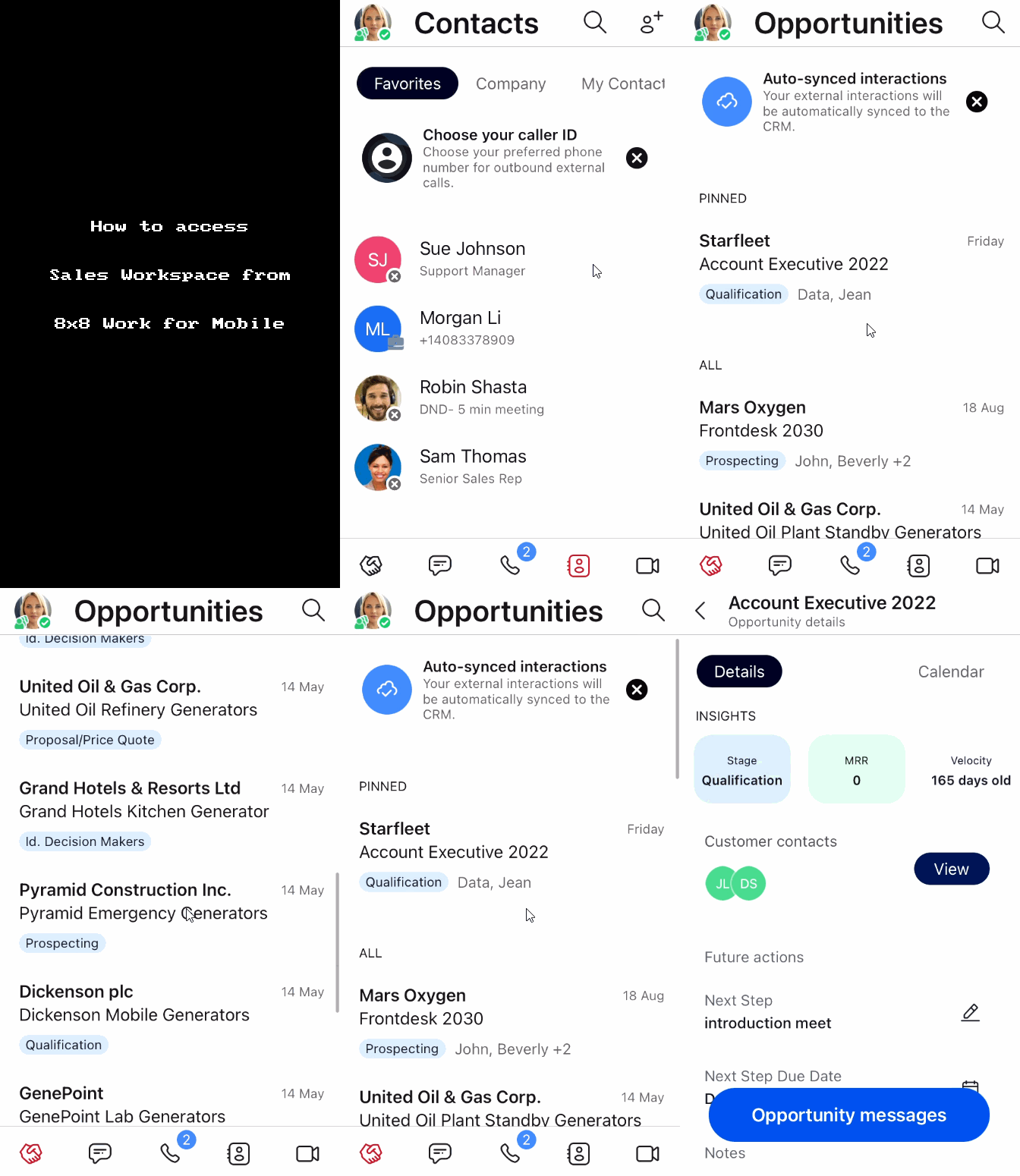
For details about Sales Workspace, please refer to Sales Workspace Quick User Guide.
Release 10.21
In this release, we introduced :
Ability to start a meeting using Voice Assistant (Apple Siri): you can join an 8x8 meeting using the Voice Assistant (Apple Siri) with the following commands:
"Join my meeting" - to join the personal room.
"Join my next meeting" - to join the upcoming meeting.
Release 10.20
In this release, we introduced minor improvements about the user experience and some minor bug fixes.
Release 10.19
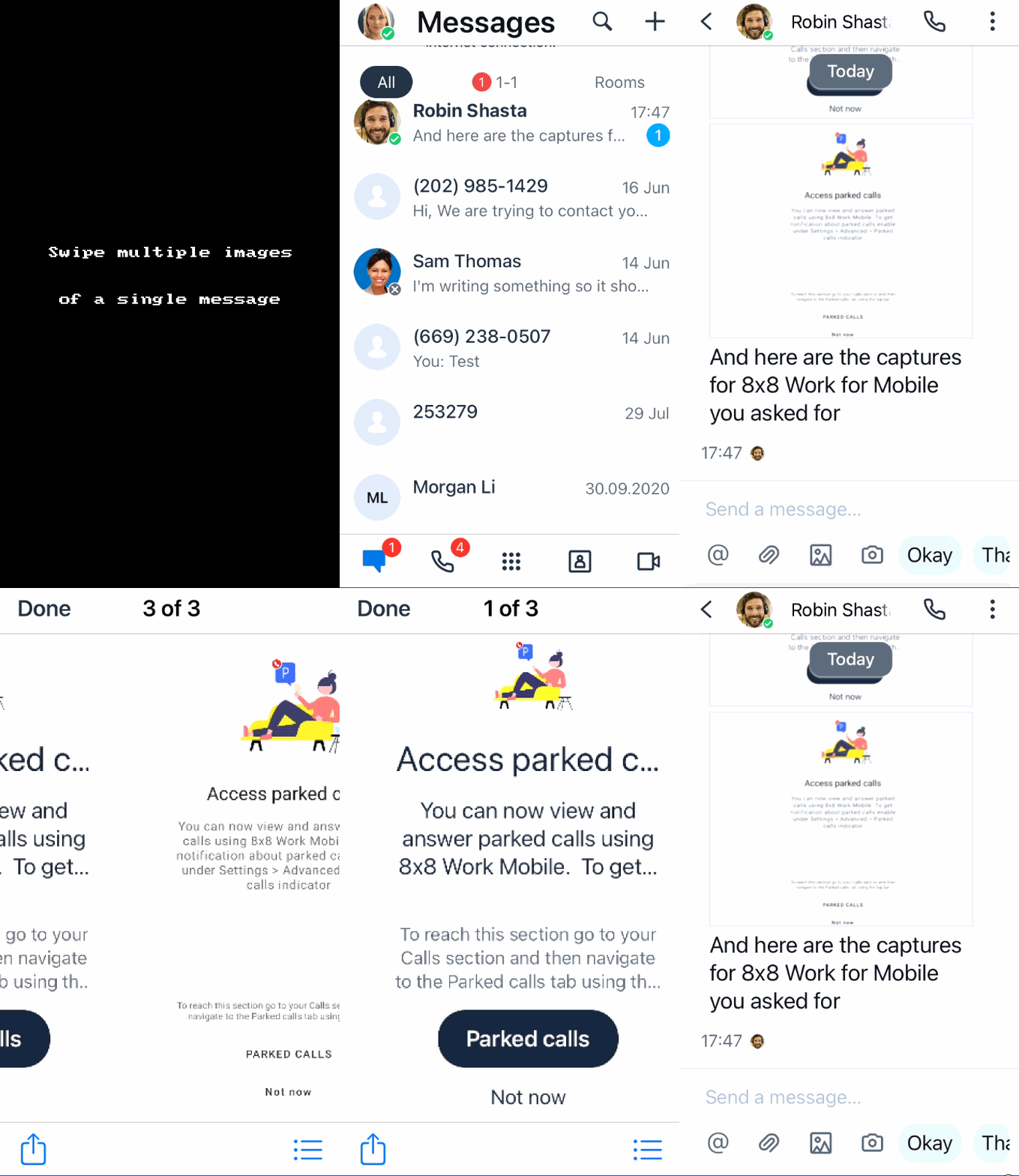
Ability to use new swipe gestures in the Messages screen: In this release, you now have the ability to use swipe gestures in the Messages screen when you want to:
To easily navigate through images you received in one message:
While in the Messages screen, tap the message whose images you want to see.
In the conversation, tap any of the attached images to open.
Swipe left/right on the image to navigate through the attached images in sequence.
Tap Done to return to the conversation screen.
Note:
While an image displays on the screen, on the top of the screen, you can see which of the images displays from the number of images attached to that message.
To quickly reply to a message:
While in the Messages screen, tap the conversation you are interested in to open it.
Swipe right on the message to quickly reply to it.
(Optional): Swipe left on your answer to add another comment to it.

Ability to set the Wi-Fi Assist for data usage warning: In this release, you now can configure your Wi-Fi Assist, and set the day on which data usage cycle resets.
To set WiFI Assist:
In the header page, tap the profile image
 to open your Profile screen.
In your profile, tap Settings
> Wi-Fi Assist under Data and Network.Wi-Fi Assist displays and you can switch the Wi-Fi Assist toggle to enable it.
Enter on which date of the month the data usage counter should reset.
Set the data usage warning limit. Enter a numeric value for the usage data, and choose an Unlimited, MB or GM data limit usage.
Notes:
- When the default limit is hit for the first time, the Wi-Fi Assist infobar displays.
- Possible overcharge may happen due to consumption of cellular data from your data plan.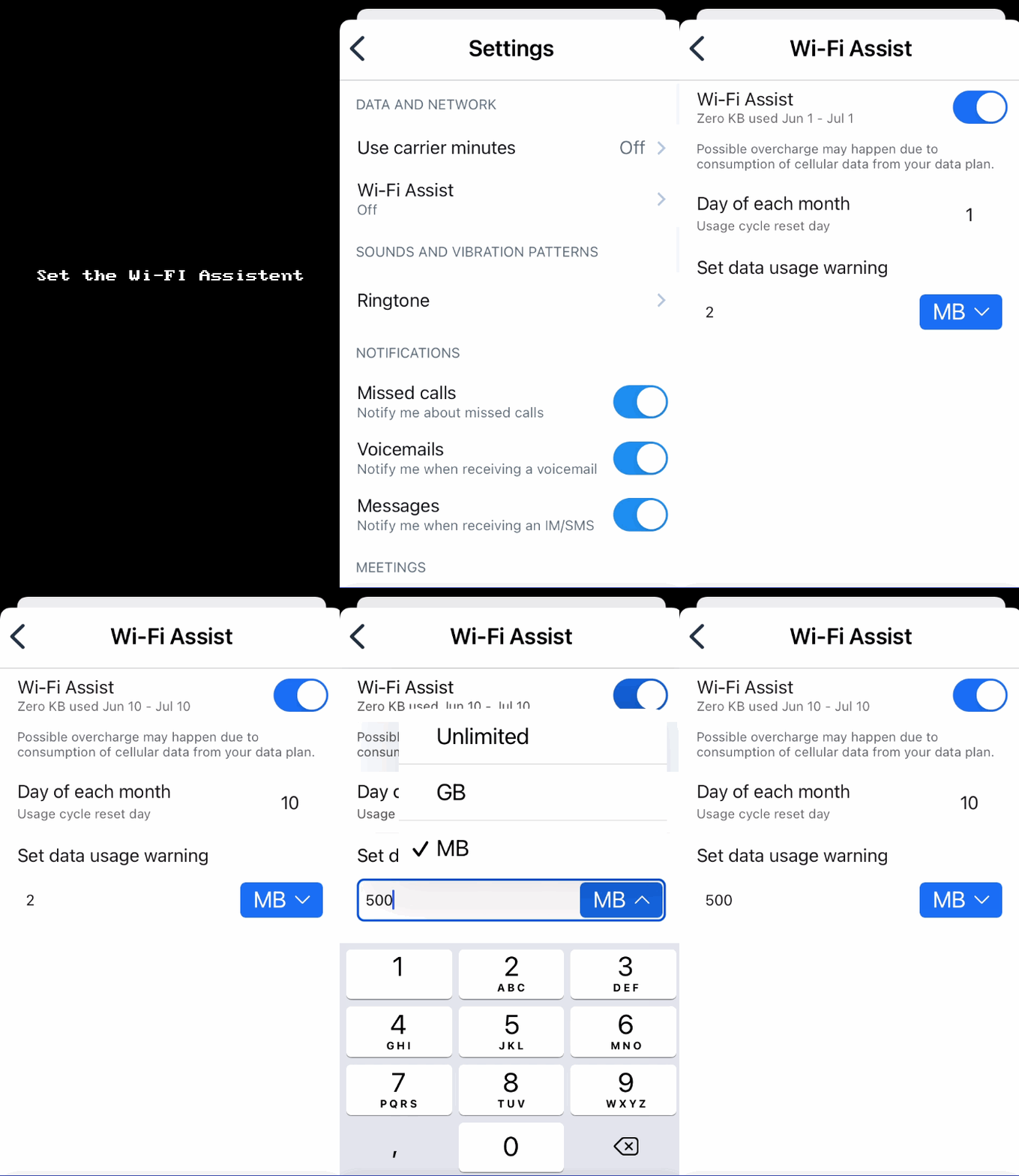
Ability to search for conversation by phone number: Let's say you are looking for a conversation with an unsaved contact, you can now search for a SMS conversation by its number
To quickly search for an SMS conversation by number:
While in Messages, Calls or Contacts tab, in the Search
 bar of the current page, enter the number you are looking for.
On the Contacts & Rooms page, under Rooms, all the numbers containing the sequence of numbers you entered are displayed.
Tap the number you are interested in to see the SMSs for this contact.
Notes:
All the numbers listed under Rooms display SMS detail under the number.

Release 10.18
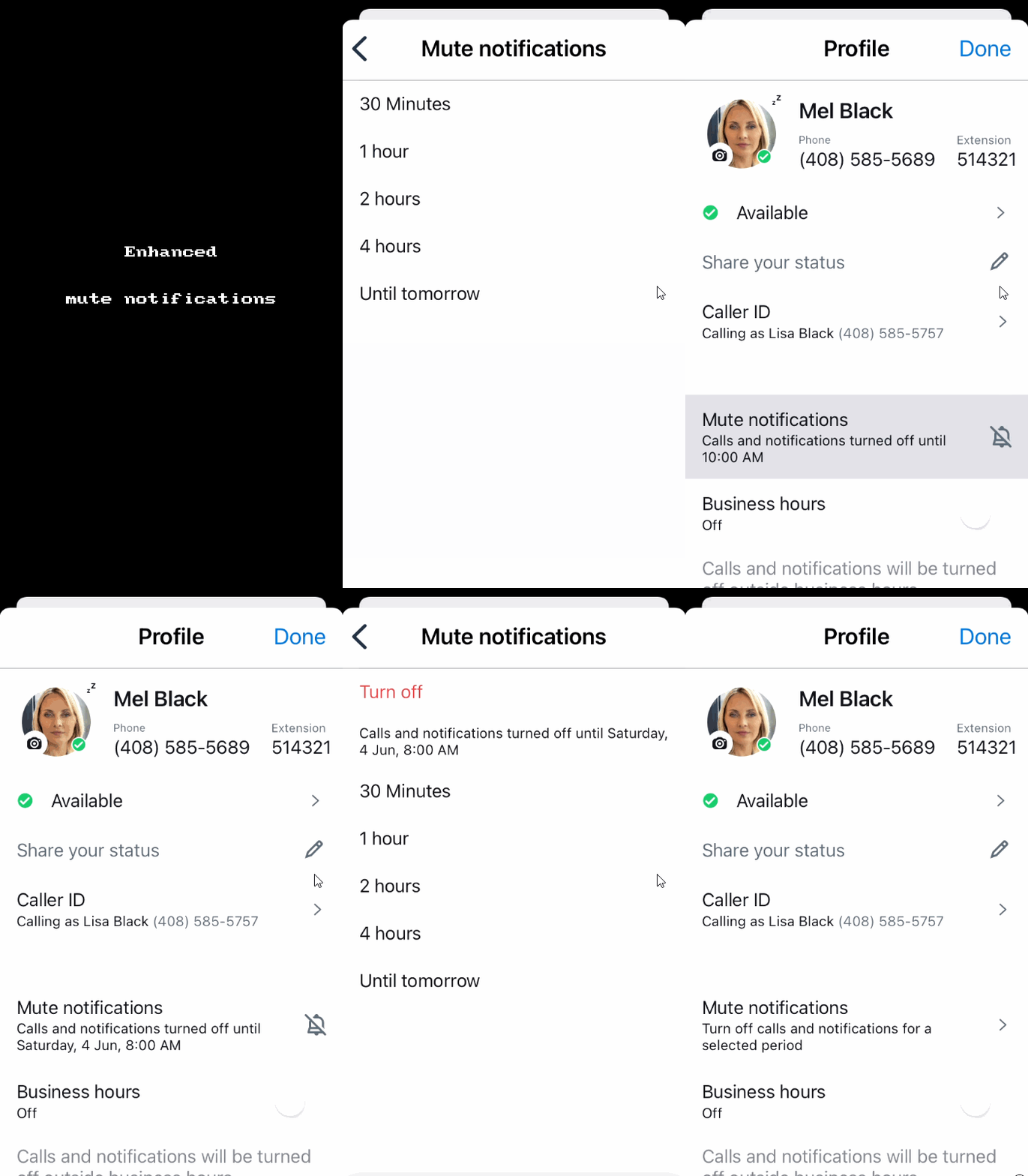
Ability to mute notifications from the app tray - If you want to mute the incoming notifications for 8x8 Work for Mobile, you now can access the Mute notifications page much quicker, without opening the app, simply by touching and holding the 8x8 Work for Mobile .
 icon.
icon.
To quickly access the Mute notifications options:
On the Home Screen, touch and hold the 8x8 Work for Mobile .
to open the quick actions menu.Tap Mute notifications, tap Share your status and then choose the duration for which you want to temporarily mute incoming notifications.
Your options are: 30 minutes, 1, 2 or 4 hours, or until tomorrow.
Notes:
- If you are temporarily blocking your notifications, your contacts are not notified that their delivered messages might not reach you.
- When you are logged in the 8x8 Work for Mobile, you can access the Mute notifications page from your Profile screen. This option is currently available. For more details, tap here.
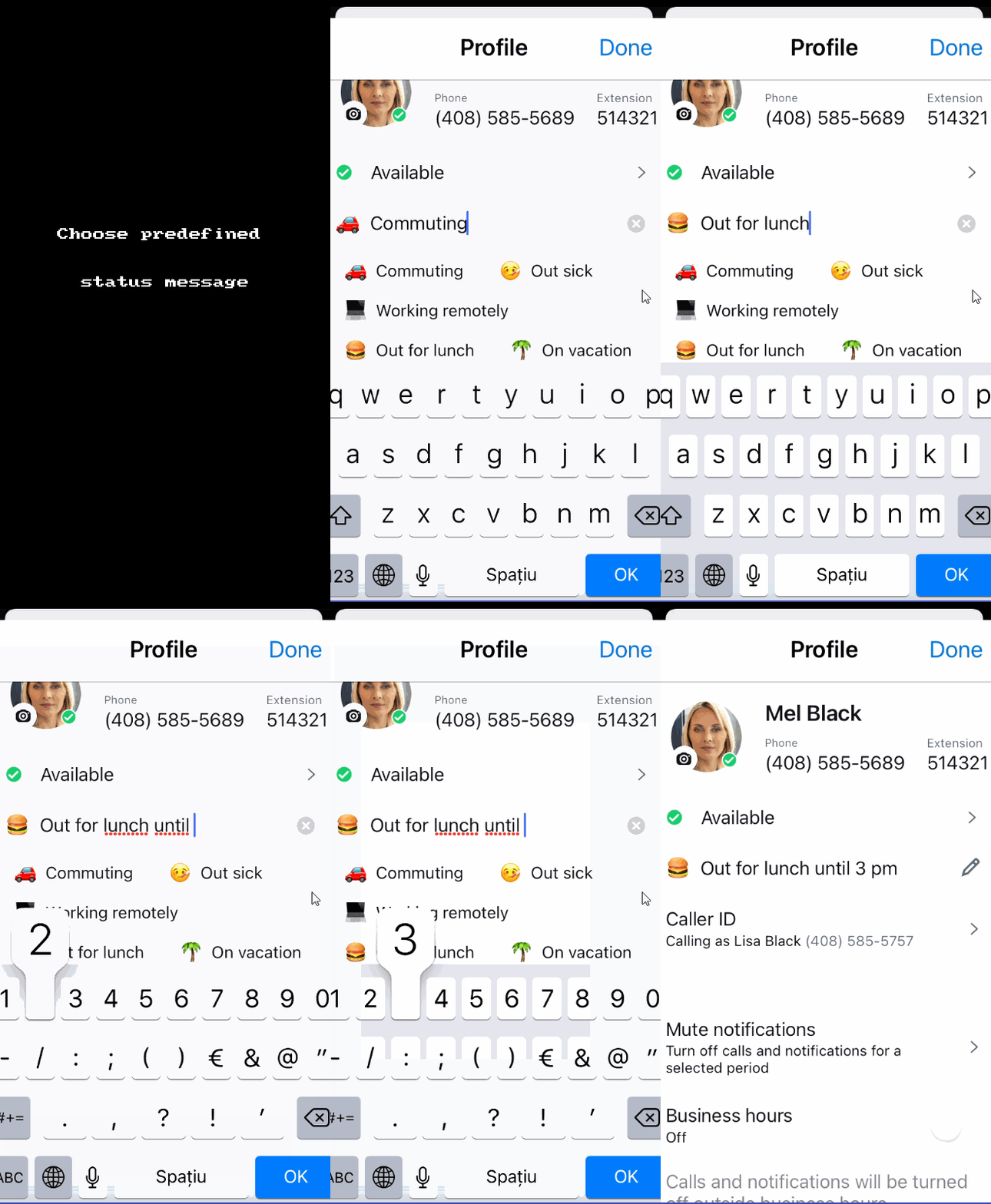
Ability to choose predefined message for status - When you want to set a custom message to give other users more information about your presence status, you now can choose one of the predefined suggestions for status messages, such as:
Commuting
Out sick
Working remotely
Out of lunch
On vacation
Traveling
To set a custom status message:
In the header page, tap the profile image
to open your Profile screen.In your profile, a predefined status message, and tap to display it and save it. Now, the message status will be visible to other users.
Notes:
- You can edit the preset status message by appending additional text to it or by revising the message as desired.
- You can delete a status message by tapingin the status message.
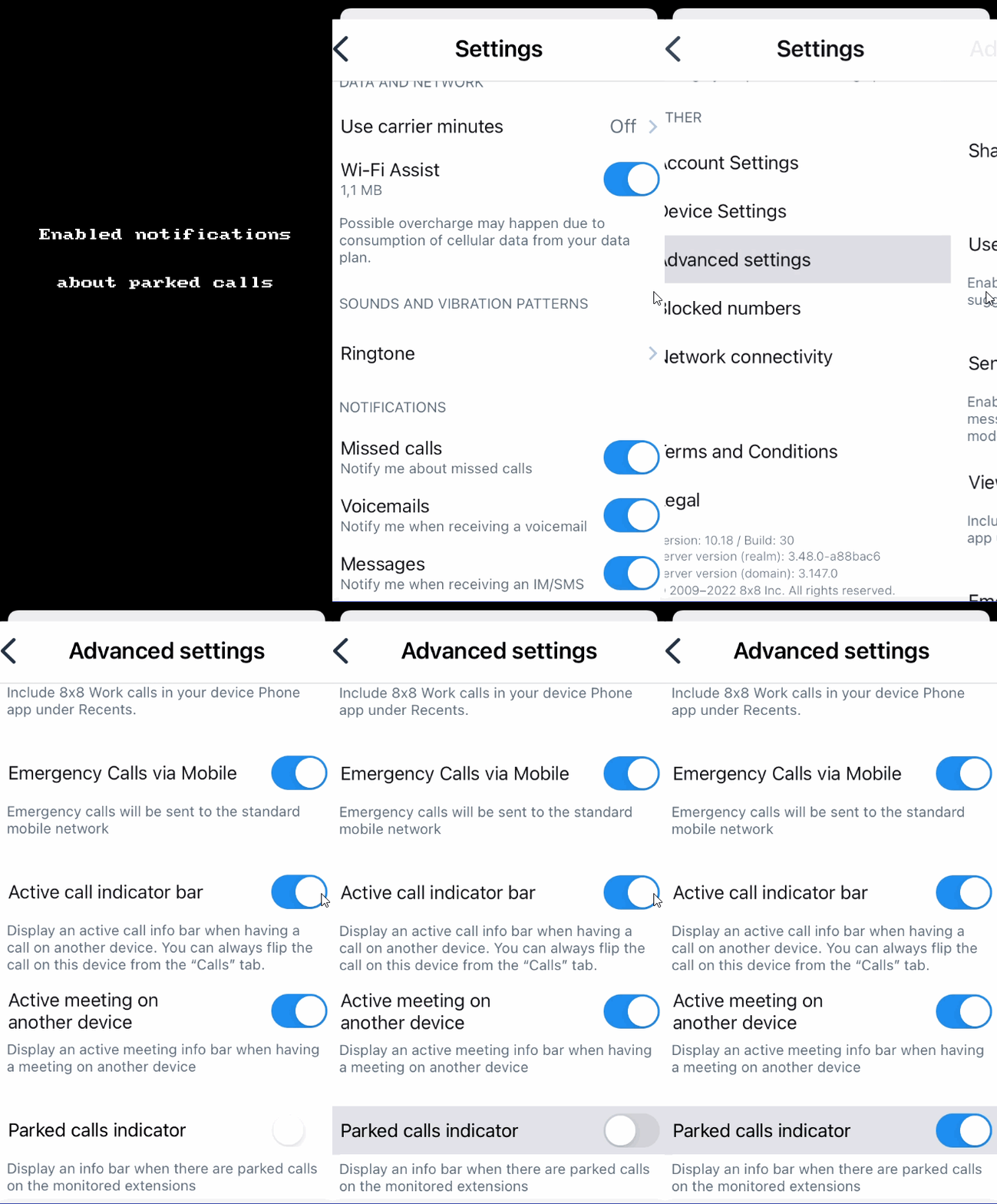
Ability to enable notifications about parked calls- 8x8 Work for Mobile allows you to toggle the parked calls indicator on/off.
When you have calls which are parked for your extension, you now can enable the info bar that notify you that there are parked calls on the monitored extensions.
To enable notifications about parked calls:
In the header page, tap the profile image
icon to open your Profile screen.In your profile, tap Settings > Advanced, and select to toggle Parked calls indicator on/off.
By default, the Parked calls indicator toggle is Off, but you can enable it anytime
After you enable the Parked calls indicator, when you or someone else on your phone system parks a call, a notification shows on your screen. You can tap Retrieve on the notification to go to the new Parked calls tab, from where you can retrieve a call parked on a public or dedicated extension!
Release 10.17
Enhanced call experience – Your call parking experience is now more targeted while you park call, and much quicker when you pick a parked call up! When you park a call, you now see a selection screen from which you can choose to park the call on a public or dedicated call park extension.


In addition, when you or someone else on your phone system parks a call, a notification shows on your screen. Tap Retrieve on the notification to go to the new Parked calls tab, from where you can retrieve a call parked on a public or dedicated extension!
Improved support for landscape mode on Android tablets - As an Android tablet user, the following 8x8 Work for Mobile screens now have landscape mode support:
Release 10.16
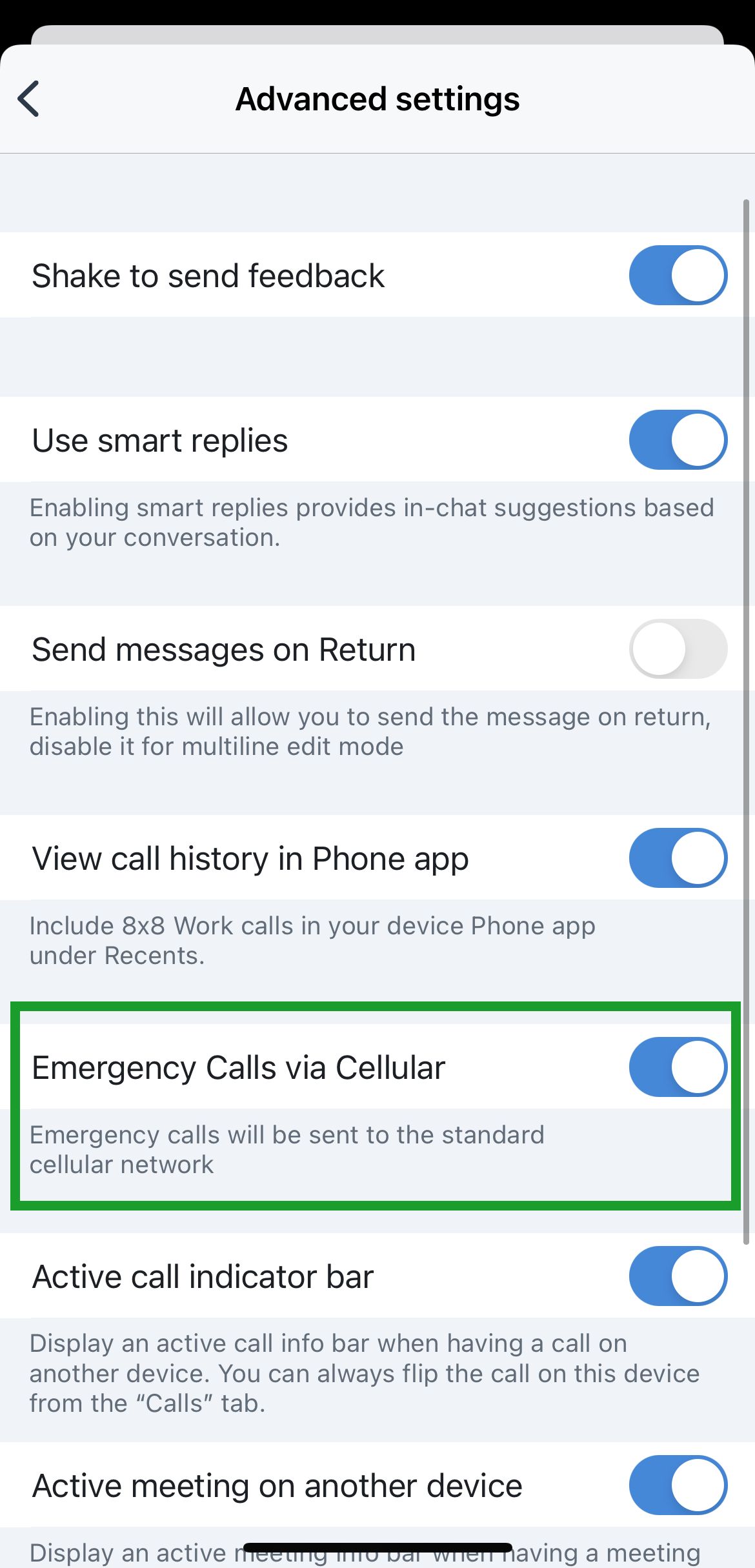
Enhanced emergency call setting: If you are a new user, or upgrading 8x8 Work for Mobile as of version 10.16, emergency calls made from the app are set to use your cellular network by default. To make changes to your emergency call setting, go to Profile > Settings > Advanced settings > Emergency Calls via Cellular.
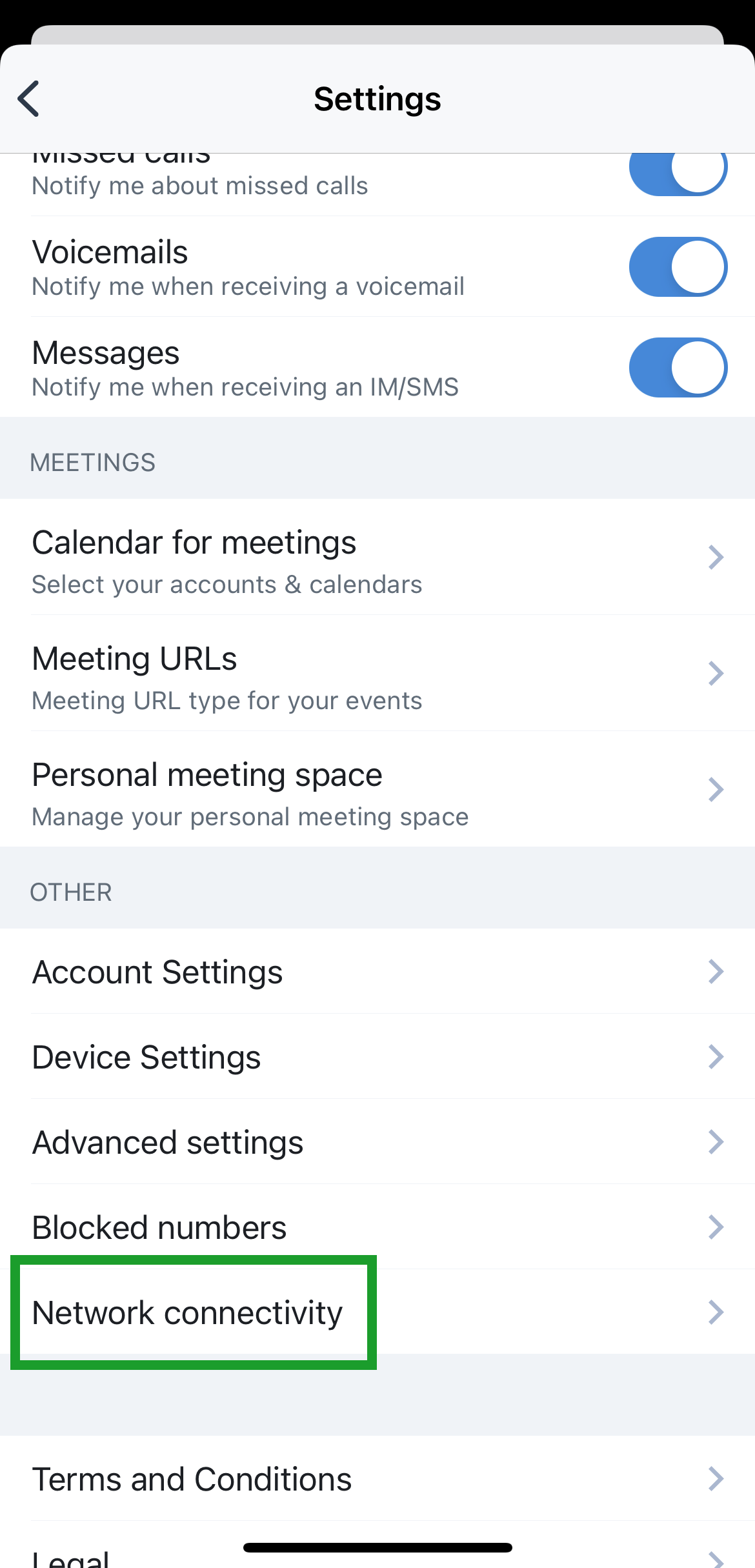
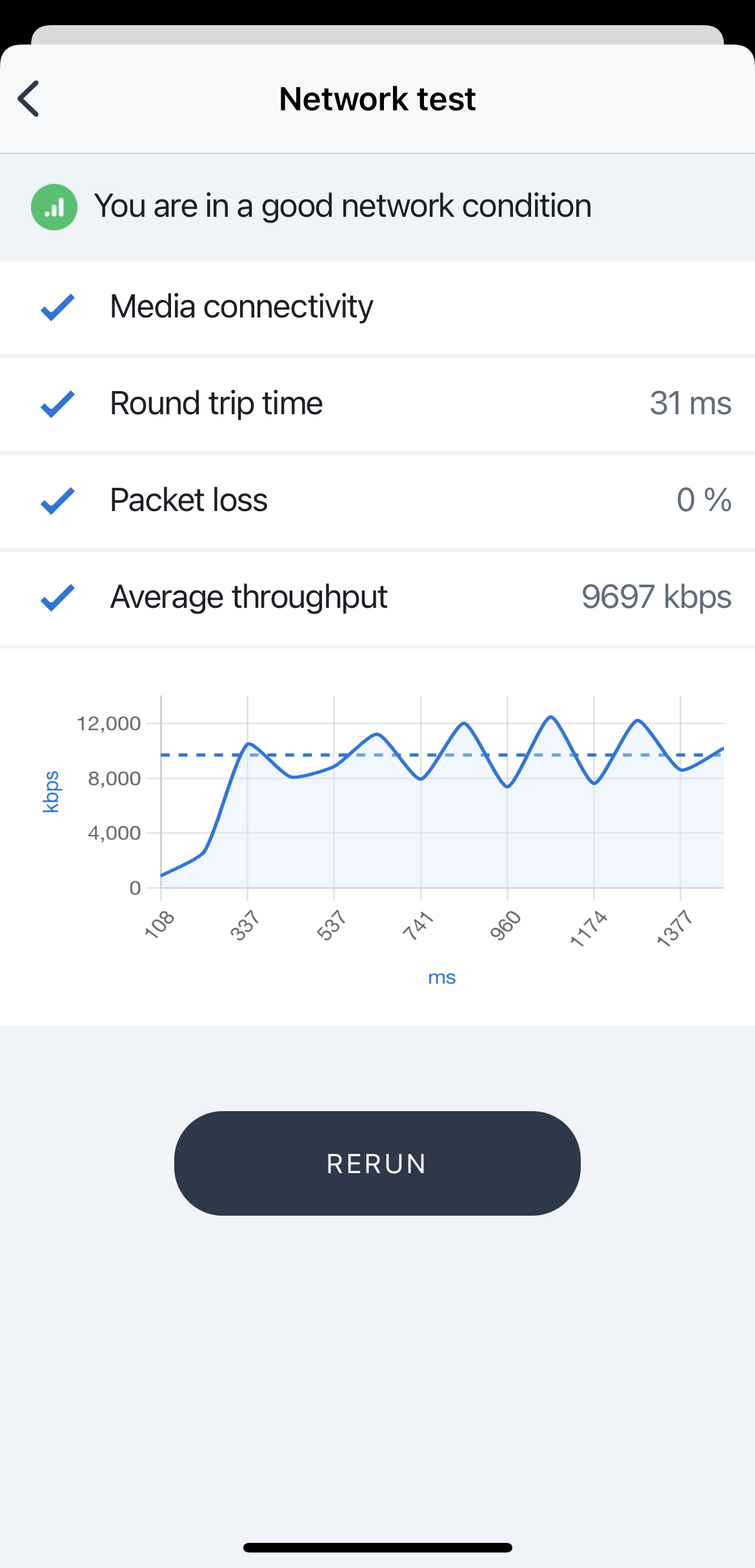
Ability to run network tests: If you have an important call or meeting coming up and want to ensure that you have a good network connection, you now have the ability to run network tests from 8x8 Work for Mobile! To run a network test, go to Profile > Settings > Other and tap Network connectivity.
Release 10.15
Ability to see whether calls or voicemails were directed to a work group: If you are part of a call queue or ring group, you can now more quickly see if a call log or voicemail is related to one of your work groups! Call logs and voicemails related to a Call queue
 or Ring group
  now show up labeled with the corresponding icon and the name of the work group.
 In addition, when you receive a voicemail on behalf of a ring group, the voicemail notification now indicates the name of the ring group.
.png?sv=2026-02-06&spr=https&st=2026-11-03T20%3A55%3A08Z&se=2026-11-03T22%3A36%3A08Z&sr=c&sp=r&sig=TSQrVhSpf7clpJXceyK3n684jbrjbEemz0HIXi8QXog%3D)
Ability to view release notes after a version update: As an iOS user updating to version 10.15 or newer of 8x8 Work for Mobile, you now see a quick list of features updated in the release! For more detailed information, tap Read more at the bottom of the list.
Release 10.14
iOS performance enhancements
Release 10.13
Enhanced chat room creation: When you create or view the details of a chat room in 8x8 Work for Mobile on iOS, enjoy an improved experience:
When you are creating a private room, you now show up among the list of room members.


When you view the details of an existing room:
Below the room type indicator, you now see when the room was created, and who created the room.
In private rooms, the option to remove members from the room is now immediately visible.


Release 10.12
Ability to place both active calls on hold at the same time: Let’s say Sam is handling two important calls at the same time via 8x8 Work for Mobile on iOS, and needs a moment to take notes; rather than having to keep one call active, Sam can now put both Mel and Robin on hold. As an iOS user handling two calls in 8x8 Work for Mobile, you now have the ability to put both calls on hold at the same time!

Enhanced chat room creation process: Let’s say that an administrative assistant needs to create a private chat room that they are not part of; previously, if the assistant tried to remove themselves from a private chat room while creating the room, they triggered an error. To prevent this, if you are creating a private chat room for someone else, you can remove yourself from the room only after the room is created.
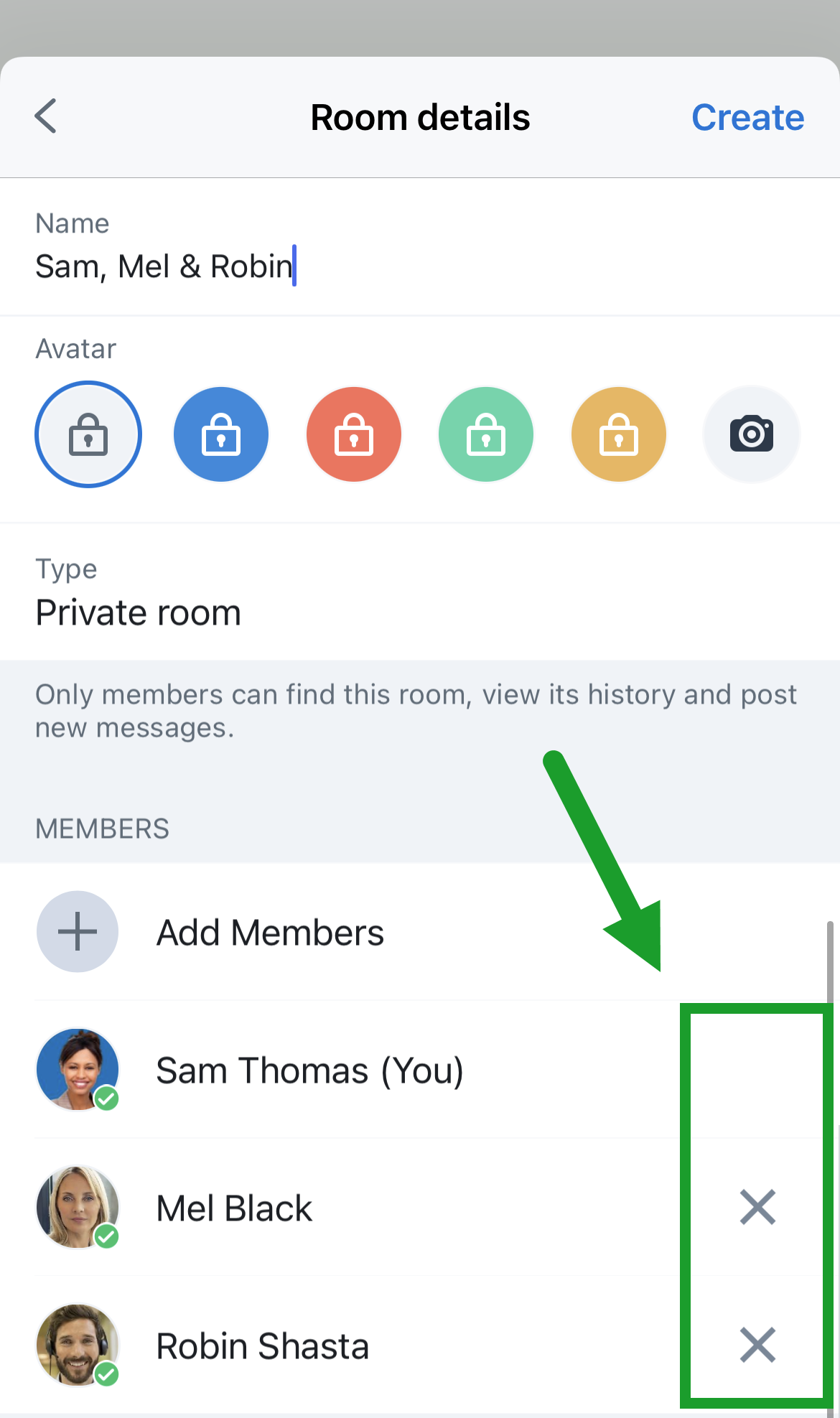
To remove yourself from a room after you have finished creating it, open the room, then tap the name of the room to open the room details. From the list of room members, tap to remove yourself from the room.

Support for single-character contact and chat room search: 8x8 Work for Mobile now starts searching with the very first character you type in the search bar; if you have a colleague whose first or last name is one character long (such as Hideki Mori, written as 森 秀樹 in Japanese), you can now find them just as easily as you can a colleague with a longer name! Similarly, you can now search for a chat room with a single-character name, or a name you only remember one character of.
Release 10.11
Ability to flip active meetings to 8x8 Work for Mobile in one tap: Let’s say you joined a meeting on your computer via 8x8 Work for Desktop but need to step away from your desk for a while. 8x8 Work for Mobile now detects whether you are in a meeting on another device, and lets you flip the meeting to your mobile app with a single tap! Once you tap the control to flip your meeting, the meeting on your computer stops and picks up on mobile where you left off!

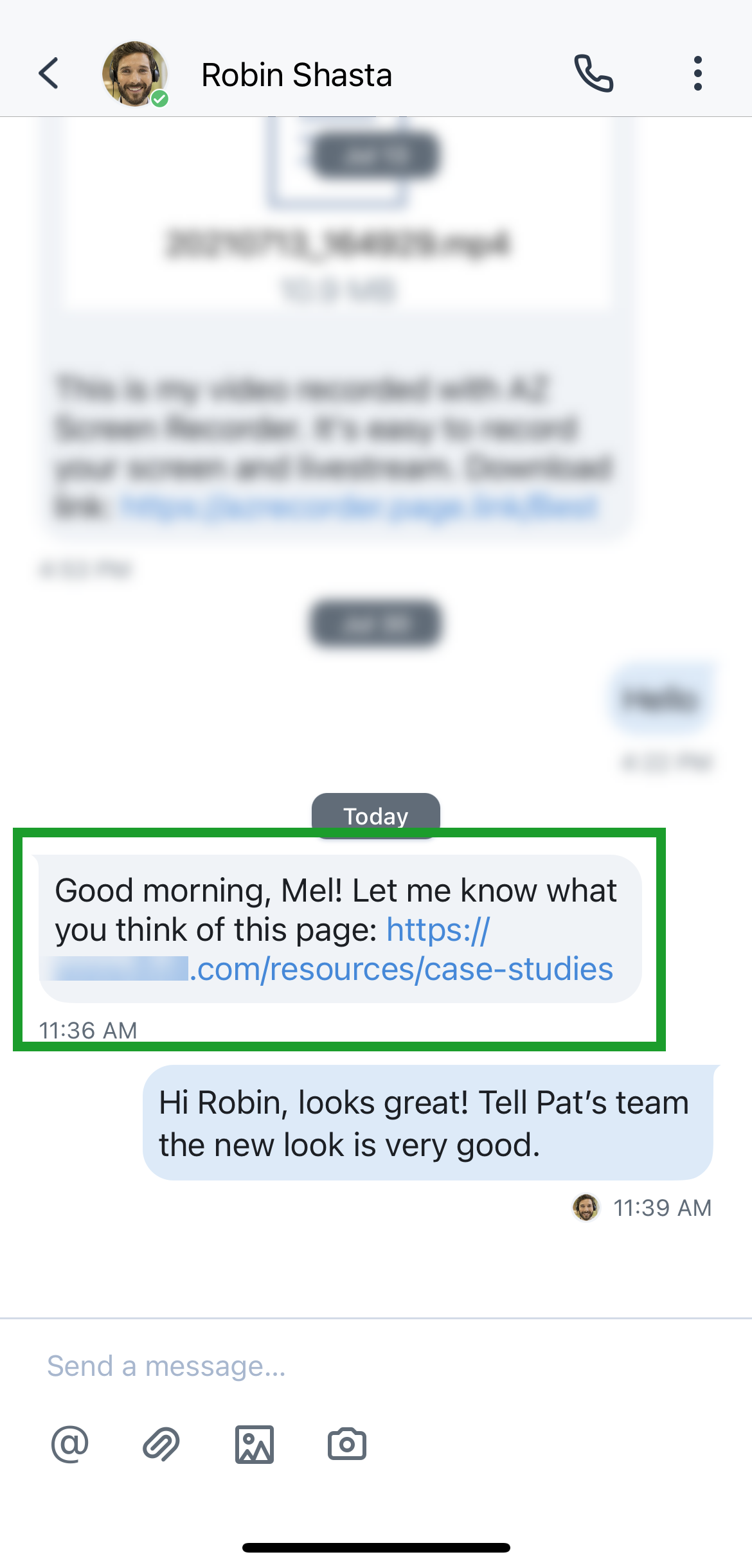
Ability to copy a link in a message without surrounding text: Let’s say your colleague sent you a helpful link or a phone number while chatting with you, but the item you want to copy is surrounded by text; now, if you press down on a blue underlined URL within a message, you can copy just that URL without the rest of the message! If you try to copy message text other than the link, you continue to see a contextual menu as you used to in previous versions.
Release 10.10
Enhancements to calls: The following enhancements apply to your calling experience.
Added ability to warm-transfer a call: Let’s say you often take or place calls that require you to transfer the other party to another colleague; you now have a way to warm-transfer your calls! Simply tap Transfer > Warm transfer from your call menu, and select someone from your Contacts
 list! The other party is placed on hold automatically. Once you notify your colleague of the incoming call, tap Handover from your call menu; you leave the call, and the other party is taken off hold and transferred seamlessly.
Ability to share voicemails is back: Let’s say a colleague left you a voicemail with important information to pass along to someone else; if permitted by your phone system administrator, you now have the ability to share selected voicemails!
From the More Options
 menu next to an open voicemail, tap Forward to share with a contact in 8x8 Work, or tap Share to share with a contact in another app on your device!
Support for Apple Carplay: If you’re an iOS user with an Apple Carplay-enabled car, in addition to replying to incoming messages, you can now initiate 8x8 Work messages or calls via the provided action buttons or directly with Siri voice commands, such as:
“Call Robin on 8x8 Work”
“Send a message to Mel on 8x8 Work saying I’m almost there”
“Send an 8x8 Work message to Sam”
Note:


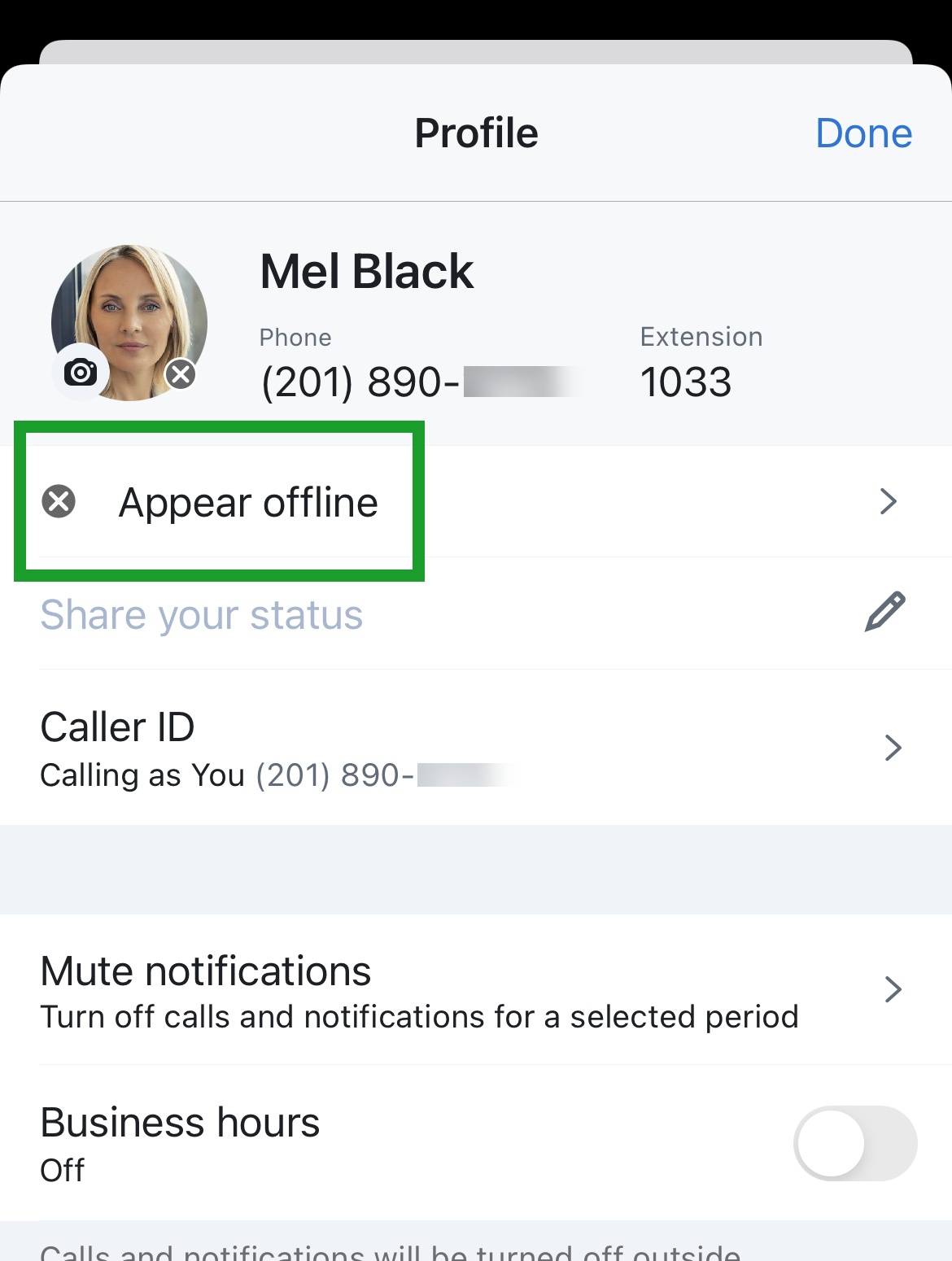
Renamed Invisible presence status option to Appear Offline: To better reflect the function of the presence status formerly labeled Invisible, this status has been renamed to Appear offline in your presence status selection menu! As before, this presence status continues to show up as Offline to colleagues viewing your availability.
To set your presence status, tap the profile image icon in your header to access your profile information. In the page that opens, tap your current status to open a list, and select the status you want to display.
Release 10.8
Improved accessibility for presence status icons: The Available
 and Offline
  status icons in 8x8 Work for Mobile (formerly
  and
and  ) now feature symbols in addition to their previous color differentiation, preventing the issue of the Available, Busy, and Offline statuses from looking identical to a colorblind user. Now, you can tell all presence statuses apart at a glance!
.png?sv=2026-02-06&spr=https&st=2026-11-03T20%3A55%3A08Z&se=2026-11-03T22%3A36%3A08Z&sr=c&sp=r&sig=TSQrVhSpf7clpJXceyK3n684jbrjbEemz0HIXi8QXog%3D)
Ability to reply to device-based 8x8 message notifications from outside the app: Let’s say you receive an 8x8 chat message while using another app on your device; you can now reply directly to the chat notification without needing to move away from where you are on your device! Simply drag the chat notification down to open your keyboard and reply. Once you reply to the message this way, the message is marked as Read as it would be if you replied from within the app.

Improved in-app help for call queues: As an 8x8 call queue user on iOS, you now receive an in-app help introduction to call queues in 8x8 Work for Mobile! As a new user, or as a returning user upgrading to version 10.8, when you first open your Calls
 list and go through your user introduction prompts below the app header, you also see an introduction to call queues that, when confirmed, directly takes you to Calls > Queues in the app!
Release 10.7
Ability to view call quality on the other party’s end of the call: During an active call, in addition to being able to view call quality information about your end of the call, you can now view call quality information about the other party’s end of the call as well! At a glance, you can see whether the other party’s call quality is good (green), average (yellow), poor (red), or disconnected (gray), letting you know which end of the call any call quality issues can be fixed from. The party on the call suffering from poor call quality can then switch to a stronger data channel: for example, if their cellular data signal is poor, they can improve their call quality by switching to nearby Wi-Fi or by enabling carrier minutes.
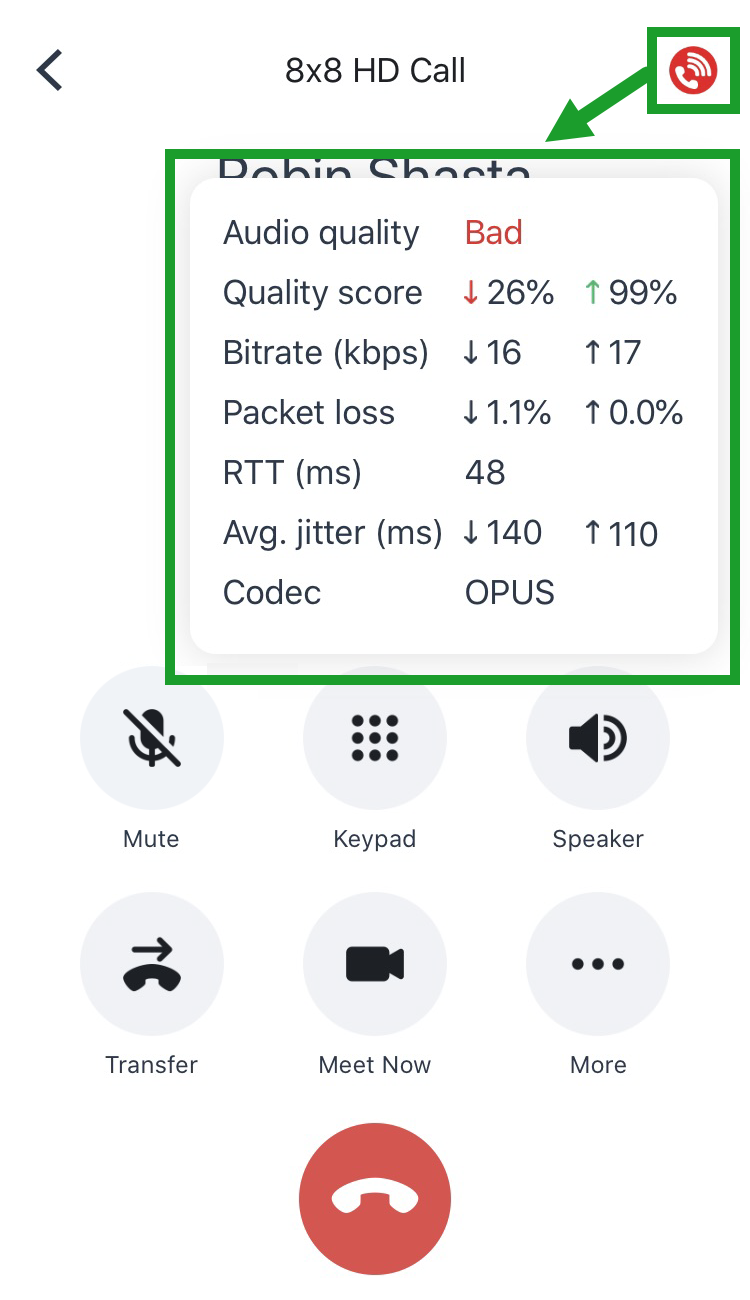
To see more details, simply tap the Call quality
 icon on the other party’s portrait. Your own call quality remains accessible in the upper-right corner of the call screen. If the call quality is showing as average or poor, the call metrics shown are more granular to help you identify the source of the problem, including:
Quality score (inbound and outbound)
Bitrate (in kilobits per second, inbound and outbound)
Packet loss rate (inbound and outbound)
Round-trip time (in milliseconds)
Average jitter (in milliseconds, inbound and outbound)
Codec used for the call

Enhanced display for call forwarding answer delay: If your organization is an X Series customer and your phone system administrator has changed the duration after which an incoming call is forwarded to voicemail (found under Profile > Settings > Account Settings > Call Forwarding), 8x8 Work for Mobile now accurately reflects the admin-selected time rather than the default of 15 seconds.

Release 10.6
Improved carrier minutes settings: Enjoy an enhanced experience when setting up carrier minutes in 8x8 Work for Mobile! The updated carrier minutes settings are now labeled more clearly to show which settings to use if you want 8x8 to prefer carrier minutes, or simply fall back on carrier minutes instead. Among these reorganized settings, you now have the ability to make 8x8 Work Suggest automatically when your call’s audio quality is poor, and give you the option to switch to cellular minutes.
In addition, you can enter or reset your phone number more quickly, and 8x8 Work hides all unnecessary settings if your phone number isn’t entered.

Ability to go to a replied message: Let’s say Sam asked Mel a question in their team chat some time ago, and Mel replied to the question only recently. To quickly see the context of the question in the chat, either of them can tap the quoted message in the reply! In addition, if a message was previously edited, the edited label and timestamp shows up next to the quoted message.

Enhanced behavior of the notification bar: When you receive a notification in 8x8 Work for Mobile on iOS, you no longer need to worry about the notification pushing down the content on the page, causing you to accidentally tap the wrong item. Notification bars in the app now float over the content you have open in the app without shifting anything down.
Release 10.5
Ability to see your current call quality: If your call quality is poor, it always helps to know where the problem is. During an active call, 8x8 Work for Mobile now shows you the call quality on your end of the call! At a glance, you can see whether your call quality is good (green), average (yellow), or poor (red).
To see more details, simply tap the call quality icon; if your call quality is showing as average or poor, the call metrics shown are more granular to help you identify the source of the problem, including:
Quality score (inbound and outbound)
Bitrate (in kilobits per second, inbound and outbound)
Packet loss rate (inbound and outbound)
Round-trip time (in milliseconds)
Average jitter (in milliseconds, inbound and outbound)
Codec used for the call
Note:
The call quality indicator shows you problems that are detected on your end of the call; issues such as a poor microphone on the other party’s end, for example, do not affect your measured call quality.
Ability to add 8x8 Work widget to your home screen: Need a way to see whether you’ve missed a call in 8x8 Work directly from your device’s home screen? As an iOS user, you can now set up an 8x8 Work for Mobile widget on your device!
In the widget screen to the left of your home screen, tap edit at the bottom of your widget screen, and then tap + at the top-right corner of your screen to bring up a search bar. In the search bar, look up <8x8 Work> to find an 8x8 Work for Mobile widget, and choose from a smaller or larger widget size. Once you set up an 8x8 Work widget, you can view your two most recent missed calls (or, if there are no missed calls, your two most recent calls overall).
Note:
This feature applies to widget functionality starting with iOS 14.

Enhancements to messages: The following enhancements apply to your messaging experience.
Ability to reply to a selected message: Let’s say someone asked a question some time ago in Robin’s group chat, and Robin now has the answer to it; Robin can now reply to the older message in the same chat without needing to copy and paste the older message! Similarly, if the message is edited by the writer, Robin’s reply reflects any changes made to the original message.
To reply to a message, scroll back to the message you want to reply to, and hold down on it to bring up a menu. From the menu, select Reply; this brings the selected message into a new message where you can write your answer. Once you are finished typing, send the selected message accompanied with your answer to it.

Improved chat room creation process: When creating a chat room in 8x8 Work for Mobile, the control to make the room public or private is now more visible for an improved experience.

Ability to search keywords across all messages: Let’s say Robin is trying to find a past conversation about an important project, but doesn’t remember which chat the discussion took place in; where Robin previously could search for contacts, Robin can now also search for keywords across all chat rooms or all individual chats, making it easier to find important discussions!
In the header of the app, tap the Search
 icon to bring up the search screen. In the search bar, enter one or more keywords that you want to search for. If you enter multiple keywords, 8x8 Work searches for messages and rooms where one or more of the keywords appear. For example, a search for <cats dogs> will bring up messages that mention either <cats> or <dogs>, or both at once.
Note:
Keyword search in 8x8 Work for Mobile does not support booleans.

Release 10.4
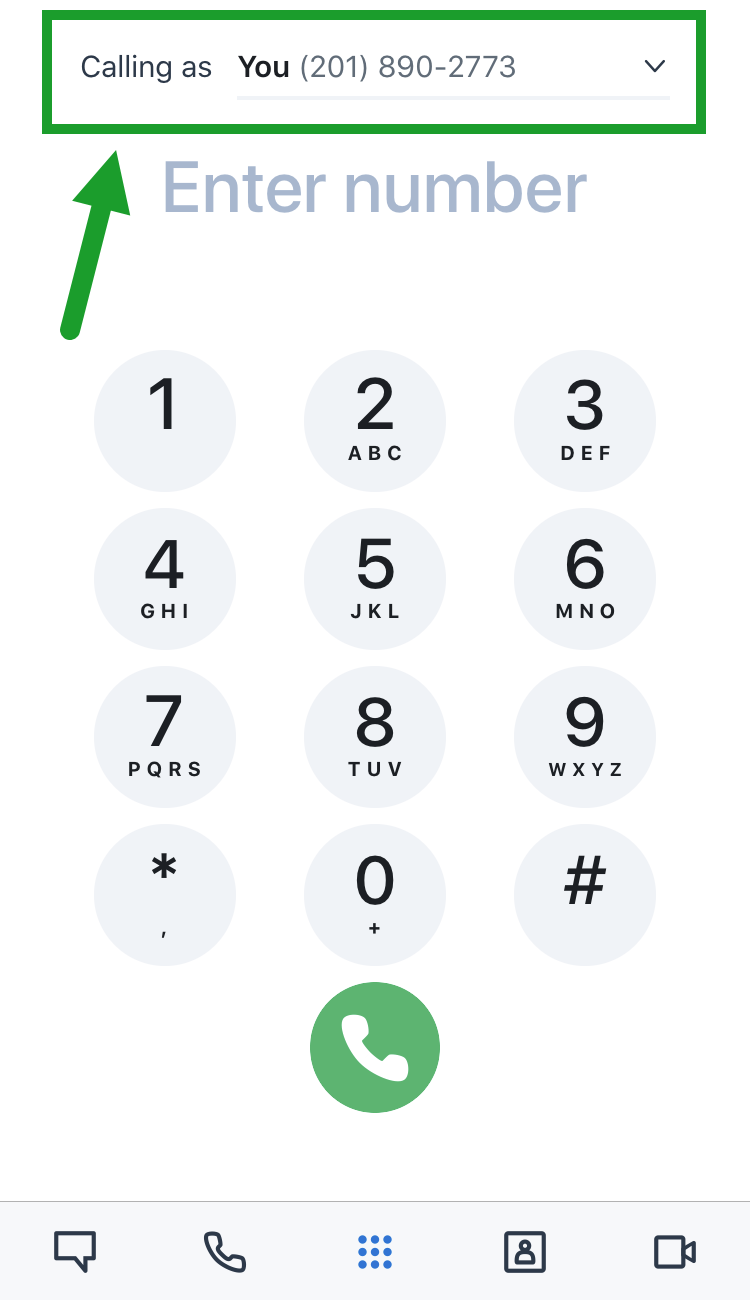
Ability to set an external Caller ID for out-of-company calls: Let’s say you need to use a different Caller ID than your default when making calls to external numbers; if your organization is an X Series customer, you can now switch between your available Caller IDs while on mobile! If multiple Caller IDs (and/or the ability to hide your Caller ID) are enabled for you by your phone system administrator, you can now select or hide your Caller ID from 8x8 Work for Mobile.
To switch between caller IDs, open your profile and tap Caller ID to select one of the available Caller IDs, or to hide the caller ID and make calls anonymously. This Caller ID is visible only to external contacts; your colleagues continue to see your calls with your name.
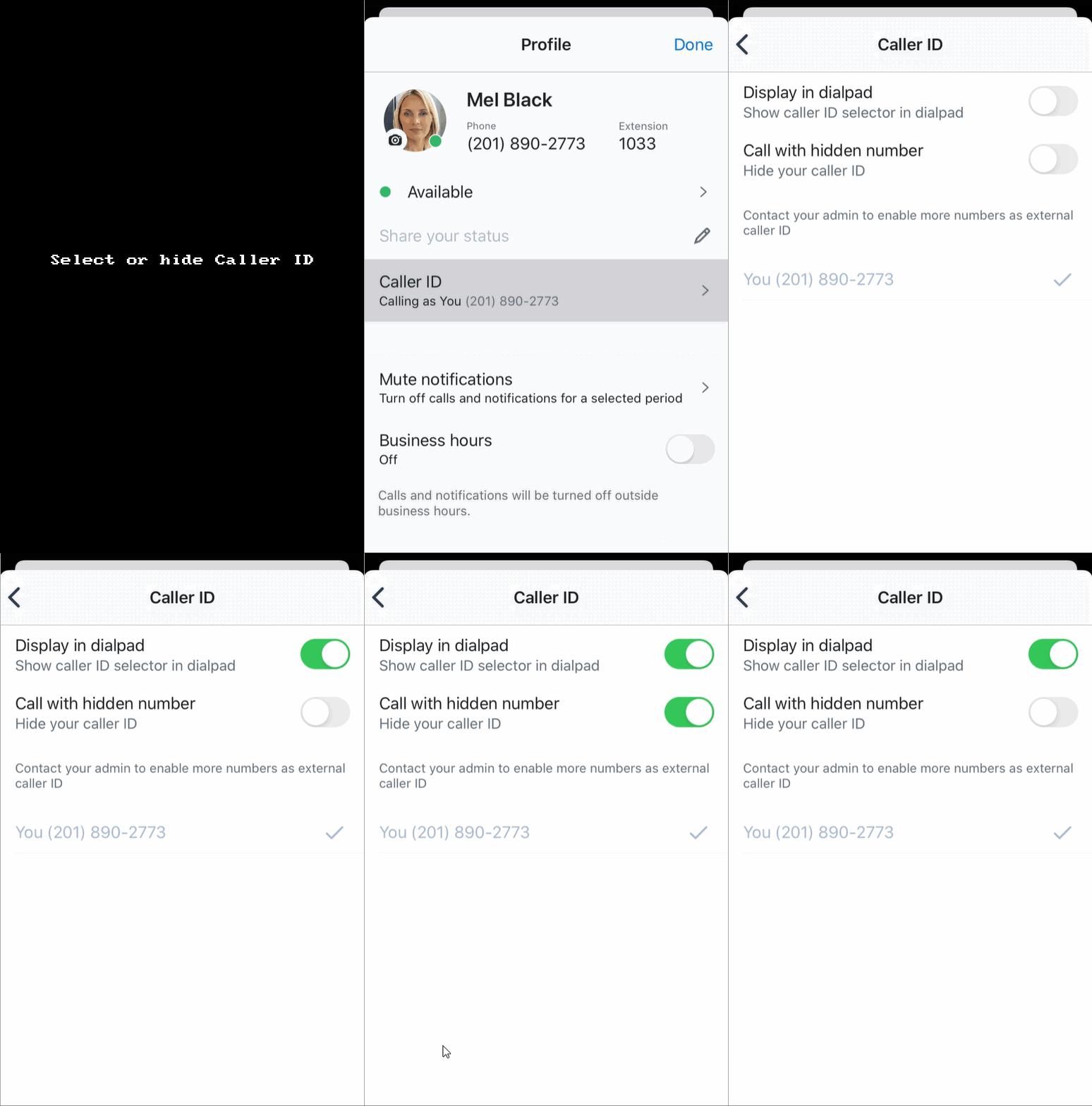
In addition, from the same menu, you can choose whether your Caller ID shows up when you open your dial pad, enabling you to ensure that you have a suitable Caller ID selected for an upcoming call.
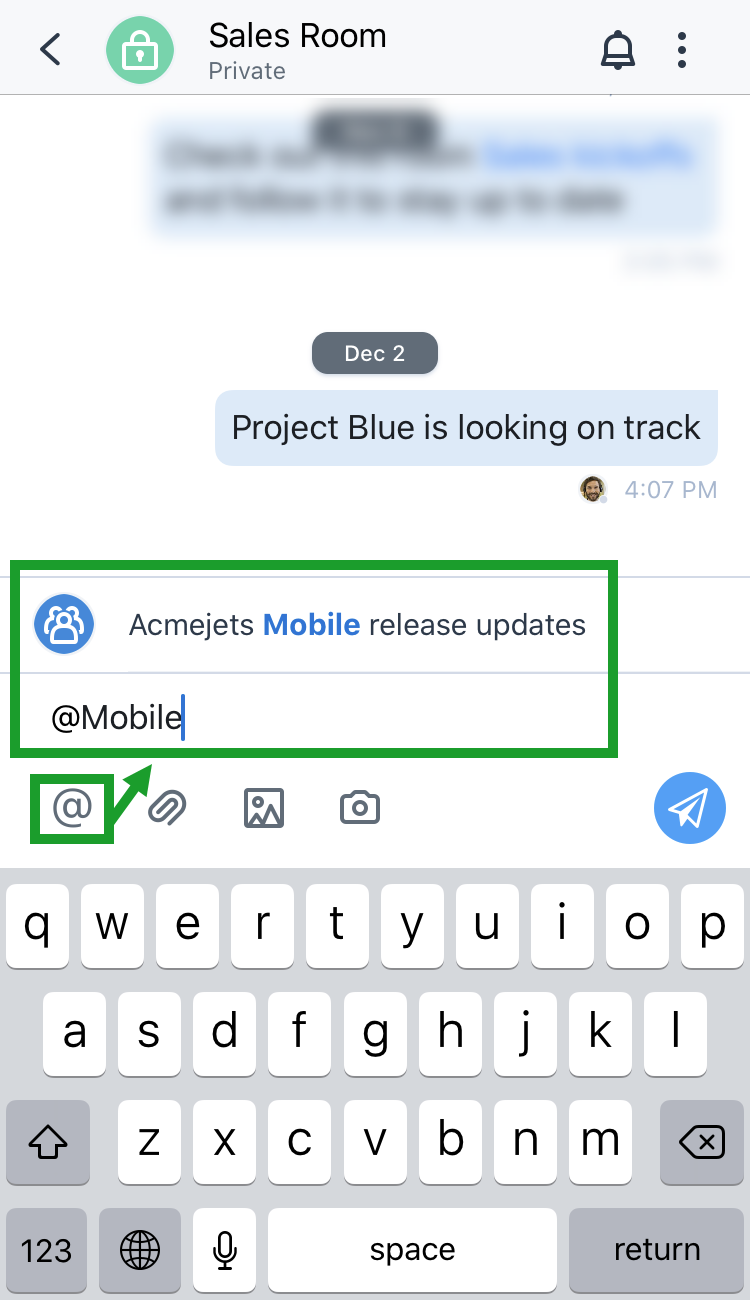
Ability to share links to public rooms when writing a message: You now have a quicker way to share a public chat room with your colleagues! Let’s say Mel has created a new public room to share the highlights of a product release, and wants to let the Sales team know about the new room; while typing a message, Mel can @mention a public chat room the same way a colleague can be @mentioned. Members of the Sales team room can then tap the shared link to open and follow Mel’s public room.
Note:
You cannot share private chat rooms.
To link to a public chat room when writing a message, simply tap @ and start typing the name of the room you want to share!
Release 10.3
Enhancements to calls: The following enhancements apply to your calling experience.
Access to call recordings via 8x8 Work for Mobile: You now have the ability to access your 8x8 Work call recordings on the go! Instead of accessing call recordings only via 8x8 Work for Desktop, you can now go to Calls
> Recordings in the mobile app as well!
Enhanced call forwarding setup for user extensions: If your organization is an X Series customer and you have set up 8x8 Work for Mobile to forward calls to another user in your organization, you now have the ability to select the destination user by name rather than only by extension number.
When you open your user profile page and go to Settings > Account Settings > Call Forwarding, and for one of the forwarding conditions select Company directory, you can search for a colleague by typing their name rather than only being able to search via extension number.

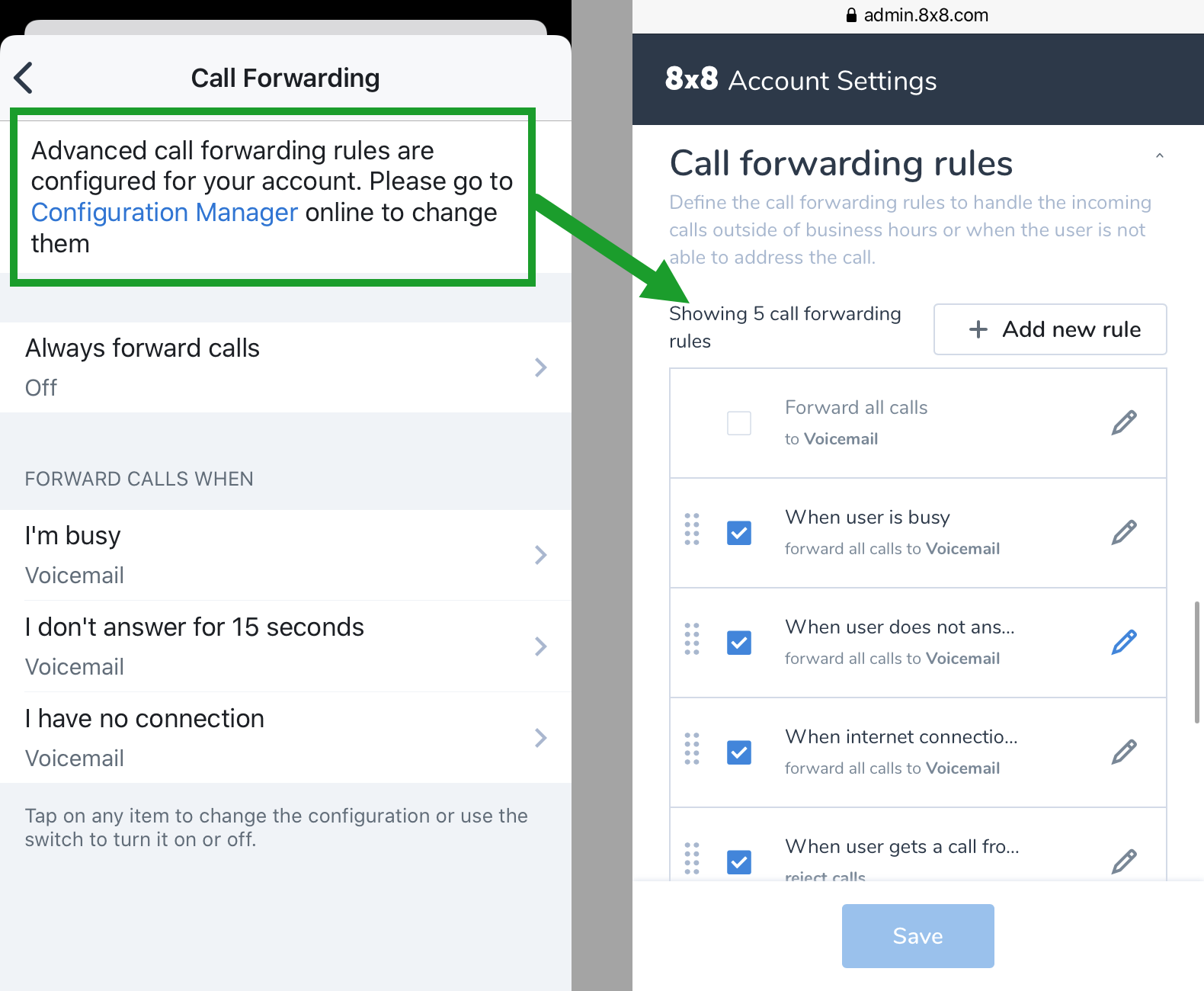
Ability to open advanced call forwarding rules via link to 8x8 Admin Console: If your organization is an X Series customer and you have created custom call forwarding rules for yourself, you now have the ability to open your advanced call forwarding settings in 8x8 Admin Console from 8x8 Work for Mobile!
From your user profile page, simply go to Settings > Account Settings > Call Forwarding, and tap the link that leads to your advanced call forwarding rules in your 8x8 account settings. Log in with your usual 8x8 credentials to open up your advanced settings in your mobile browser.
Enhancements to messages: The following enhancements apply to your messaging experience.
Ability to share a link to a room in another chat or room: Let’s say Mel has created a new public chat room concerning updates to the AcmeJets mobile app, and wants to let people in the corresponding room for the desktop app know about the new room; Mel can now share any public chat room as a link when messaging colleagues one-on-one or in a different room!
Note:
You cannot share private chat rooms.
While in a public chat room you want to share, open the More options
 menu, and select Share room. Then, choose which rooms and/or one-on-one chats you want to share the room to, and confirm. The link to the shared room, accompanied with pre-generated text, appears in the chats you shared to.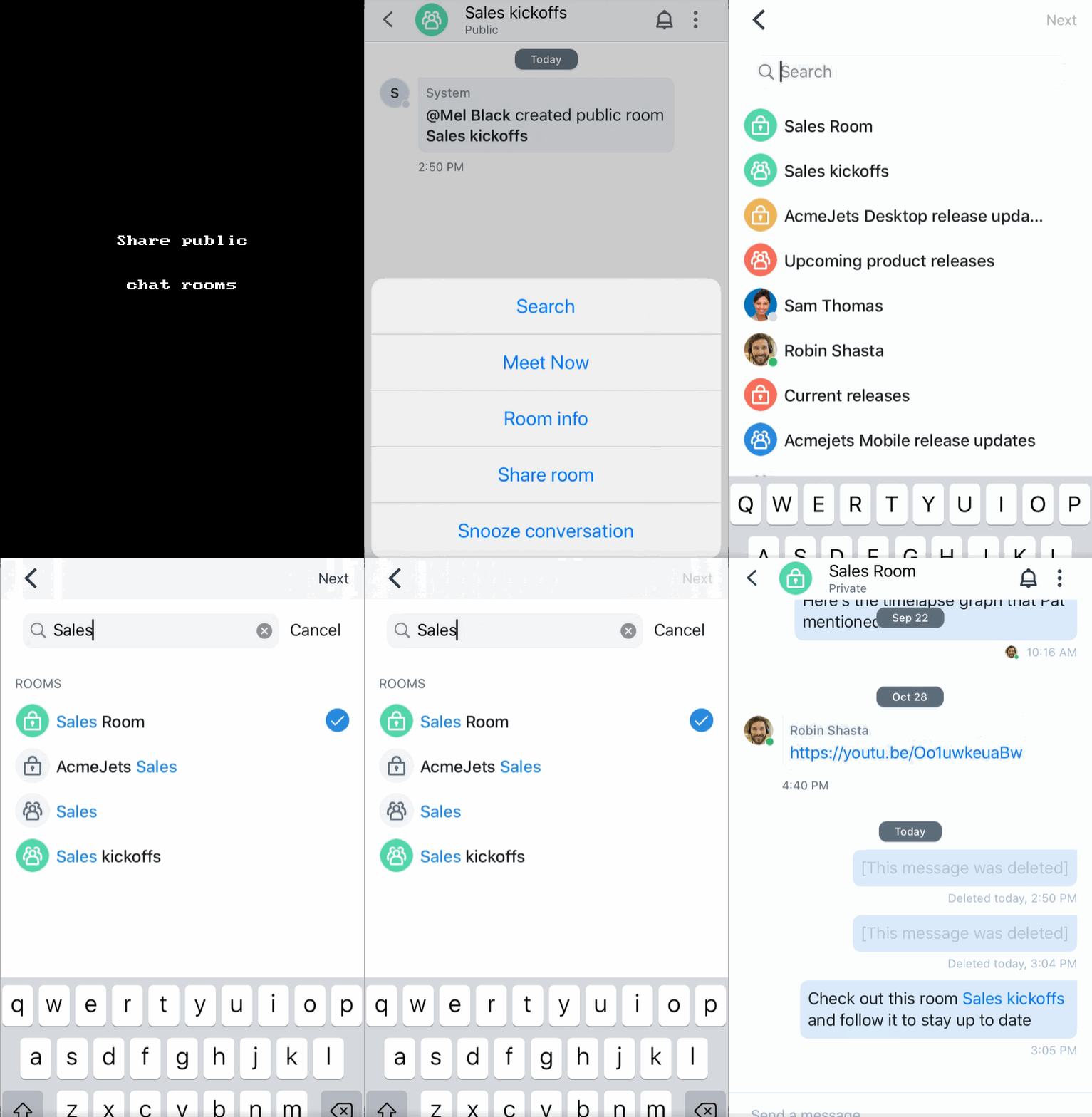
Enhanced handling of former colleagues in chat rooms: Let’s say Sam’s colleague Jan leaves the company; in chat rooms where Jan participated, Sam continues to see Jan’s name and messages, but now no longer sees Jan in the list of room members, as well as in the selection list when someone tries to @mention someone with a similar name.

Updated name for your list of meetings: The label for your list of meetings (formerly Meet) now shows up as Meetings.

Additional change: end-of-life for iOS 12 and 11 support: As an iOS user, you must upgrade to iOS 13 or newer in order to run 8x8 Work for Mobile.
Release 10.2
Updated icon for your list of meetings: Your Meet
 list (formerly Meet
  ) is now marked with an updated icon that better reflects the ability to join meetings with audio and video!
Enhancements to calls: The following enhancements apply to your calling experience.
[X Series and Virtual Office Editions customers] Ability to block spam callers: Do you find yourself answering repeated spam calls on your work number? No need to worry! If your organization is an X Series or Virtual Office Editions customer, you now have the ability to block spam callers from your list of call logs!
In your list of Calls
, simply on a spam call, and select Block  from the options that appear !
Ability to respond to incoming calls with quick-reply messages: If you’re too busy to answer an incoming business call as an iOS user, you now have the ability to decline an incoming 8x8 call with a quick-reply message just like for an incoming device call!
On your lock screen, simply tap Message on an incoming call, and select from the quick-reply options.
.png?sv=2026-02-06&spr=https&st=2026-11-03T20%3A55%3A08Z&se=2026-11-03T22%3A36%3A08Z&sr=c&sp=r&sig=TSQrVhSpf7clpJXceyK3n684jbrjbEemz0HIXi8QXog%3D)
Enhancements to messages: The following enhancements apply to your messaging experience.
Enhanced chat room creation process: When you create a new chat room in 8x8 Work for Mobile, enjoy an improved experience! To make your chat rooms easier to spot at a glance, you now have the ability to assign an avatar to the room you create, or to an existing room.

In addition, if you are creating a private room, a room name is automatically populated based on who you invite; if Mel creates a private room with teammates Robin and Sam, for example, the auto-populated name would be Mel, Robin & Sam. To switch between creating a public or private room, tap the Public room indicator.

Ability to share messages to another app: Let’s say you need to share important in-chat information with a colleague who can’t access 8x8 Work. If the information you need to share is spread across multiple messages, or even with some irrelevant messages in between, you can select multiple messages from a chat to share to another app!
Press a chat message you want to share, and in the menu that pops up, select Select messages to select any additional messages you need. Tap additional messages to mark them, and tap Share at the bottom of your screen to bring up your device’s menu of apps that you can share text to!
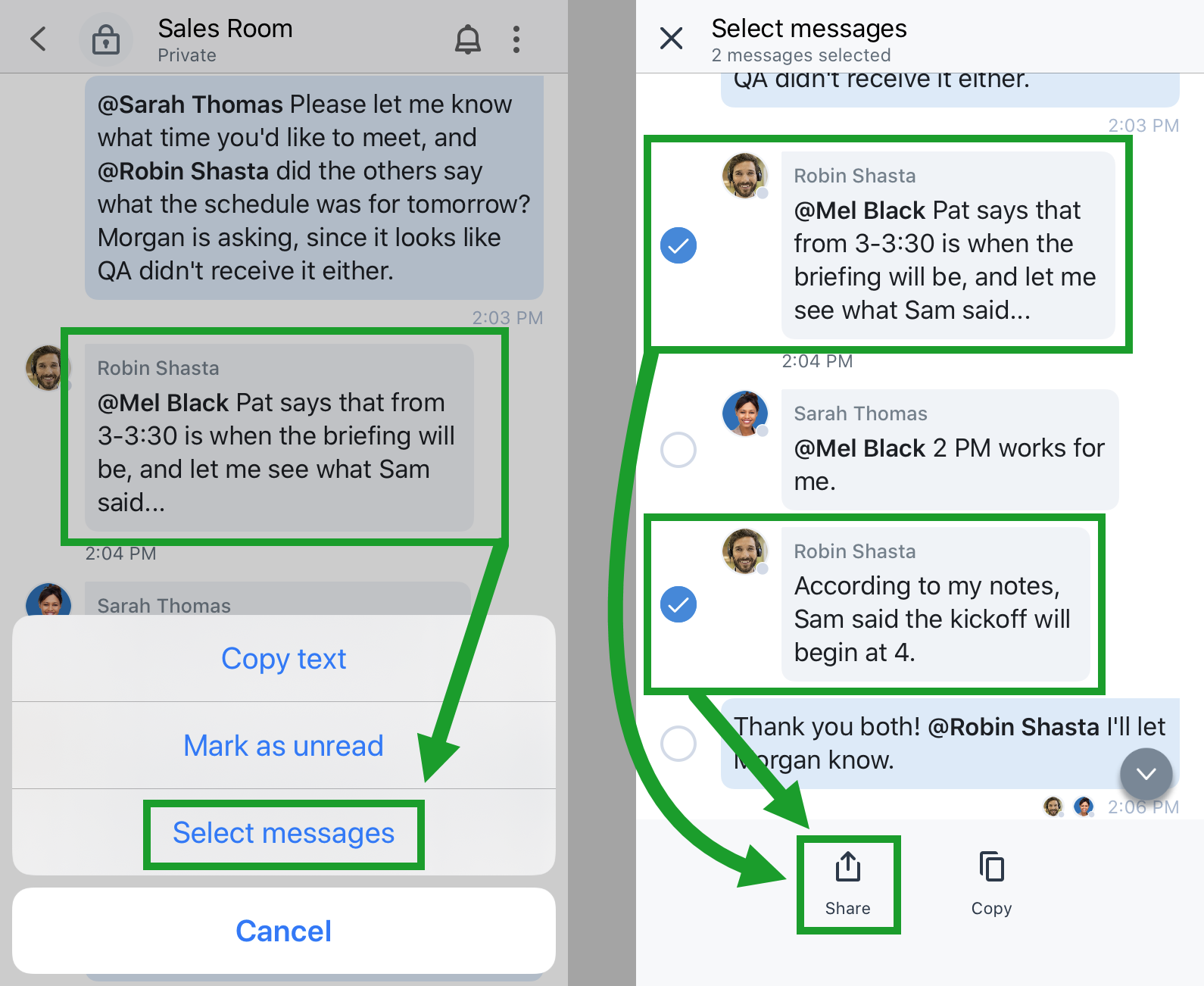
Note:
Sharing messages does not share files attached to those messages.
Ability to send GIFs in chat: Let’s say you need to send an animated image over chat to a colleague; you now have the ability to attach dynamic GIFs to your chat messages the same way you would attach static images! Once the GIF is attached in a chat, the GIF thumbnail plays automatically.

Release 10.1
Enhancements to calls: The following enhancements apply to your calling experience.
Ability to choose from more 8x8 ringtones to distinguish between business and personal calls: Let’s say you receive many calls on your device or on other apps, and need a way to distinguish incoming 8x8 Work calls from other calls; simply select one of our 8x8 ringtones to know when you have an incoming 8x8 call without needing to look at your device!
When you go to Profile > Settings > Ringtone, you now have more options for ringtones unique to 8x8 Work for Mobile!

Ability to flip a call to mobile via banner notification: Via call flip, you were previously able to flip your call to any device associated with your 8x8 Work extension by dialing *88 on the new device. As an iOS user, you retain the ability to flip calls via dialing *88, but now 8x8 Work for Mobile features a quicker way to flip calls to mobile!
Let's say you are on an 8x8 Work call on your desktop but you want to switch to mobile for freedom of movement; if you’re calling via the desktop app, the mobile app detects the call and displays an in-app banner you can use to flip the call over to mobile! Simply tap Flip in the banner, and you’re ready to go!

Enhancements to messages: The following enhancements apply to your messaging experience.
Ability to mute notifications for chats: Let’s say that one of the chat rooms you follow is very active, but you are not part of the discussion and would like to block notifications for the room for a while; if you want to keep a large number of notifications from cluttering your phone, you now have the ability to mute notifications for a conversation for 30 minutes, one hour, until you unmute the conversation, and more! In addition, if you are muting a chat room you are following, the ability to mute conversations also lets you block notifications without unfollowing a room.

Note:
At this time, the ability to mute notifications in a chat is available only on mobile.
Release 10.0
The Virtual Office mobile app is now 8x8 Work for Mobile: Say hello to 8x8 Work for Mobile! In recognition of the increased importance of digital tools and changes to how we all work, the 8x8 products and services you work with are getting new names as part of their transformation:
Virtual Office: 8x8 Work
Virtual Office mobile app: 8x8 Work for Mobile
Virtual Office desktop app: 8x8 Work for Desktop
8x8 Meeting Rooms: 8x8 Spaces
And more!
Release 9.2
Returned detailed notification settings for chat, missed calls, and voicemails: Do you want to see notifications for some 8x8 communications, but not others? The ability to enable or disable notifications for messages, missed calls, and voicemails without needing to go to your device settings is now back! Simply access these settings in the app by tapping your profile image icon and going to Settings > Notifications.
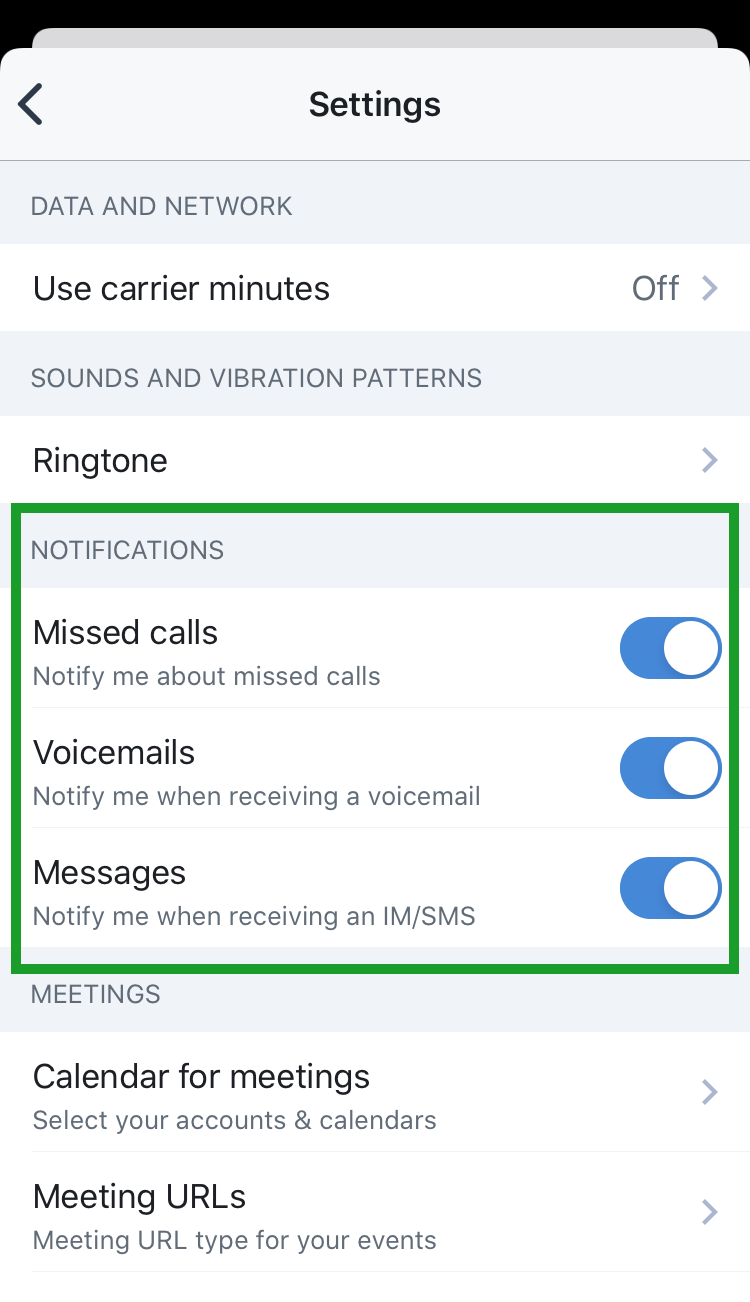
Enhancements to calls: The following enhancements apply to your calling experience.
Reorganized settings for cellular carrier minutes: Do you switch over to calls via cellular carrier minutes in places with poor data network reception? We have reorganized your settings for carrier minutes for a more efficient experience!

Ability to log in and out of call queues on mobile: If you are a member of a call queue, you can now access your list of assigned call queues from 8x8 Work for Mobile! Under Calls
, you can now access your list of assigned Queues alongside your lists of calls and voicemails! The Queues list shows up if you are assigned to one or more call queues; you are assigned to or removed from call queues by your administrator in 8x8 Admin Console.
To log in to or out of a queue, simply tap the queue and tap the Log in/Log out
 option that appears.
When you are logged in to one or more call queues, a call queue indicator appears on your profile icon next to your presence status.

Improved ability to add and transfer calls: Let’s say you usually transfer calls to your teammates or a small number of other colleagues; add these contacts to your list of favorite contacts and transfer your calls more quickly than ever!
When you try to add or transfer a call, you now see your list of favorite contacts and other suggested options without you needing to type their names. If you don’t want to add or transfer to one of these favorite or suggested contacts, simply start typing to bring up search results.
If you don’t have contacts added to your list of favorites, you don’t see a list of favorites above your other options.

Release 9.1
Ability to filter chats by one-on-one or room conversations: Need to quickly scan through your one-on-one chats without scrolling through your chat rooms, or vice versa? On iOS, you now have the ability to choose between viewing all chats, only one-on-one chats, or only chat rooms in your Messages
 list!
list!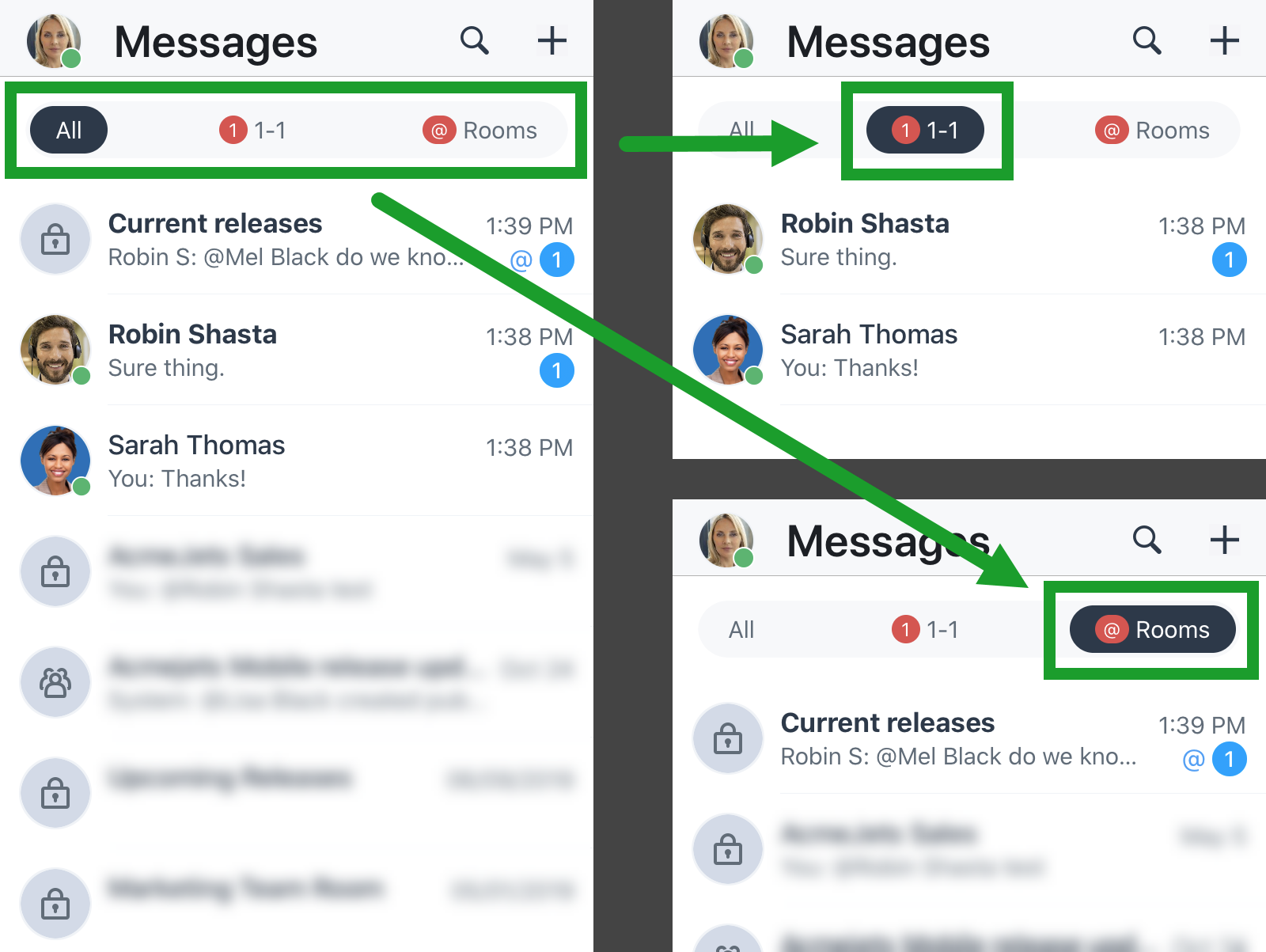
Improved ability to remove one person from a conference: On iOS, enjoy a quicker experience when removing one participant from a three-way conference call! Now, you can remove a conference participant in just one tap, rather than two.

Ability to select text in another app and send it via 8x8 Work: As an iOS user, let's say you're quoting an article to your colleagues, or sharing other useful information written in another app; you now have the ability to select text in another app and share it to 8x8 Work for Mobile without copying and pasting!
Simply select the text you want to share, tap it, and select the Share option to show the apps on your device you can share to. In your list of apps, select 8x8 Work for Mobile.

New notifications for unattended missed calls: You no longer need to worry about forgetting to follow up on a missed call! If you miss a call in 8x8 Work and don't reopen 8x8 Work for Mobile in the next 48 hours, you now see a reminder in your device notifications so that you have a chance to call back.

Enhanced experience for joining meetings as a guest: When you join a meeting as a guest directly from the 8x8 Work for Mobile login screen, you now see references to "meeting name" instead of "meeting ID" to better reflect what you need to enter.
.png?sv=2026-02-06&spr=https&st=2026-11-03T20%3A55%3A08Z&se=2026-11-03T22%3A36%3A08Z&sr=c&sp=r&sig=TSQrVhSpf7clpJXceyK3n684jbrjbEemz0HIXi8QXog%3D)
Release 9.0
Support for iOS 13: To comply with changes made in iOS 13, we have updated your 8x8 Work experience accordingly:
New or changed:
Ringtone settings are now located under Settings > Sounds and vibration patterns in your 8x8 Work settings instead of under Settings > Sounds.
Actions for 8x8 Work voicemail notifications are now identical to actions for native device voicemail notifications. For example, tapping the notification opens your voicemail, and long-pressing the notification brings up the options to call back or message the caller.
Removed:
Notification settings for messages and missed calls are no longer available, but will return with improvements in a future release.
Cellular data settings are no longer available.
Note:
The absence of cellular data settings may affect you if you are on roaming.
Support for Dark Mode: Let’s say you frequently access 8x8 Work for Mobile at night, or simply find the usual interface too bright to look at; as an iOS user, you can now switch your interface to Dark Mode at any time! Your interface changes from black text on a white background to white text on black, making the app easier on your eyes.
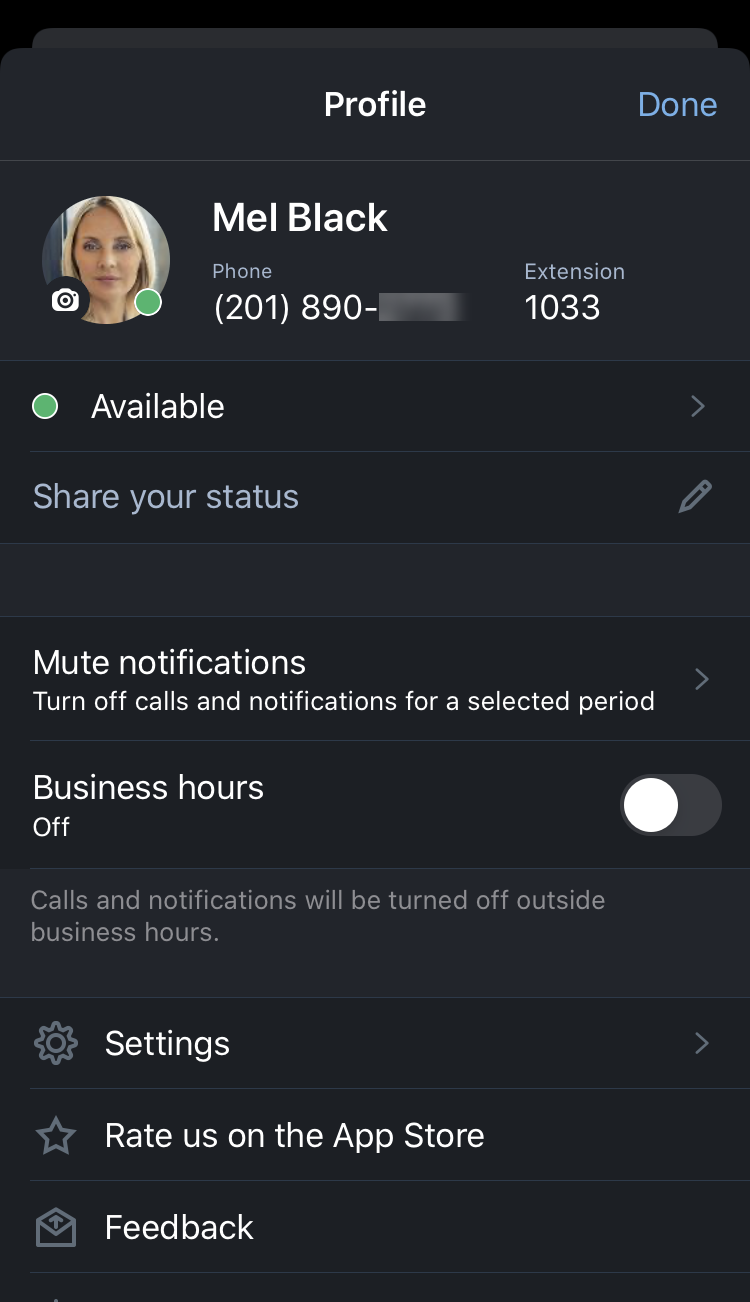
8x8 Work for Mobile switches to Dark Mode whenever you have Dark Mode enabled or scheduled under Settings > Display & Brightness; if you need Dark Mode at a different time of day, simply select Automatic, and select a sunset-to-sunrise or custom schedule.
.png?sv=2026-02-06&spr=https&st=2026-11-03T20%3A55%3A08Z&se=2026-11-03T22%3A36%3A08Z&sr=c&sp=r&sig=TSQrVhSpf7clpJXceyK3n684jbrjbEemz0HIXi8QXog%3D)
.png?sv=2026-02-06&spr=https&st=2026-11-03T20%3A55%3A08Z&se=2026-11-03T22%3A36%3A08Z&sr=c&sp=r&sig=TSQrVhSpf7clpJXceyK3n684jbrjbEemz0HIXi8QXog%3D)
Note:
To access Dark Mode in your device settings, you must be running iOS 13.4.1 or newer.
New Siri integration for messaging: Need to get an urgent message to a colleague while you are driving or walking? As an iOS user, you now have the ability to message an 8x8 Work contact via Siri!
For example, if Pat realizes while driving that Robin might not know about a meeting that will take place within the hour, Pat can activate Siri and issue a command: “Using 8x8 Work, send a message to Robin Shasta saying “check the calendar for an upcoming conference.””
Note:
If you have enabled 8x8 Work to access your device contacts, you can also send 8x8 Work messages to any contact on your device!
Siri supports the following commands with 8x8 Work:
“Using 8x8 Work send a message to <contact name> saying <content of message>.”
“Send a message to <contact name> on 8x8 Work.”
“New message to <contact name> using 8x8 Work.”
Ability to send files from other apps via 8x8 Work: Need to share a file with your colleagues while on mobile? You now have the ability to select files in other apps on your device and send them via 8x8 Work! When sharing a file from an app your OS finds compatible with 8x8 Work, 8x8 Work now shows up as a sharing destination.
Note:
At this time, you can select multiple files to send at once, but only one 8x8 Work conversation in which to send the files.
.png?sv=2026-02-06&spr=https&st=2026-11-03T20%3A55%3A08Z&se=2026-11-03T22%3A36%3A08Z&sr=c&sp=r&sig=TSQrVhSpf7clpJXceyK3n684jbrjbEemz0HIXi8QXog%3D)
Enhanced Fax screen design:

Release 8.5
Ability to view meeting transcriptions via mobile: You can now view the audio transcripts of your past meetings on the go! If real-time audio subtitles were enabled during a meeting, you now have the ability to access these transcripts from your mobile app.
.png?sv=2026-02-06&spr=https&st=2026-11-03T20%3A55%3A08Z&se=2026-11-03T22%3A36%3A08Z&sr=c&sp=r&sig=TSQrVhSpf7clpJXceyK3n684jbrjbEemz0HIXi8QXog%3D)
Real-time audio subtitles in a meeting enable you to view an on-screen transcription of what is spoken during a meeting; if you have trouble hearing what is said or have an uncooperative headset, audio subtitles enable you to participate in a meeting without missing out on important talking points!
.png?sv=2026-02-06&spr=https&st=2026-11-03T20%3A55%3A08Z&se=2026-11-03T22%3A36%3A08Z&sr=c&sp=r&sig=TSQrVhSpf7clpJXceyK3n684jbrjbEemz0HIXi8QXog%3D)
New look for personal contact edit screen: As an iOS user, enjoy a more intuitive experience while creating or editing a personal contact! When you create or edit 8x8 Work personal contacts, the app interface more closely matches your experience editing personal contacts on your mobile device, allowing you to manage your contacts more efficiently.


Release 8.4
Enhanced contact details and call logs: Enjoy a more intuitive experience when reviewing the details of your contacts! When you search for a contact and tap to see their details, immediately see a contact’s job title and a description of their presence status, and start a call or chat with them more quickly.

Similarly, call logs have been improved to more prominently display a contact’s title and presence, and ways that you can contact them.
Ability to search chat history: Need to find an important discussion in your chat history that took place long ago? As an iOS user, you now have the ability to search for words and phrases in previous messages in a room or one-on-one chat! If one or more of your keywords appear in a message, the message shows up with any matching terms highlighted.


Release 8.3
Ability to promote calls to meetings: Let's say you're on a call with a company contact and your call is getting more involved; you can bring the other party into a meeting with one or more of your colleagues who can discuss an important matter with them. When on an 8x8 Work call, you can immediately promote the call to a productive 8x8 meeting, and bring the other party into the meeting!
Note:
This enhancement applies to users of 8x8 Meet; users of older experiences retain their earlier ability to promote calls to meetings. To determine which meeting experience your organization uses, see details on 8x8 Meet.
.png?sv=2026-02-06&spr=https&st=2026-11-03T20%3A55%3A08Z&se=2026-11-03T22%3A36%3A08Z&sr=c&sp=r&sig=TSQrVhSpf7clpJXceyK3n684jbrjbEemz0HIXi8QXog%3D)
.png?sv=2026-02-06&spr=https&st=2026-11-03T20%3A55%3A08Z&se=2026-11-03T22%3A36%3A08Z&sr=c&sp=r&sig=TSQrVhSpf7clpJXceyK3n684jbrjbEemz0HIXi8QXog%3D)
Note:
In order for the other party on a call to be brought into an 8x8 meeting, they must be on the call via one of the following or newer:
-Version 8.3 of 8x8 Work for Mobile
-Version 6.6 of 8x8 Work for Desktop
If the party is on the call using an older version of 8x8 Work, they join only meeting audio when you initiate a meeting, and are not taken to the meeting interface.Ability to sort and filter contacts by site instead of location: If your organization is an X Series or Virtual Office Editions customer, the option to sort company contacts based on location is replaced with an option to sort based on site.
In addition, let’s say you only communicate with company contacts in your own office; you now have the ability to filter out all contacts outside of your site!
.png?sv=2026-02-06&spr=https&st=2026-11-03T20%3A55%3A08Z&se=2026-11-03T22%3A36%3A08Z&sr=c&sp=r&sig=TSQrVhSpf7clpJXceyK3n684jbrjbEemz0HIXi8QXog%3D)
Ability to jump to the first unread message in a chat: Let’s say a subject comes up in your team’s chat room that you want to mark as unread for yourself as an item to return to later; the next time you open the chat, you now have the ability to jump back to the message you marked for yourself!
When you jump to the message you marked as unread, the message appears under a New messages indicator in your chat history.


Release 8.2
Enhanced : Enjoy an enhanced navigation experience that enables you to access !
Access the dial pad with a single tap from the navigation bar.
Open your user settings from your profile screen.
Ability to set business hours and mute notifications from your profile: Need a way to control incoming calls and notifications at specific times of day? You can now set your business days and hours from your profile to ensure you are not disturbed by incoming calls and notifications outside of your business hours!
In addition to setting up your regular business hours, you can choose to temporarily disable notifications for a specific period of time, such as 30 minutes, one hour, two hours, four hours, or until the following day.
.png?sv=2026-02-06&spr=https&st=2026-11-03T20%3A55%3A08Z&se=2026-11-03T22%3A36%3A08Z&sr=c&sp=r&sig=TSQrVhSpf7clpJXceyK3n684jbrjbEemz0HIXi8QXog%3D)
If you are outside of your business hours or have disabled notifications for a period of time, your profile icon in your application header and profile page shows up with an additional Snoozing
 indicator to remind you that you are not receiving notifications.
.png?sv=2026-02-06&spr=https&st=2026-11-03T20%3A55%3A08Z&se=2026-11-03T22%3A36%3A08Z&sr=c&sp=r&sig=TSQrVhSpf7clpJXceyK3n684jbrjbEemz0HIXi8QXog%3D)
Support for Swipe gestures in Messages, Favorites, and Faxes screens: Need to quickly manage a large number of messages, faxes, or contacts? In addition to the existing functionality for calls and voicemails, you can now take advantage of swiping left or right to quickly manage the following:
Swipe left on a conversation to reveal the options to hide or mark as read.
Swipe right on a conversation to reveal options to manage your listed messages in bulk.
Swipe left on a fax to reveal the options to delete or mark as read/unread.
Swipe left on a favorite contact to reveal the option to remove from the favorites list.


For details, see our content on:
Marking chats as read, marking messages in a chat as unread, or hiding chats.
Marking faxes as read or unread, or deleting faxes.
Support for placing 8x8 Work calls via Siri: If you often use Siri on your iOS device to reach out to your contacts, you can now use Siri to place calls to your personal or company contacts through 8x8 Work! For example, to place a call to your teammate Robin Shasta, simply say “Hey Siri, call Robin using 8x8 Work,” and confirm!

To enable Siri for your device and 8x8 Work for Mobile, open your device Settings and go to:
Siri & Search to enable Siri on your device.
Virtual Office > Siri & Search to enable 8x8 Work for Mobile permissions for Siri.
Virtual Office > Contacts to enable calling device contacts via 8x8 Work in addition to 8x8 Work contacts.


Need a quicker way to call a favorite 8x8 Work contact via Siri? If you use Siri with the Apple Shortcuts app on your mobile device, you can add Siri shortcuts in the Shortcuts app to quickly make 8x8 Work calls to your contacts!
To get the Apple Shortcuts app, download the app to your mobile device from the App Store, and get started creating 8x8 Work shortcuts with Siri!

New application-only ringtones: In addition to the ability to use for 8x8 Work calls when you open your profile screen and go to Settings > Sounds, you now have access to new 8x8 Work-only ringtones for 8x8 Work for Mobile!

Color-coded information bars based on priority: Based on the priority level of an information bar near the top of your app, you now see the bar displayed in a color that indicates how urgent it is.
Red indicates high-priority information, such as a message that you have no access to an Internet connection.
.png?sv=2026-02-06&spr=https&st=2026-11-03T20%3A55%3A08Z&se=2026-11-03T22%3A36%3A08Z&sr=c&sp=r&sig=TSQrVhSpf7clpJXceyK3n684jbrjbEemz0HIXi8QXog%3D)
Orange indicates moderate-priority information, such as a message that you are experiencing a temporary interruption in your phone service.
Gray indicates low-priority information, such as a message that you are connecting to your phone service.
.png?sv=2026-02-06&spr=https&st=2026-11-03T20%3A55%3A08Z&se=2026-11-03T22%3A36%3A08Z&sr=c&sp=r&sig=TSQrVhSpf7clpJXceyK3n684jbrjbEemz0HIXi8QXog%3D)
Improved visibility for Do Not Disturb: You no longer need to worry about forgetting to switch your status back if your presence status is set to Do not disturb! If you switched your status to Do not disturb from your profile, you now see an information bar near the top of 8x8 Work for Mobile to remind you of your current status; this way, once you are no longer busy, you are able to revert your status in a more timely manner.
.png?sv=2026-02-06&spr=https&st=2026-11-03T20%3A55%3A08Z&se=2026-11-03T22%3A36%3A08Z&sr=c&sp=r&sig=TSQrVhSpf7clpJXceyK3n684jbrjbEemz0HIXi8QXog%3D)
Support for silent mentions in chat: Let’s say that you are chatting in a group and a colleague asks whether anyone in the room knows the person responsible for a certain project; you may want to respond by saying "Yes, it's @Robin Shasta" with an @mention of Robin. The mention is useful not only as a way to introduce colleagues to one another, since now Robin receives a message notification, but it's also useful as a quick and accurate way to share contact information.
In previous releases, the ability to mention contacts functioned only in public rooms; in private rooms and one-on-one conversations, you needed to type out a colleague’s name without being able to @mention them.
In this release, we're bringing the ability to silent-mention colleagues not only in public rooms, but also in private rooms and one-on-one conversations; this enables you to share contact information without needing to generate an @mention notification, hence "silent".
To look up a person you remember as “Robin S”, for example, type <@robin s> until you see a result in the list that you recognize as correct. If you see an additional line of text below their name in the mention selection list, such as “Will not be mentioned (not a member)”, you know that you are about to silent-mention your colleague instead of @mentioning them.
.png?sv=2026-02-06&spr=https&st=2026-11-03T20%3A55%3A08Z&se=2026-11-03T22%3A36%3A08Z&sr=c&sp=r&sig=TSQrVhSpf7clpJXceyK3n684jbrjbEemz0HIXi8QXog%3D)
.png?sv=2026-02-06&spr=https&st=2026-11-03T20%3A55%3A08Z&se=2026-11-03T22%3A36%3A08Z&sr=c&sp=r&sig=TSQrVhSpf7clpJXceyK3n684jbrjbEemz0HIXi8QXog%3D)
Ability to mention users with identical names: If you try to mention a name that is used by multiple people in a public or private room, the @mention selection list now includes additional information, such as their email addresses, to help you identify the correct person.

Release 8.1
Enhanced navigation experience: When you launch 8x8 Work for Mobile, the app now brings up your last-viewed screen instead of defaulting to your Messages
list.New smart replies in chat: When you are about to respond to a message, 8x8 Work for Mobile now provides smart replies based on the text of the message you received to enhance your chat experience!
.png?sv=2026-02-06&spr=https&st=2026-11-03T20%3A55%3A08Z&se=2026-11-03T22%3A36%3A08Z&sr=c&sp=r&sig=TSQrVhSpf7clpJXceyK3n684jbrjbEemz0HIXi8QXog%3D)
Release 8.0
Simplified management for voicemails and call logs: We have introduced a quicker way for you to manage your voicemails and call logs! As an iOS user, you can now swipe left on a call log or voicemail to manage it individually, or swipe right to manage multiple list items in addition to the selected call log or voicemail.
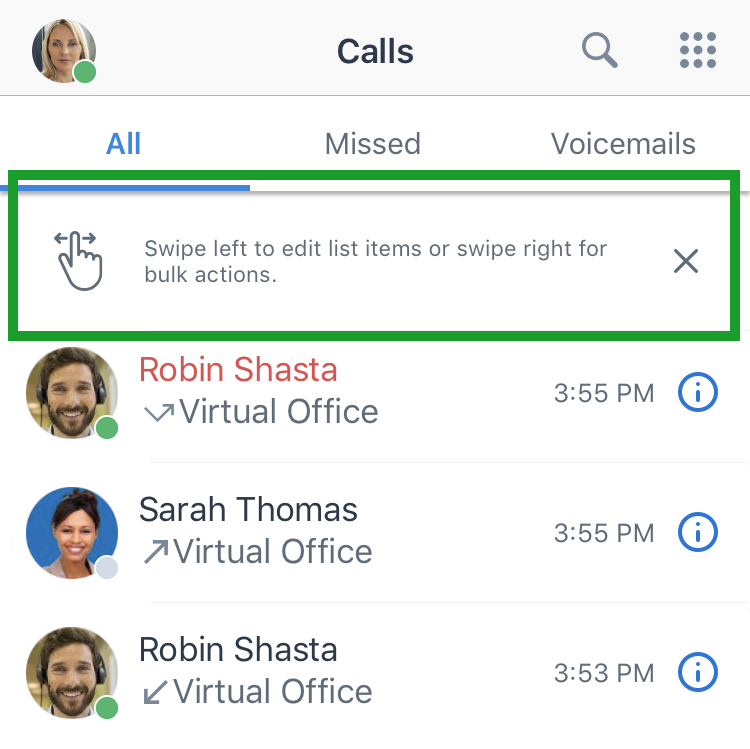
New notifications when cellular data is disabled: If you have disabled cellular data in 8x8 Work for Mobile, you see a banner in the app to let you know that the setting is disabled. You can use this banner to quickly open your settings once your cellular network quality improves.
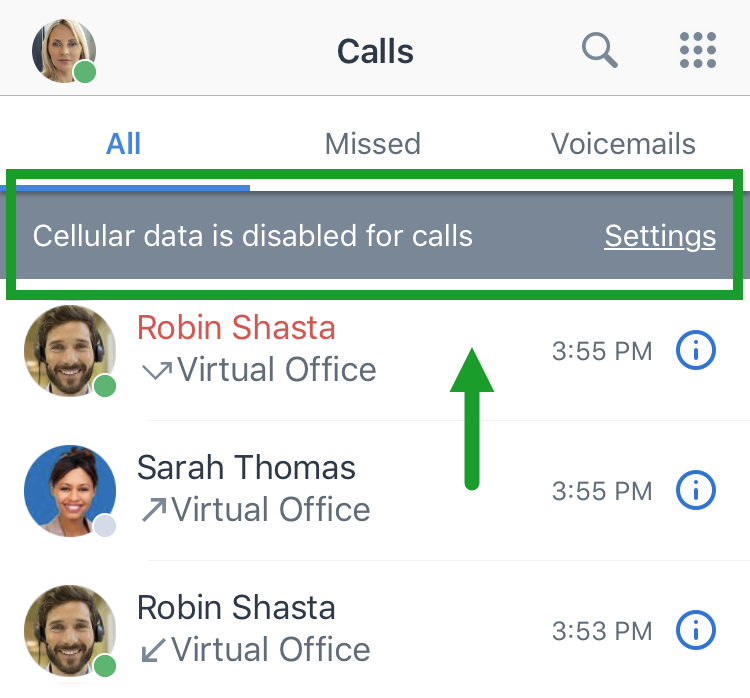
In addition, if people repeatedly try to call you while you have cellular data disabled, 8x8 Work for Mobile notifies you that callers are trying to reach you.
.png?sv=2026-02-06&spr=https&st=2026-11-03T20%3A55%3A08Z&se=2026-11-03T22%3A36%3A08Z&sr=c&sp=r&sig=TSQrVhSpf7clpJXceyK3n684jbrjbEemz0HIXi8QXog%3D)
New notifications for deactivated accounts: If your 8x8 Work account is deactivated and you try to open 8x8 Work for Mobile, you see a notification that your account has been deactivated. Once you dismiss the notification, you are logged out of your account.
Release 7.8
Ability to search for contacts via partial names: When you use the search box, regardless of whether the name you enter is complete, you see a list of search results that narrow down as you type. In addition, if you need to get in touch with a colleague whose name you don't remember completely, you now have the ability to search for a contact by entering independent fragments of their first and last name.
.png?sv=2026-02-06&spr=https&st=2026-11-03T20%3A55%3A08Z&se=2026-11-03T22%3A36%3A08Z&sr=c&sp=r&sig=TSQrVhSpf7clpJXceyK3n684jbrjbEemz0HIXi8QXog%3D)
.png?sv=2026-02-06&spr=https&st=2026-11-03T20%3A55%3A08Z&se=2026-11-03T22%3A36%3A08Z&sr=c&sp=r&sig=TSQrVhSpf7clpJXceyK3n684jbrjbEemz0HIXi8QXog%3D)
Refreshed dial pad interface: The dial pad in your Calls
list, as well as the keypad you access from within a call, now show up with a refreshed interface.
You can now paste numbers more easily by double-tapping the number entry field when it is empty.
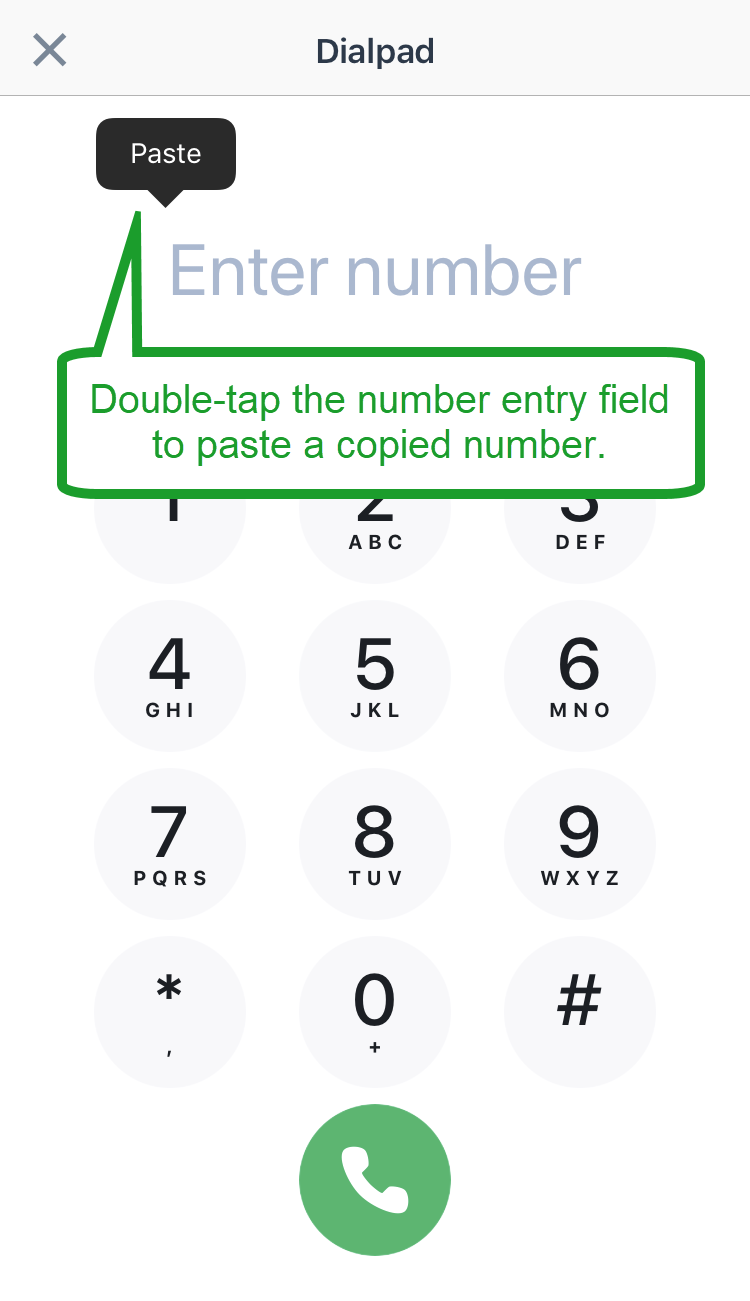
If the number you enter matches the number of a company or personal contact in your contact directory, the name of the matching contact shows up. If you enter a number not associated with any contact, you have the option to save the number as a new contact.
.png?sv=2026-02-06&spr=https&st=2026-11-03T20%3A55%3A08Z&se=2026-11-03T22%3A36%3A08Z&sr=c&sp=r&sig=TSQrVhSpf7clpJXceyK3n684jbrjbEemz0HIXi8QXog%3D)

Ability for organizations to disable voicemail transcripts: If your organization has disabled voicemail transcripts, you no longer see transcripts appear for your voicemails.
Release 7.7
Ability to add companies as contacts without first or last name: If you frequently contact the primary number of another organization and choose to create a contact for it with the Company field filled out, but not the fields for first or last name, the new contact and its company name properly show up in your list of contacts.

Improved conference call controls: While you are in a conference call, the Transfer and Park controls are now disabled to better reflect supported conference call functionality.

Improved call transfer to company contacts: To better enable you to transfer a call to someone in your organization, tapping the Transfer option on a live call now brings you directly to the company directory rather than your list of recent calls.

Enhanced voicemail experience: To improve performance, audio for each voicemail is now downloaded on demand rather than automatically. In addition, you are notified if there was an error during the download.
Messaging improvements: The following enhancements apply to your messaging experience in your Messages
list.Ability to edit your messages: If you paste the wrong content into a chat or spot a sentence-altering typo in a message you sent, you can quickly edit the message to correct it and prevent confusion in the chat. Simply press and hold on a message to bring up a menu, and select the Edit option to begin editing. As you edit and once you finish editing, the timestamp for the message changes to indicate its status as currently or previously edited.

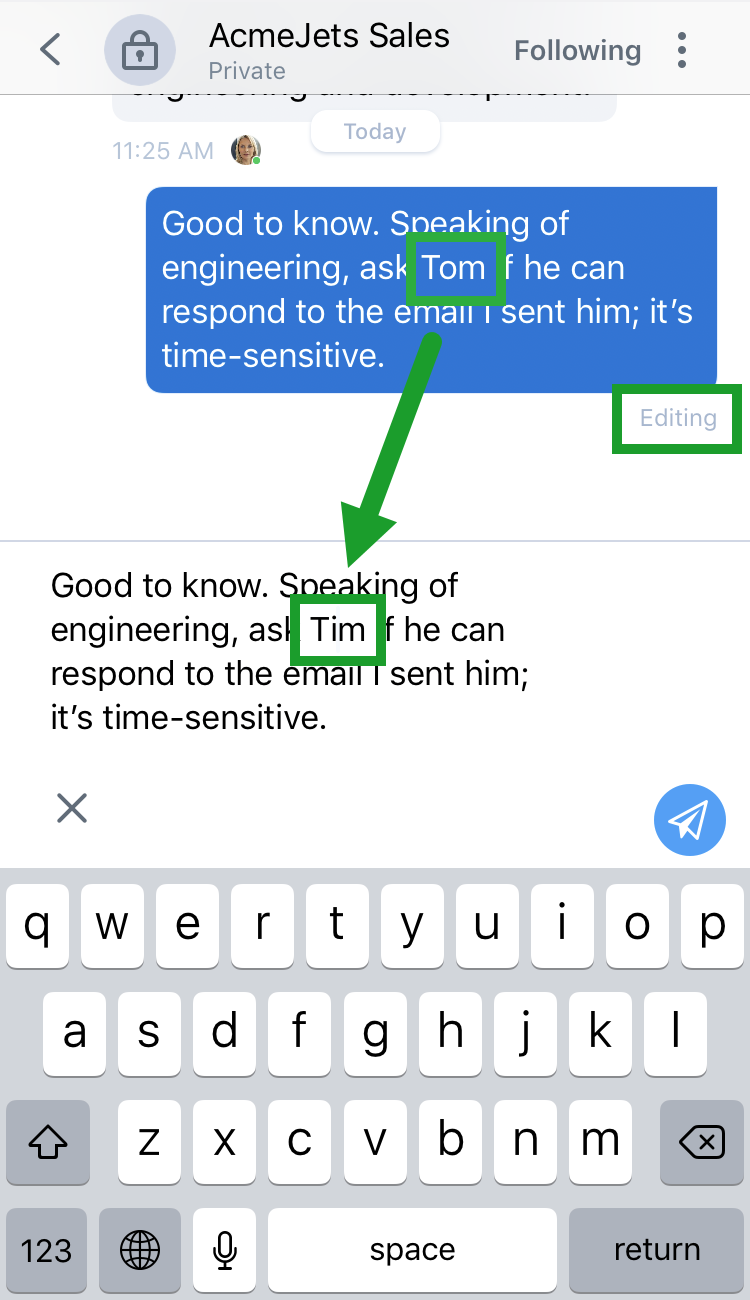
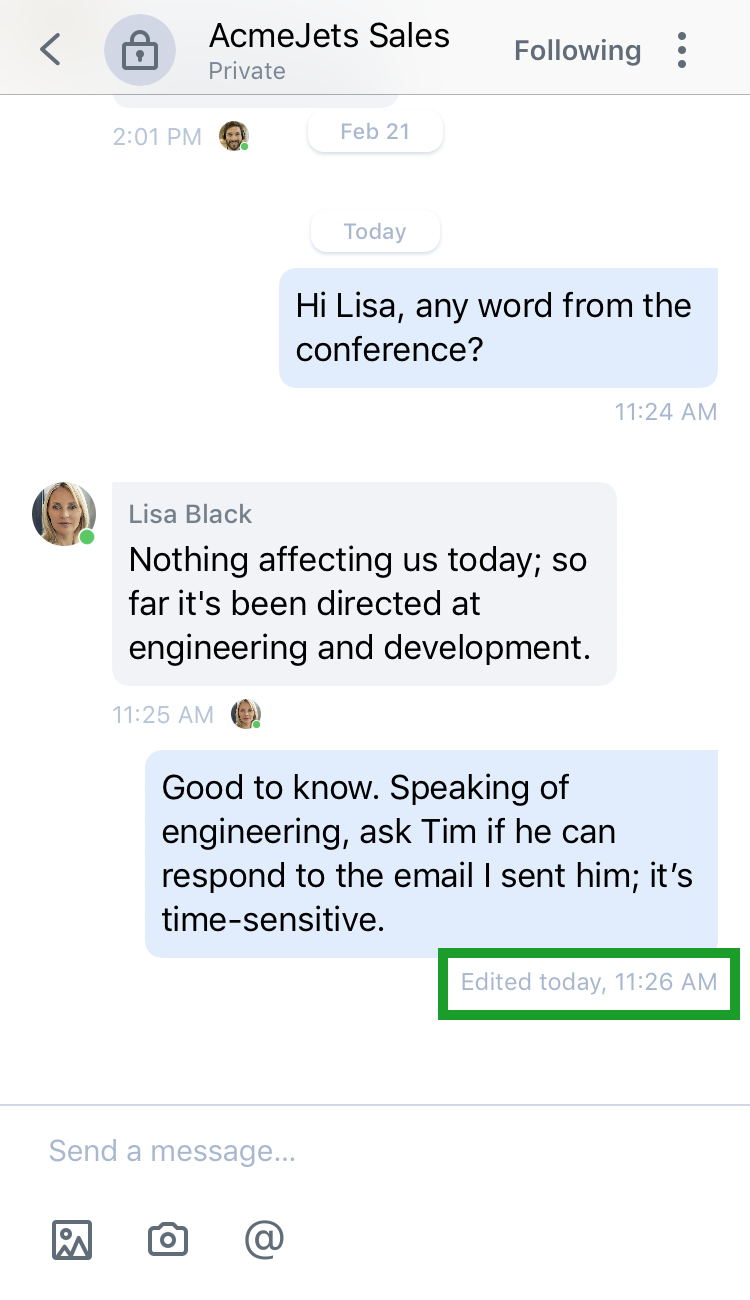
Note:
You can edit IMs with company contacts, but not SMS messages with personal contacts and external numbers.
Ability to delete your messages: If you enter a message into a chat with the wrong contact or group of people, you can delete the message to prevent confusion or distraction in the chat. Simply press and hold on a message to bring up a menu, select the Delete option, and confirm to delete the message. Once you delete the message, the content and timestamp of the message change to indicate that its content has been deleted, and what time the message was deleted.


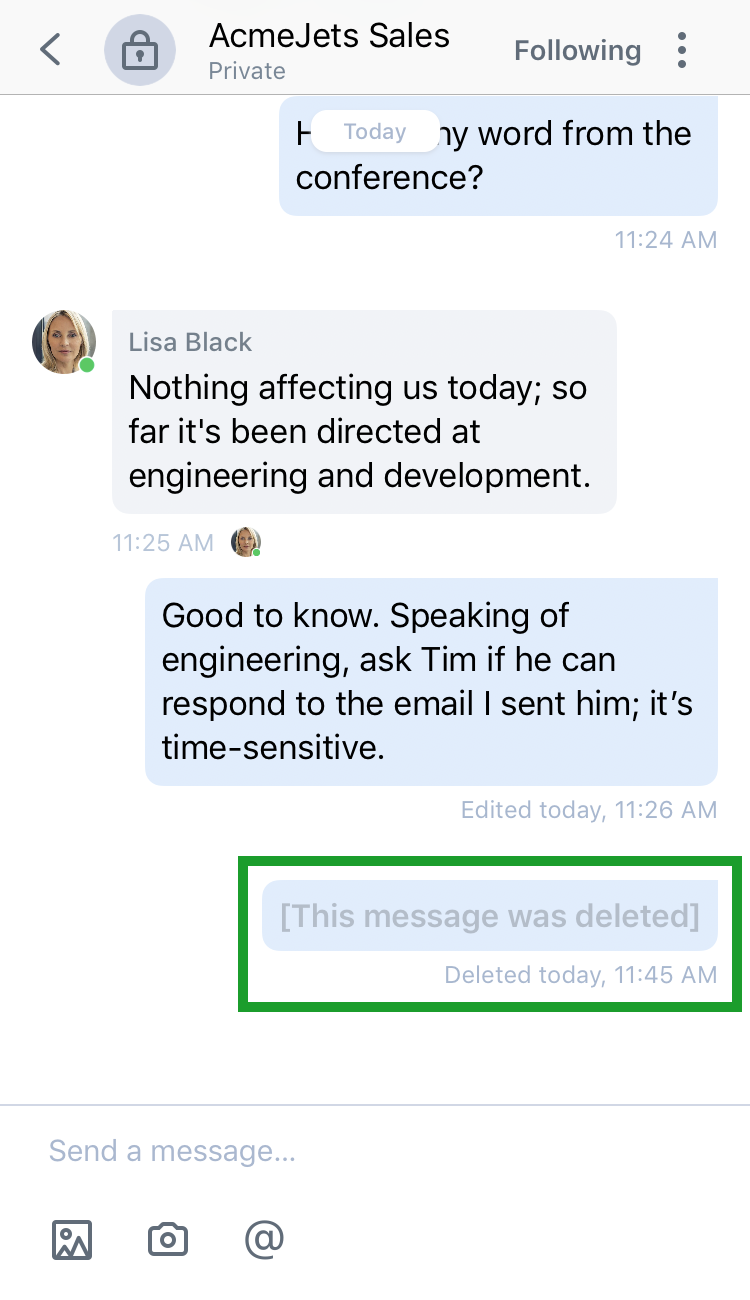
Note:
You can delete IMs with company contacts, but not SMS messages with personal contacts and external numbers.
Improved ability to mention contacts in a room: While chatting in a room, you have quick access to an @ key you can tap without navigating to the @ key in your primary keyboard.
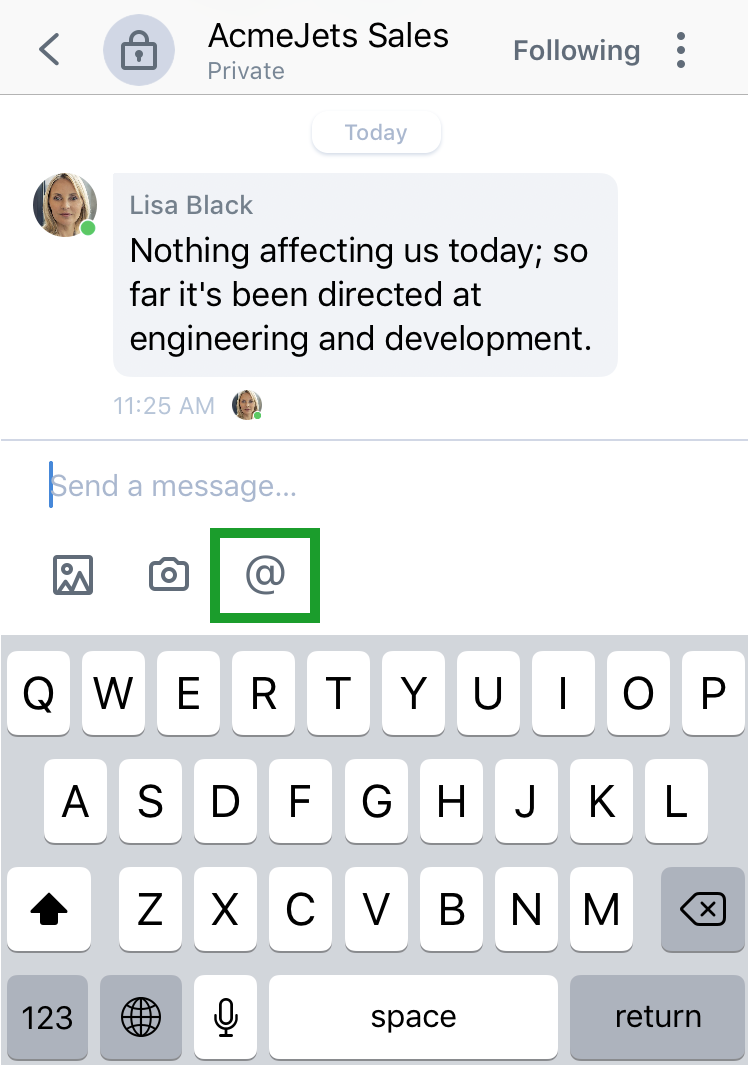
Improved typing indicator in rooms: Your typing indicator tells you when someone is typing in your room, which helps room members avoid stepping on each other's toes while chatting. If multiple people are typing in a room at the same time, this release allows you to see multiple names in the typing indicator at the bottom of the room.
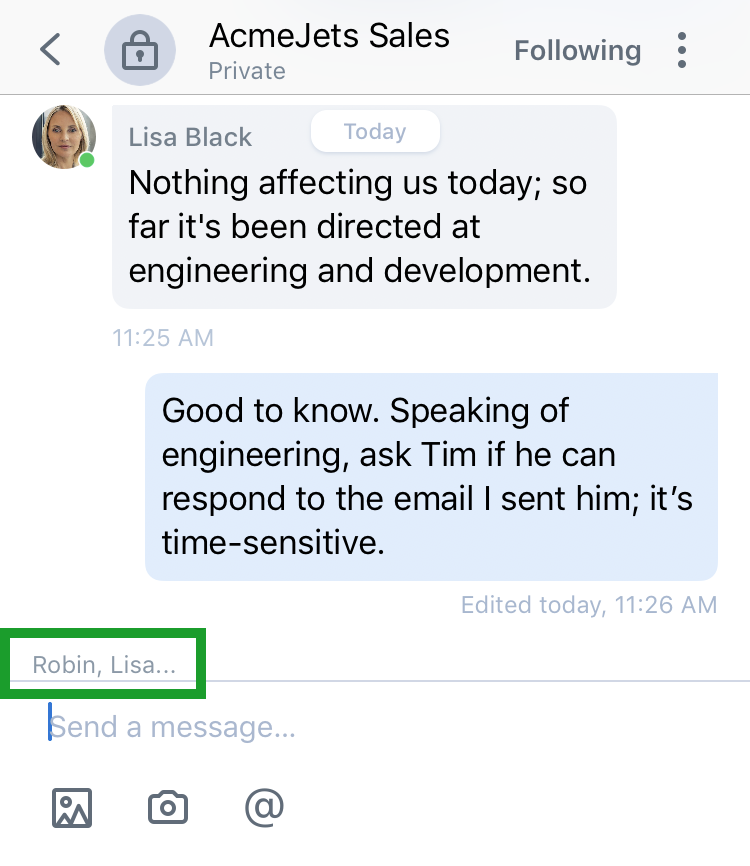
Release 7.6
Notifications for upcoming meetings with synced calendar: Don't miss a single upcoming 8x8 Meet! When you sync your Meetings
list with your device calendar app, you receive device notifications for your upcoming meetings from 8x8 Work for Mobile, ensuring that you stay on top of your schedule. Swipe on the notification and confirm to view options for joining the meeting or reviewing meeting details.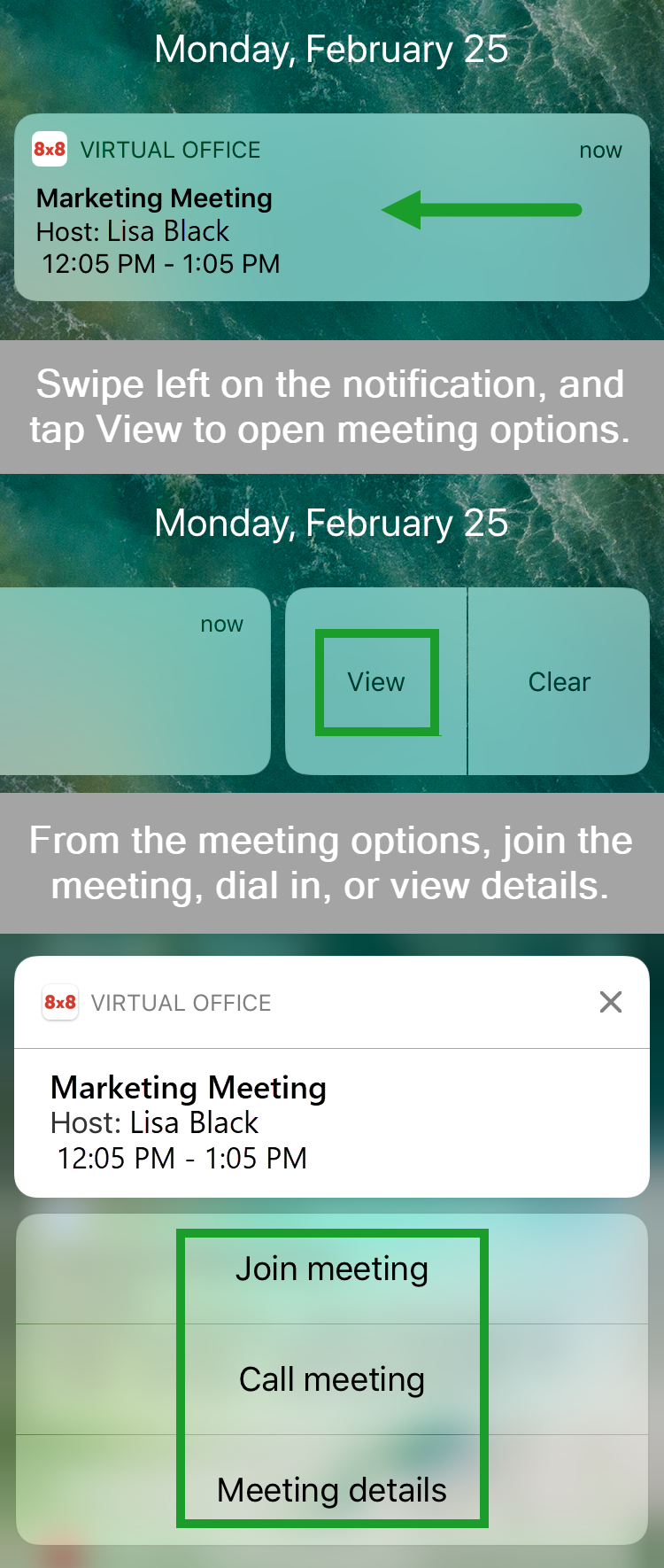
Meeting notifications are controlled via a new setting; to find it, open the More
 screen and go to Settings > Notifications.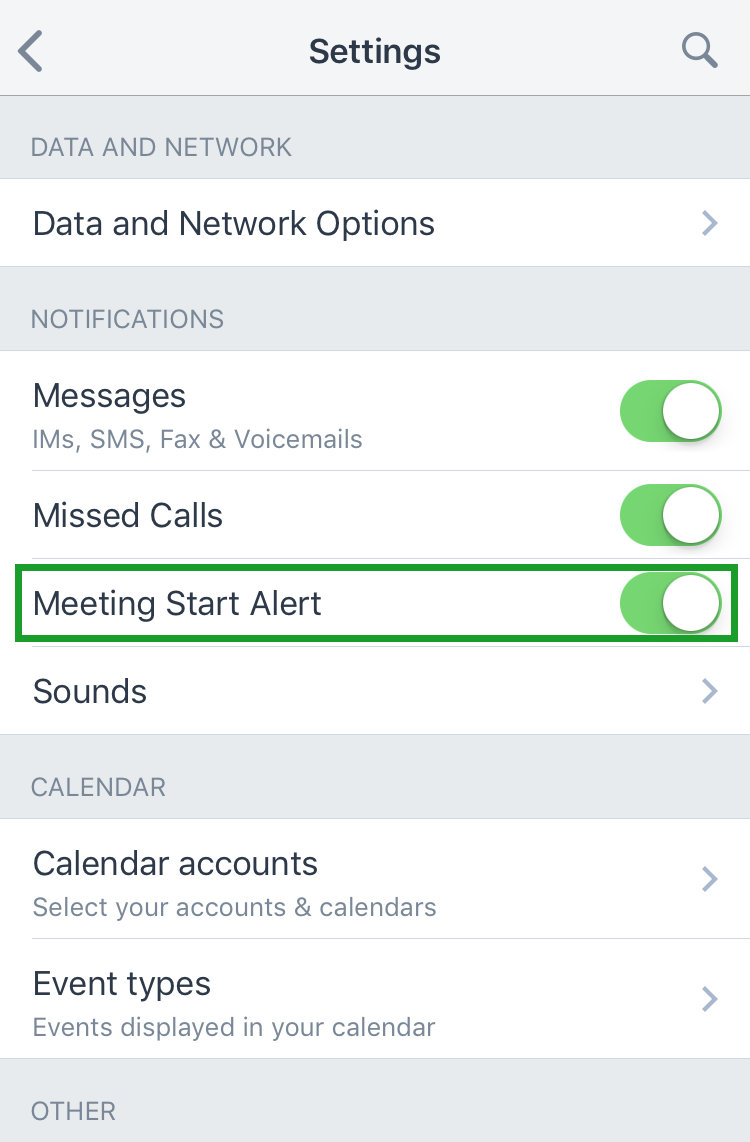
Ability to jump to current day in synced calendar: When you sync your Meetings
list with your device calendar app, you can quickly navigate to today's meetings with a tap of the Today  option, enabling you to quickly find your place in your schedule.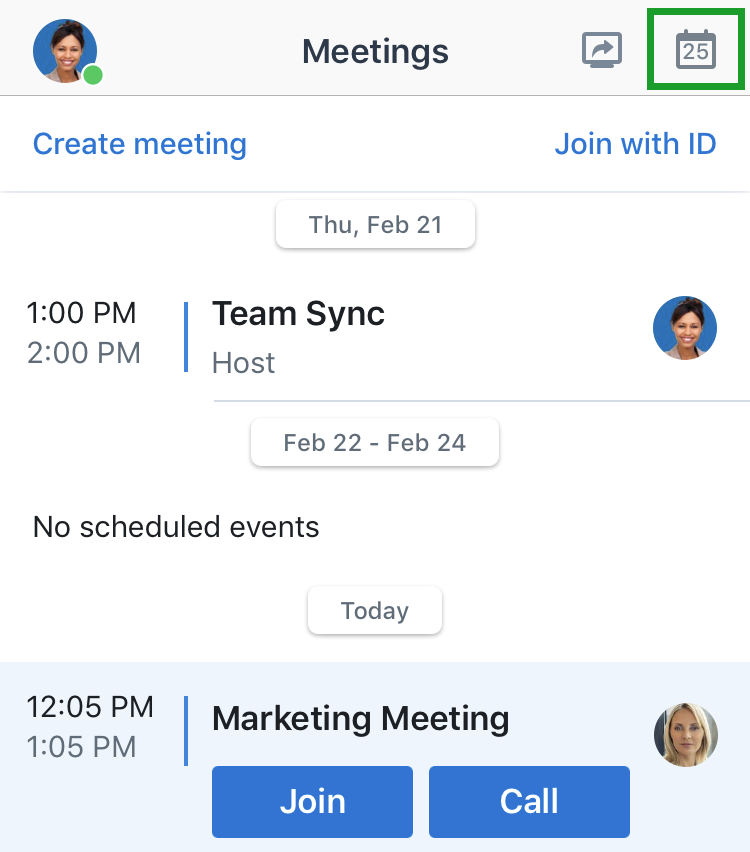
In-chat new message notifications: If you have a chat open when you receive a new message in another chat or room, you see a notification dot appear over the Back
 option. The dot is colored bright orange to indicate a new message in a one-on-one chat, or pale orange to indicate a new message in a chat room. This notification disappears once you go back to your list of messages.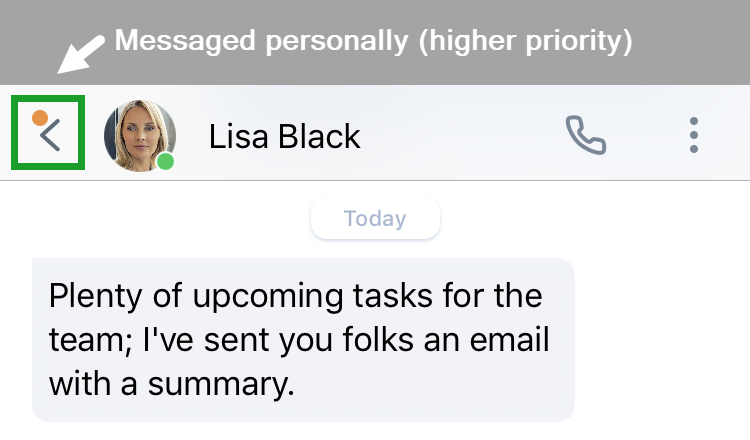
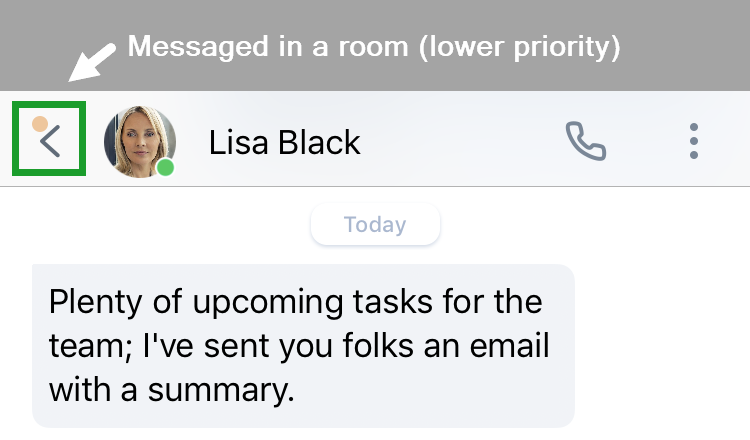
Ability to mark chats as read: You can now easily mark a room or individual chat as read without opening it; this helps you prevent clutter in your chat history if you already know what some conversations in your message list are about. You can mark SMS messages as well, such as spam or messages mistakenly sent to your number.
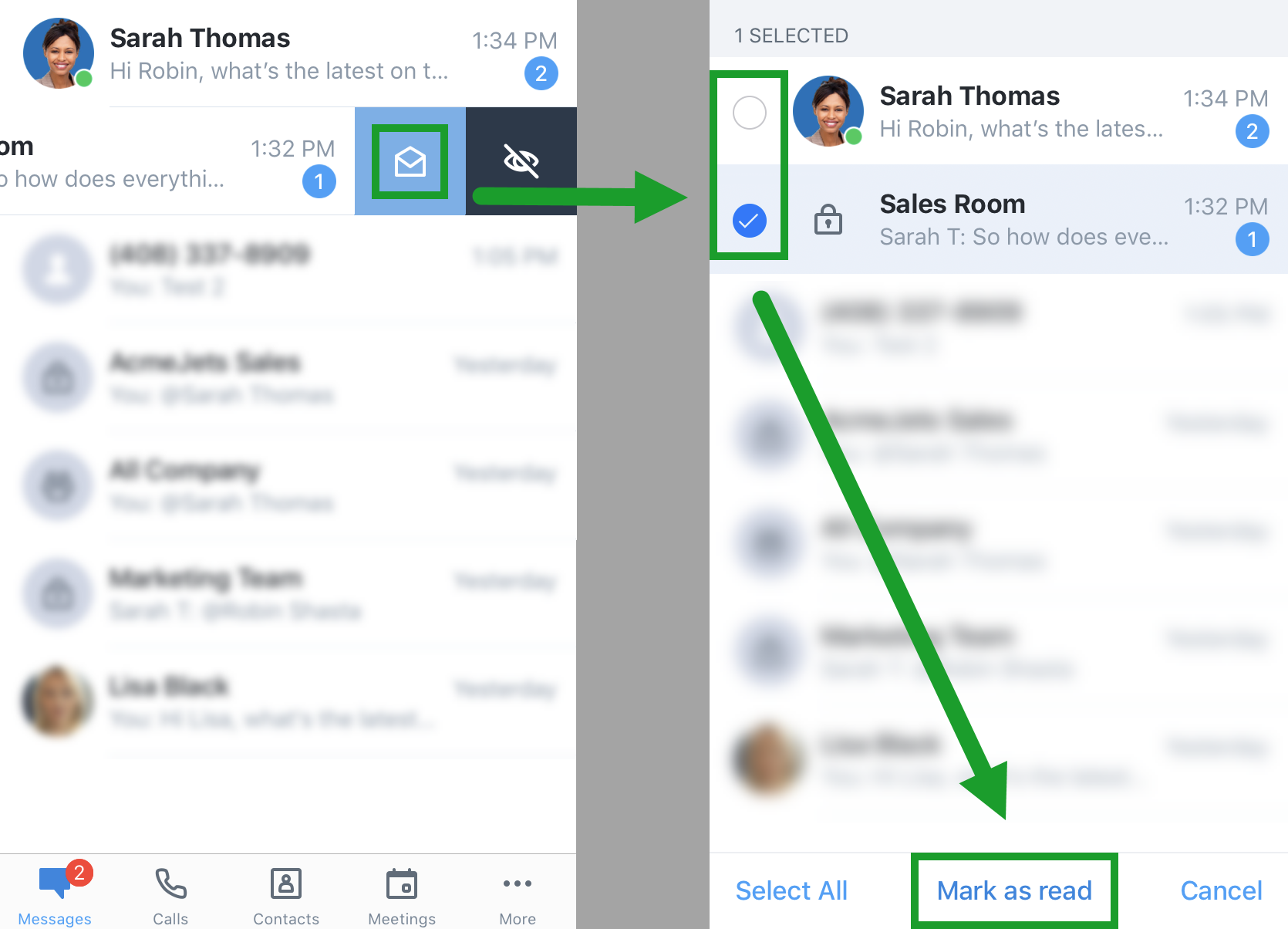
Note:
Marking a chat as read only marks it as read to you; other people in your chats do not see the latest messages as read by you.
Ability to mark messages as unread: Just as with email, you can mark a message within a chat as unread so you can return to it later. If you have yet to get around to an action item that came up in a chat, you now have the ability to mark the message that talks about that item as unread, enabling you to return to the item later.
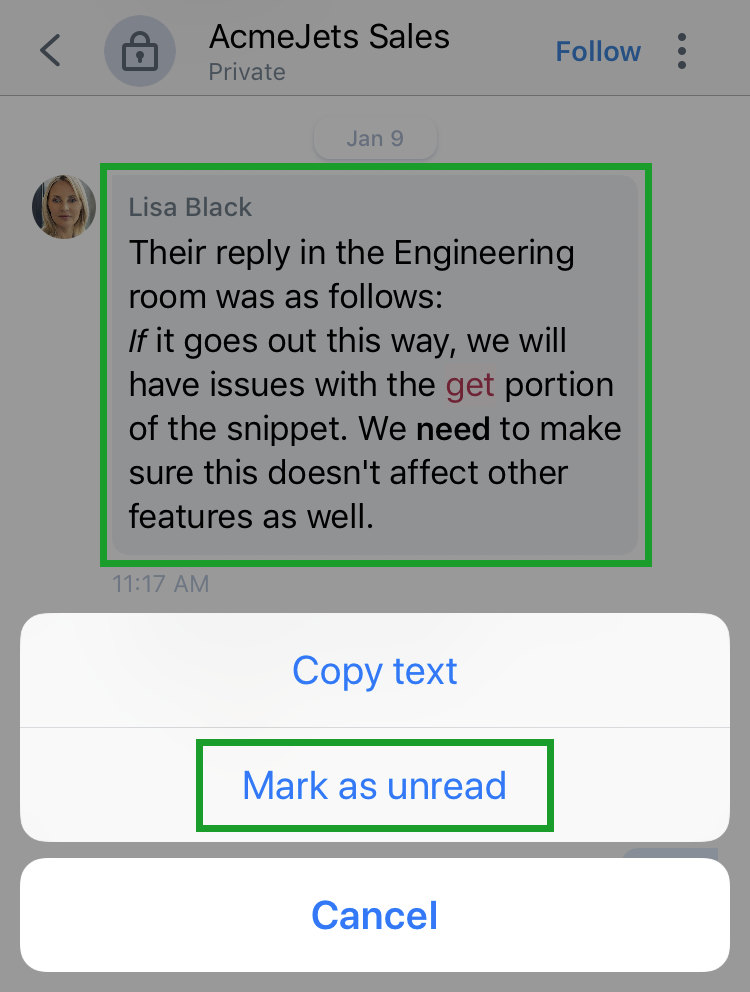
Note:
At this time, reopening an unread chat does not jump to the specific message you marked as unread; the ability to mark the chat as unread simply functions as a way to remind you that something in the chat is on your to-do list.
Ability to copy message text: You now have access to an improved way to copy message text in your conversations without needing to highlight text manually; just press on a message, and select Copy text from the resulting menu to copy the message text to your clipboard, allowing you to paste in any application.
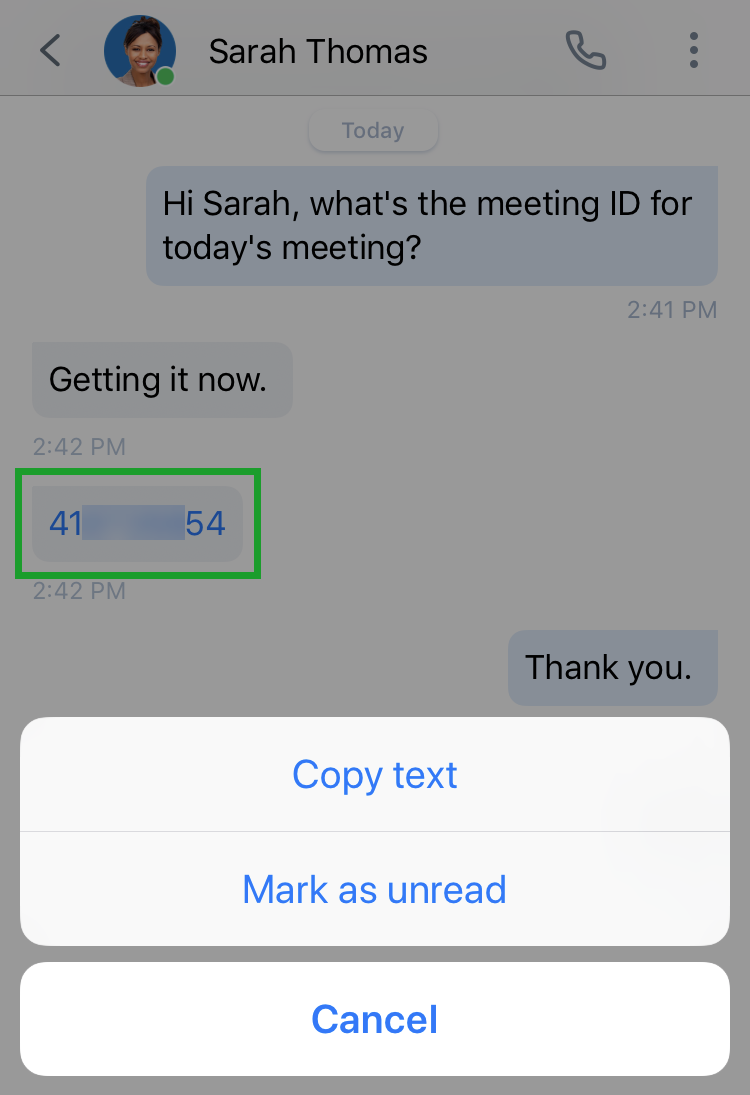
Silent notifications with Do Not Disturb status: When you have the Do Not Disturb status enabled, notifications for messages now show up without playing audio on your device.
Cellular Assist now known as Cellular Minutes: The ability to use your cellular voice plan in addition to your data network for calls has been renamed to be more user-friendly.
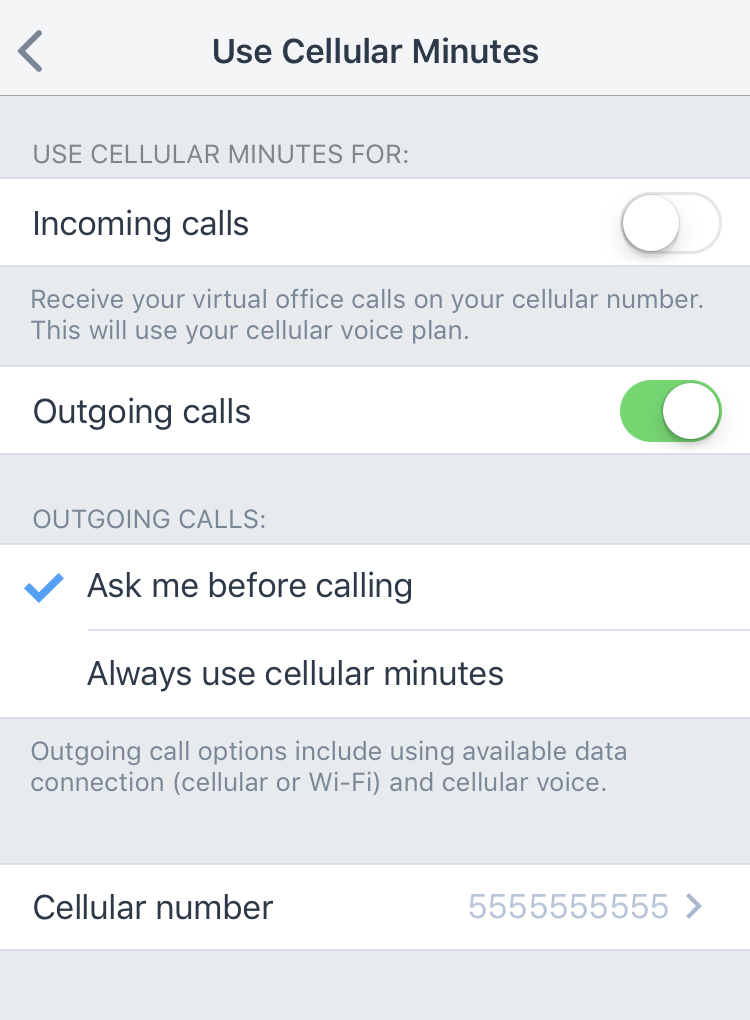
Release 7.5
Calendar view for meetings: At a glance from within 8x8 Work for Mobile, you can review and access all upcoming and past 8x8 Meets scheduled in calendar apps such as Google Calendar. In addition to meetings you host, you can view meetings you are invited to. To sync with your calendar apps, open your Meetings
list, and accept the prompt to sync your calendar.
Ability to promote calls to meetings: Let's say you're on a call with a company contact, or that your call is getting more involved; you can bring the other party into a meeting with one or more of your colleagues who can discuss an important matter with them. When on an 8x8 Work call, you can immediately create a productive 8x8 Meet, and bring the other party into the meeting. If you are talking to two other 8x8 Work users in a conference call, you can also bring both of them into a three-person meeting with you!
Note:
If the other party in the call is taking the call via the following versions of 8x8 Work, they receive and must accept the meeting invite via chat or email, instead of being brought in automatically:
-Version 7.4 or earlier of 8x8 Work for Mobile.
-Version 5.8 or earlier of 8x8 Work for Desktop.Option to silence incoming 8x8 Work calls while staying logged in: When you need to silence your calls, instead of logging out, you can simply enable your Do Not Disturb status; incoming calls are forwarded to voicemail, but you can still receive chat messages in cases of emergency. When you try to log out, you are now able to confirm whether you want to log out, or enable Do Not Disturb instead.
Note:
Calls are forwarded to voicemail by default; if you have changed your call forwarding settings, your calls may be forwarded to another location.
For details, see our content on using the Do Not Disturb status.Consolidated Messages list: To help you stay on top of your latest messages, your individual and team chats now show up directly under your Messages
list in a combined scrolling history, eliminating the need to jump between sub-lists. See at a glance whether you were last messaged in a chat with an individual contact or in a chat room, and prioritize your responses more efficiently!
Renamed Messages list : Your Recents list has been renamed to Messages.
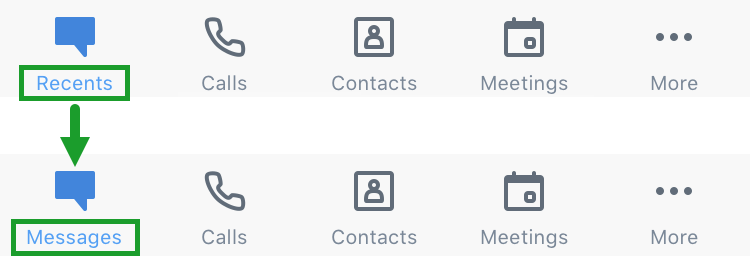
Support for Latin American Spanish localization: We have added localization support for Spanish in Latin America and the Caribbean.
For details, see our content on supported languages for 8x8 Work.
Release 7.4
Announcing Team Messaging: With Team Messaging, collaborate with your colleagues via chat more effectively than ever before! Create chat rooms on demand, stay up to date on your team's latest discussions, bring multiple teams together to collaborate, and much more! Your chat rooms can be found under Rooms in your Recents
list.In our examples, let's say that Sarah's fictitious organization, AcmeJets, uses Team Messaging. Sarah's Sales team (which includes Rob, Lisa, and John) is one of many teams within AcmeJets that can collaborate using Team Messaging, and make use of its features to accomplish tasks more effectively.
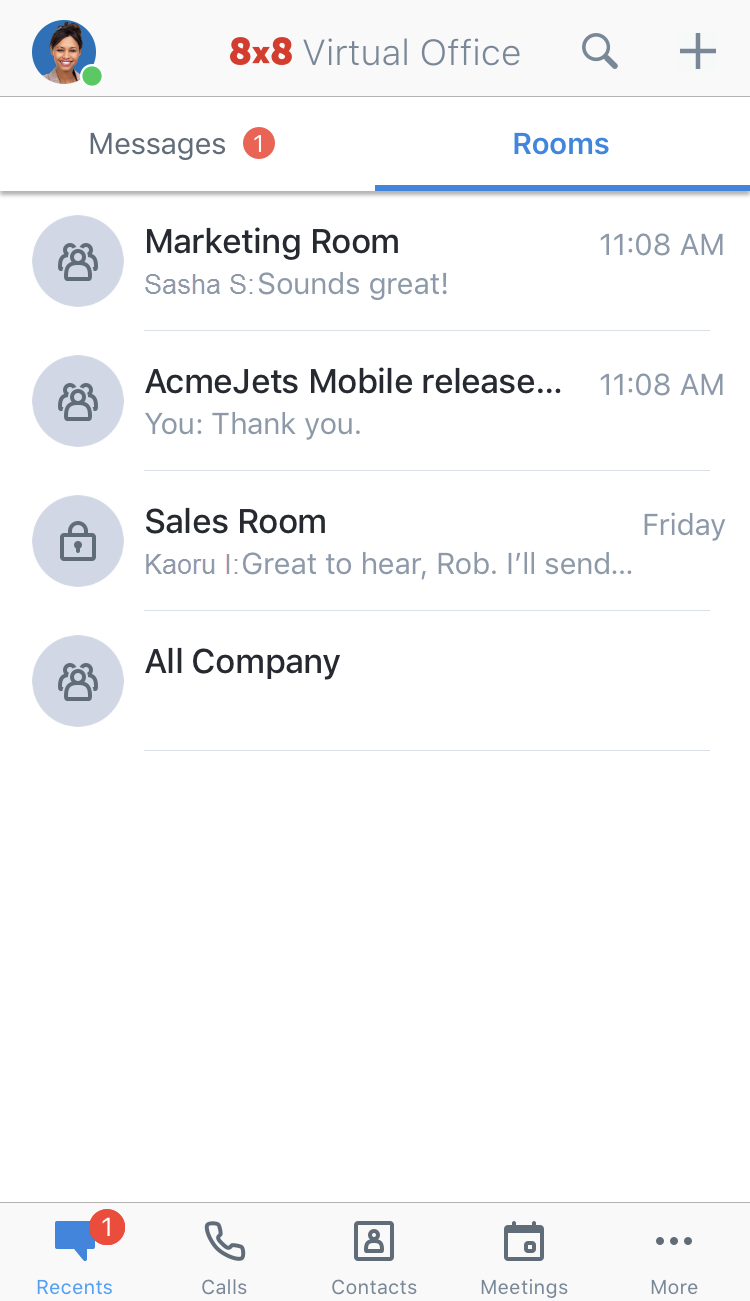
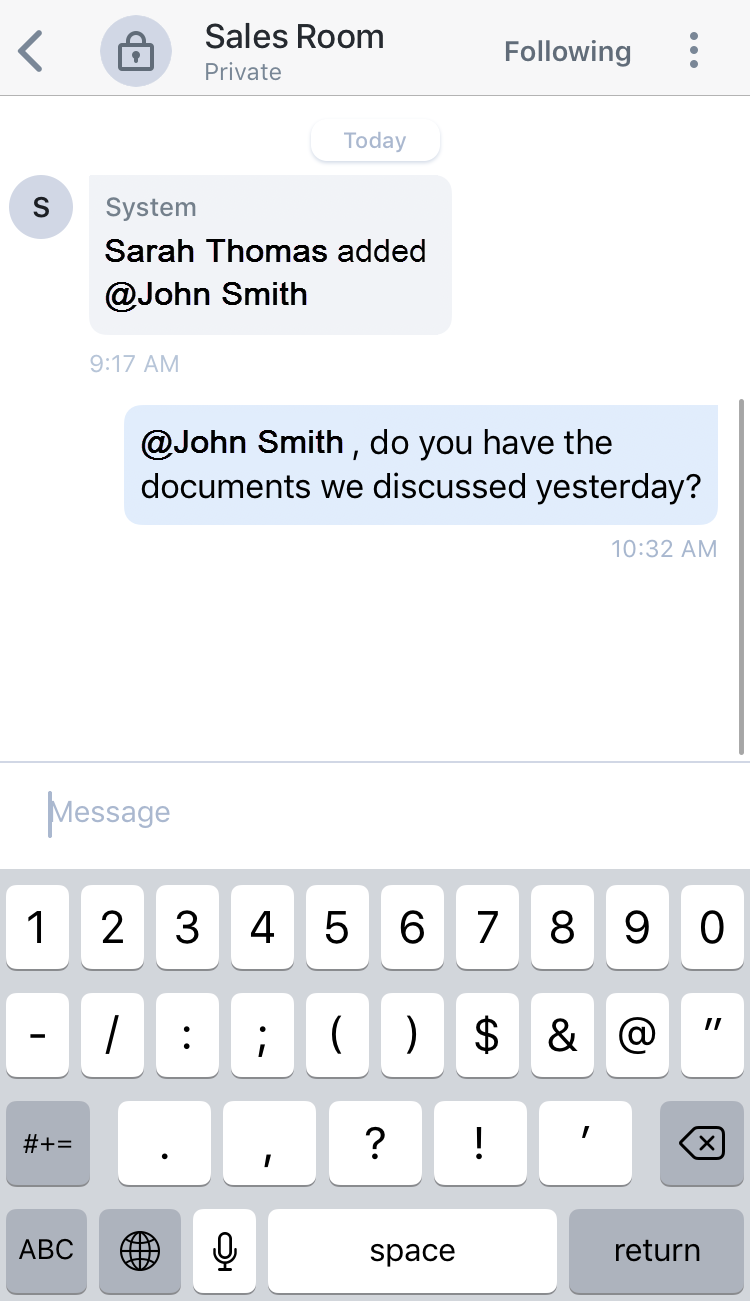
Public and private chat rooms: With Team Messaging, you can create a public room that can be accessed by anyone at any time, or create a private room that is only accessible to certain colleagues. Whether you want to stay up to date with all your colleagues, or share sensitive information with a smaller group, you can do all this and more!
Let's say that Sarah must collaborate with her global team more effectively to ensure that the team meets its goals. The team shares critical information, and holds an ongoing discussion across multiple time zones, which warrants multiple meetings. Sarah doesn't have the time to meet often, so she sets up a private room for her team, and invites all her team members to facilitate communications. Now, her team can discuss and post information in a convenient chat room.
On the other hand, Sarah is also collaborating on a public release where she is one of many core team members tracking the progress of the release. To stay up to date, all core team members follow a public chat room created exclusively for the release.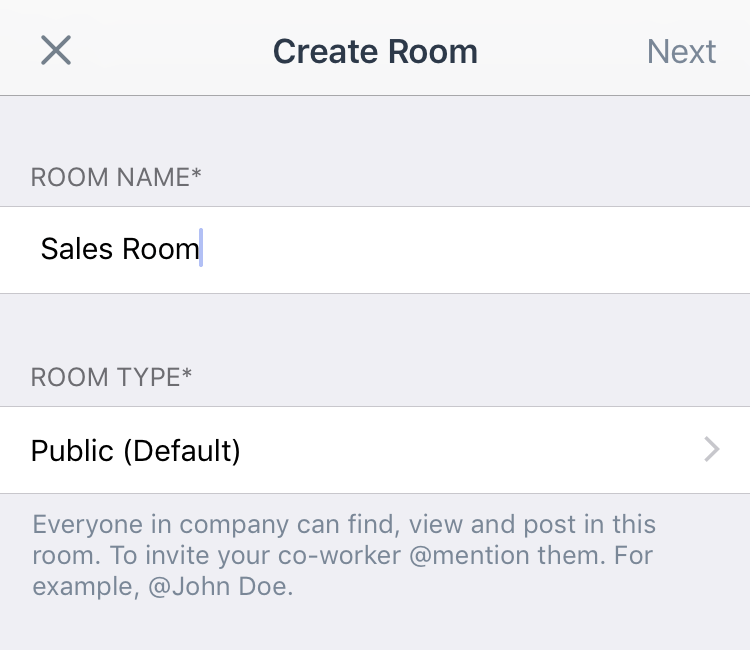
Ability to invite colleagues to private chat rooms: As a member of a private room, you can invite colleagues relevant to the conversation to bring them into your discussions; a fully-collaborative experience allows any member of a private room to invite a new member.
Note:
For added security, an invited colleague has access to the chat history of the private room starting with the time they were invited.
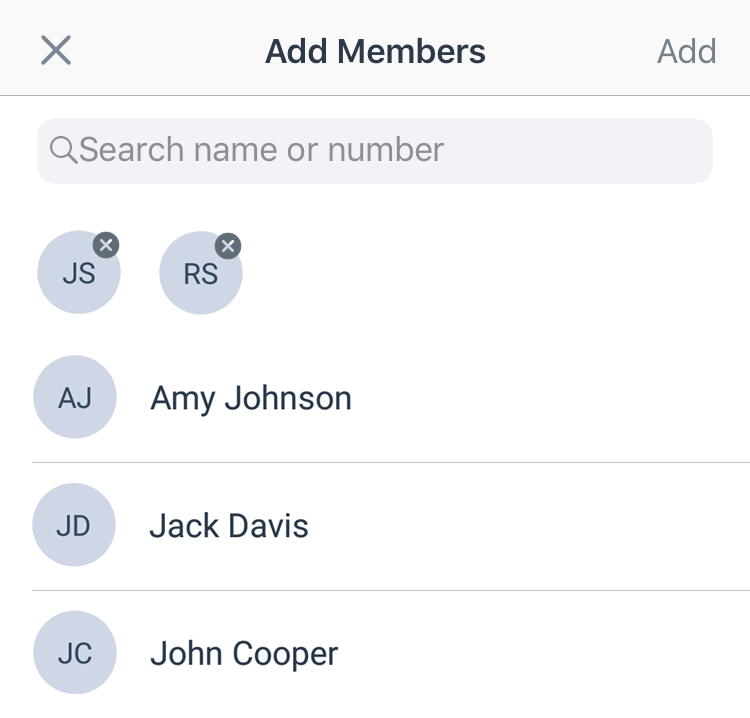
Ability to mention colleagues to get their attention: If you need to alert a group member on a release deadline, ask for their input on your current discussion, or bring a new person into a public chat room, you can get their attention at any time by simply typing <@> before their name (for example, <@John Smith>). In a public room, you can @mention any of your company contacts, while in a private room, you can only @mention colleagues who are members of the room.
John, a Sales agent in Sarah's team, needs to send his manager Sarah a brief spreadsheet on the sales progress for the customers he is negotiating with; as John's deadline approaches, Sarah can alert him via @mention to make sure he is on schedule with the document.
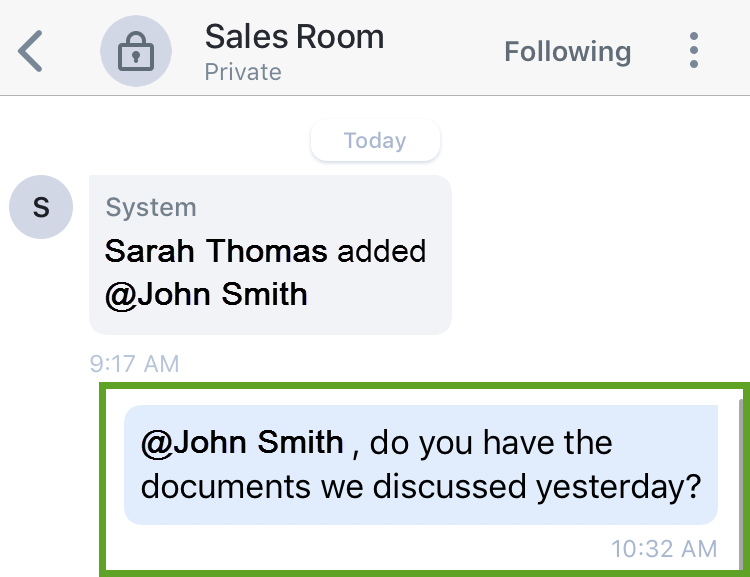
When you are @mentioned in a chat room, you receive a special notification with an @ label to indicate that a colleague is requesting your attention in a chat room.
Notifications for messages and changes: Has your chat room been renamed, or have new colleagues been invited to your private chat room? Whenever something about a chat room changes, you are notified in your chat history for that room. In addition, you can choose to be notified of all messages in a room to stay up-to-date, or reduce interruptions when you are busy by choosing to be notified only when you are mentioned.
Let's say that the Acmejets Sales team is hiring new agents; as new agents are hired, Sarah or another person in her team can add them to her team's private chat room. Whenever a new agent is added to the chat room, existing members of the chat room are notified that their new colleague has access to the team's discussions.
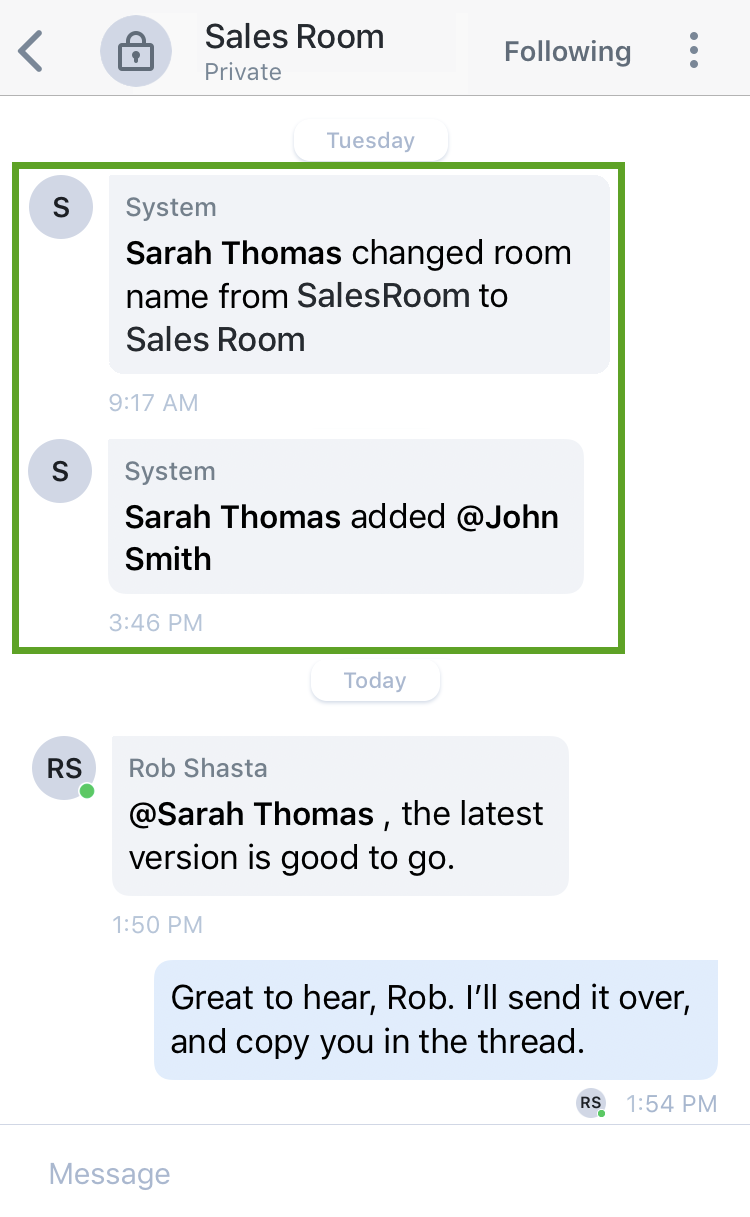
Quick access to chat room details: By opening the details page of a chat room, you can see the room type and name, as well as the member list for a private room.


Ability to hide conversations from your personal chat history: If you want to clean up old business messages and SMS spam messages from your chat history, you can simply hide them on your end. When you hide a chat room or conversation, you do not delete it; other people involved in the hidden chats still see the conversations and chat rooms in their chat history.
Note:
You can hide chat rooms and chat conversations with individuals, but you cannot hide specific messages within a chat conversation or chat room.
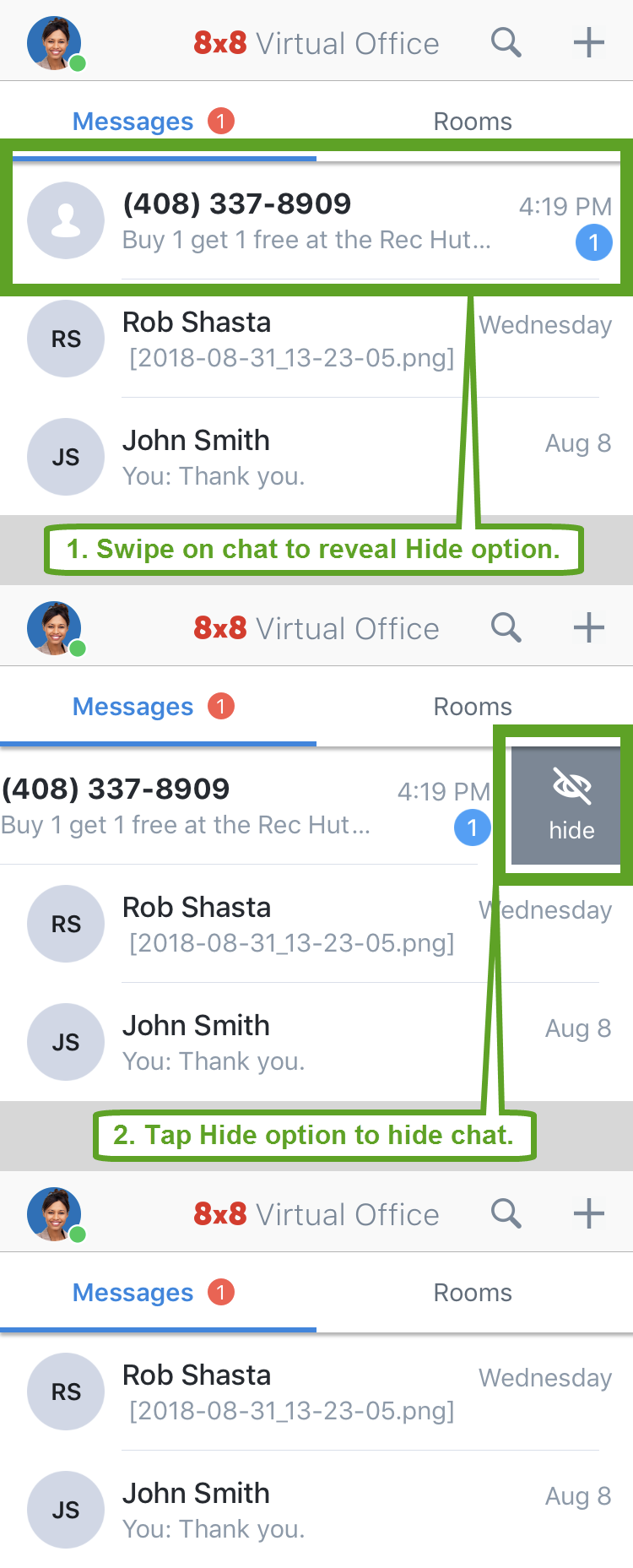
File attachment access from chats: If a colleague attaches a file or image in a chat from 8x8 Work for Desktop, you can quickly view and access these files by tapping them in the same chat from 8x8 Work for Mobile.
Note:
At this time, you cannot attach a file or image in a chat from 8x8 Work for Mobile.
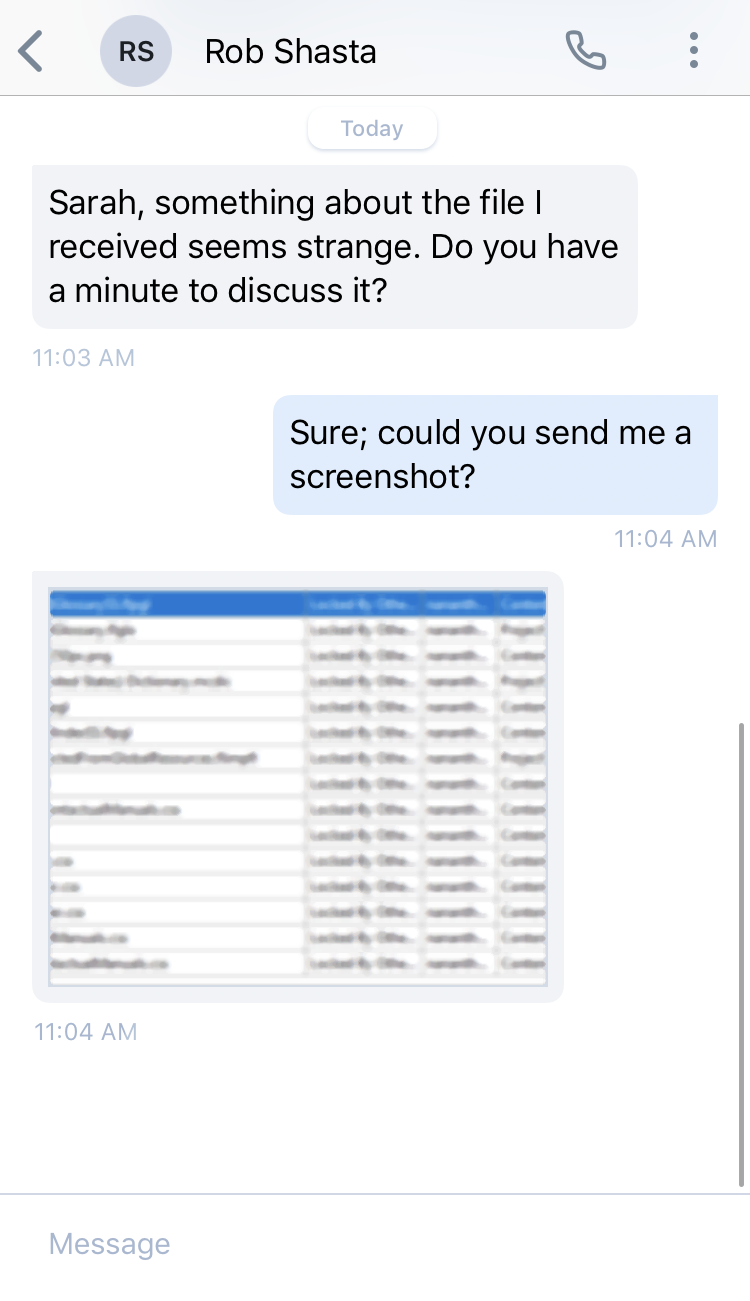
Streamlined Meetings list: Enjoy a new experience in your Meetings
list! With a tap, access and stay on top of your meetings, and collaborate more effectively. When you open the screen, you always see your list of meetings first; you can then choose to open a listed meeting, create a new meeting, or join a meeting using a Meeting ID.
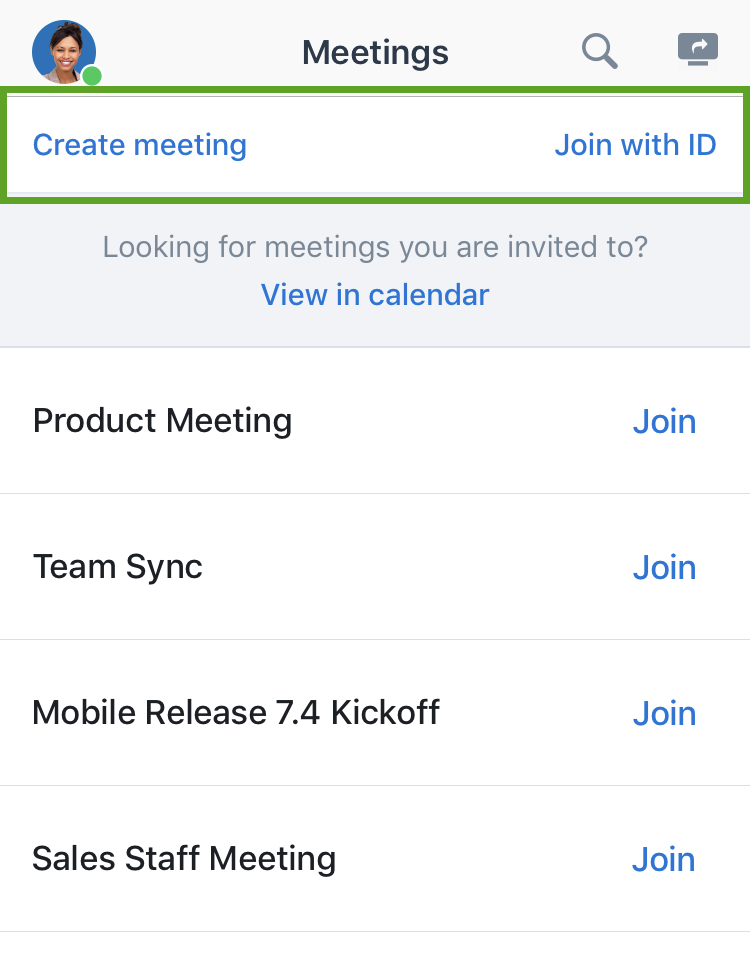
Release 7.3
Enhanced feedback experience: When you send feedback, you can now attach additional screenshots of the app from your device to better illustrate your feedback, or remove any screenshots that may present a privacy concern.
Improved number formatting: Enjoy a smoother experience when calling back numbers of any format from within a call log.
Renamed Recents list: Your Messages list has been renamed to Recents.
Announcing upcoming team messaging: In an upcoming release, take advantage of the new and improved team messaging experience!